1. HWA
  2. Help centre
  3. Support requests
All areas

Support requests

#How do I write to HWA support?

  • Families
  • Schools
  • Web

Open Support in the menu and click New request. First we ask you to describe your question to look for an answer (Is it already answered?); if none helps, click None of these helped and continue. Choose the topic (What is it about?), write the Subject and Describe what happened, and send with Send request.
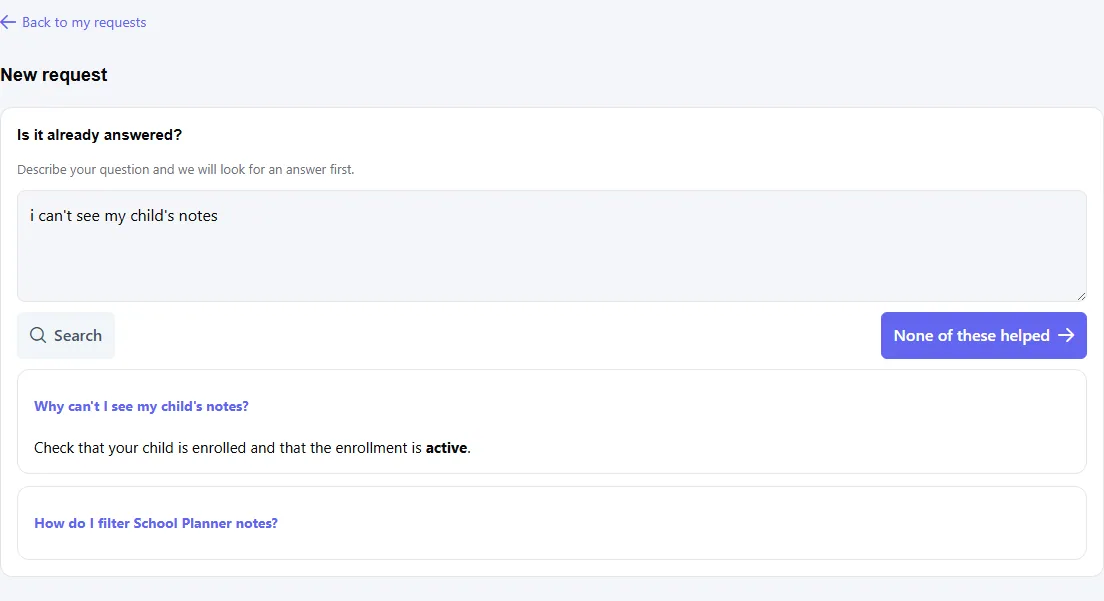
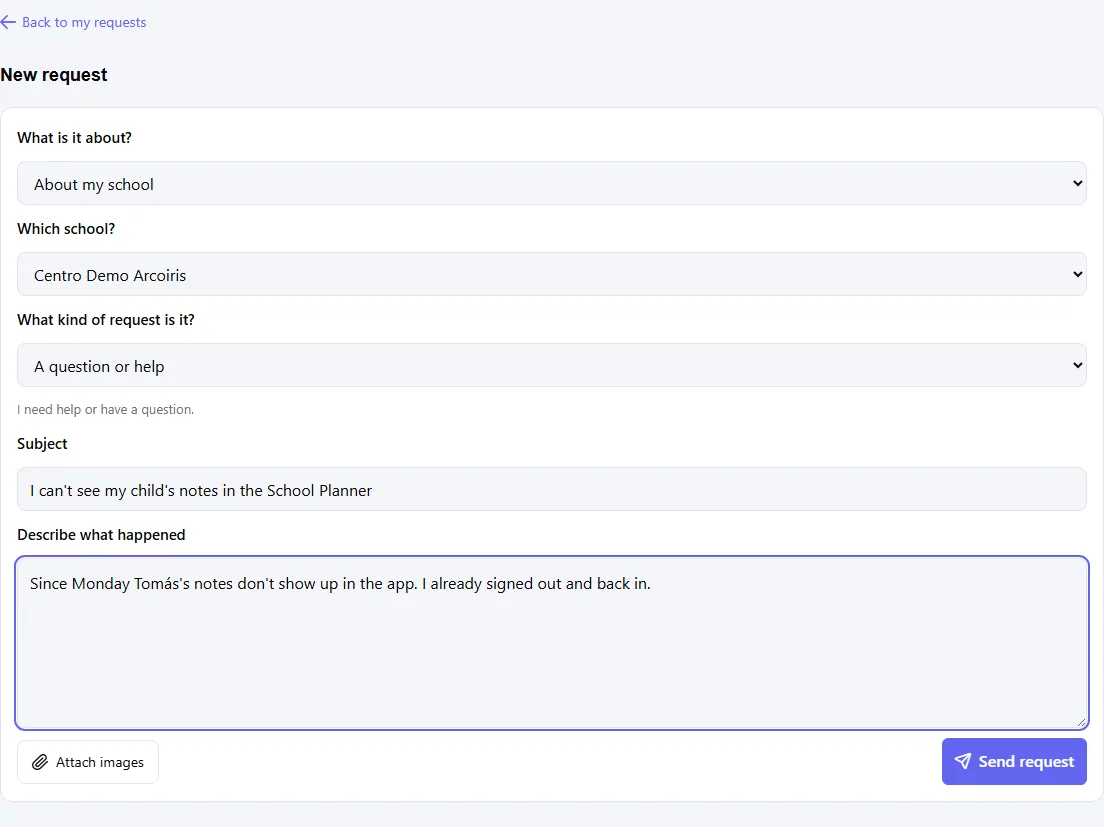
  • Screenshot: How do I write to HWA support?
  • Screenshot: How do I write to HWA support?

#Which topic and which school do I choose?

  • Families
  • Schools
  • Web

The topics are Sign-in and access, Something is not working, About my school, Billing and subscription and Something else. If you choose Something else, say in a few words what it is about.

If the request is about a school, pick it in Which school?; otherwise leave None / not about a school. Only the topics and schools available to your account appear.

  • Screenshot: Which topic and which school do I choose?

#What is What kind of request is it? and which do I pick?

  • Families
  • Schools
  • Web

If you just have a question, leave A question or help. The other options are:

  • A petition: you ask for an action or for information.
  • A complaint: you are unhappy with how you were treated or with someone's conduct.
  • A claim: about a product, service, charge or right you believe was not honoured.
  • A suggestion: you propose an improvement.
  • My personal data: you want to know, correct or delete your data.
  • Screenshot: What is What kind of request is it? and which do I pick?

#Can I attach screenshots?

  • Families
  • Schools
  • Web

Yes, with Attach images, as JPG, PNG or WebP. If one does not fit you will see which one and why: unsupported, empty or over the size limit; the screen also shows how many you can attach. To drop one, use Remove.

If your request was sent but an image failed, you will see Your request was sent, but some images could not be attached: add them in a reply after Open my request.

  • Screenshot: Can I attach screenshots?

#How do I follow my request, and what do the statuses mean?

  • Families
  • Schools
  • Web

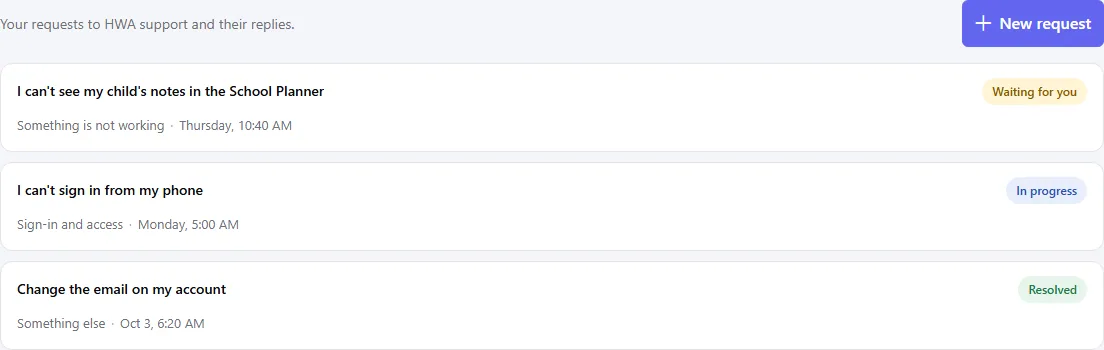
In Support you see Your requests to HWA support and their replies. Each has a status:

  • Received: we have it, not worked on yet.
  • In progress: we are working on it.
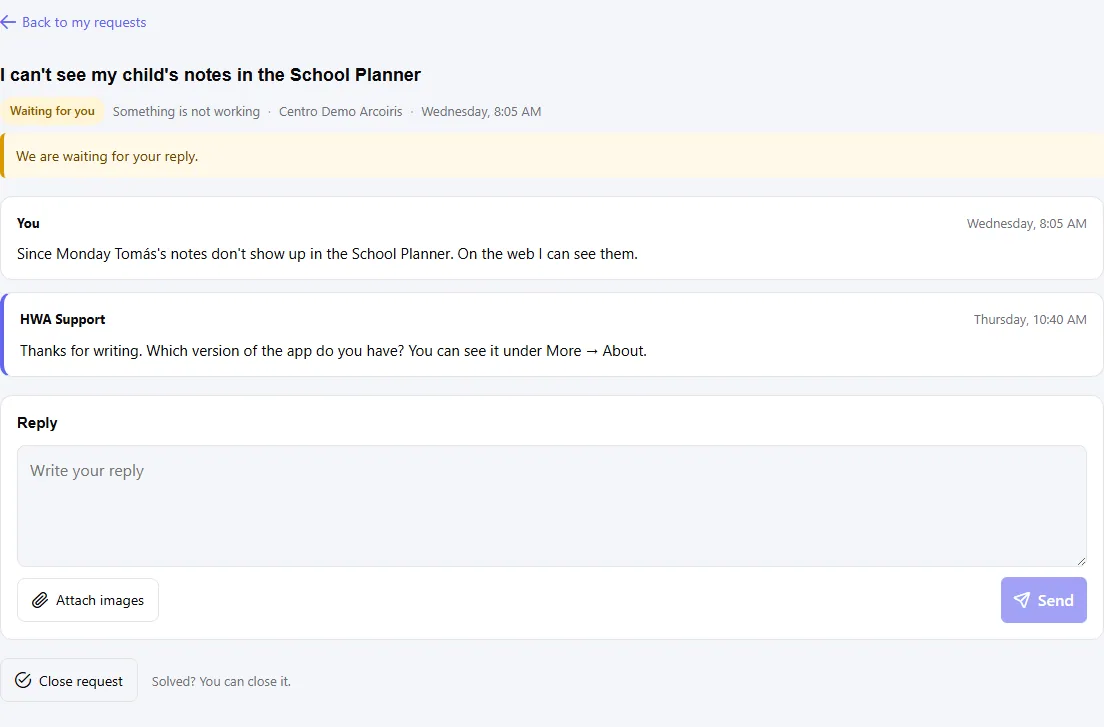
  • Waiting for you: we need information from you; you will see We are waiting for your reply.
  • Resolved and Closed: finished.

To answer, write in Reply and click Send. Replying will reopen this request, even if it was closed. We notify you of each reply by notification and email.

  • Screenshot: How do I follow my request, and what do the statuses mean?
  • Screenshot: How do I follow my request, and what do the statuses mean?

#It is solved. How do I close the request?

  • Families
  • Schools
  • Web

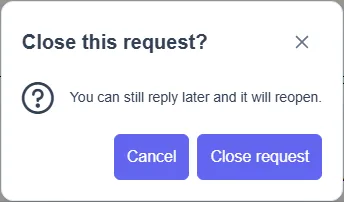
Open the request (Solved? You can close it.) and click Close request; confirm at Close this request?. You can still reply later and it will reopen.

Closing the ones you no longer need also avoids the message You have too many open requests. Please wait for a reply or close one.

  • Screenshot: It is solved. How do I close the request?
  • Screenshot: It is solved. How do I close the request?

#I opened a support link and it says the request cannot be found

  • Families
  • Schools
  • Web

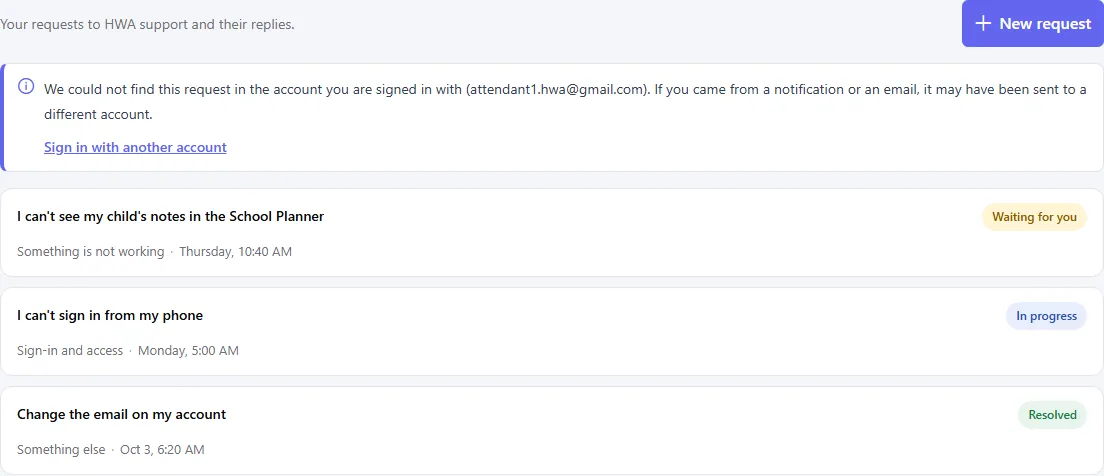
You will see We could not find this request in the account you are signed in with along with that account's email. It usually means the reply was sent to a different account of yours. Click Sign in with another account and try the right one.

  • Screenshot: I opened a support link and it says the request cannot be found

Other areas