1. HWA
  2. Help centre
  3. Notices
All areas

Notices

#What are Notices and where do I find them?

  • Families
  • Schools
  • Mobile app
  • Web

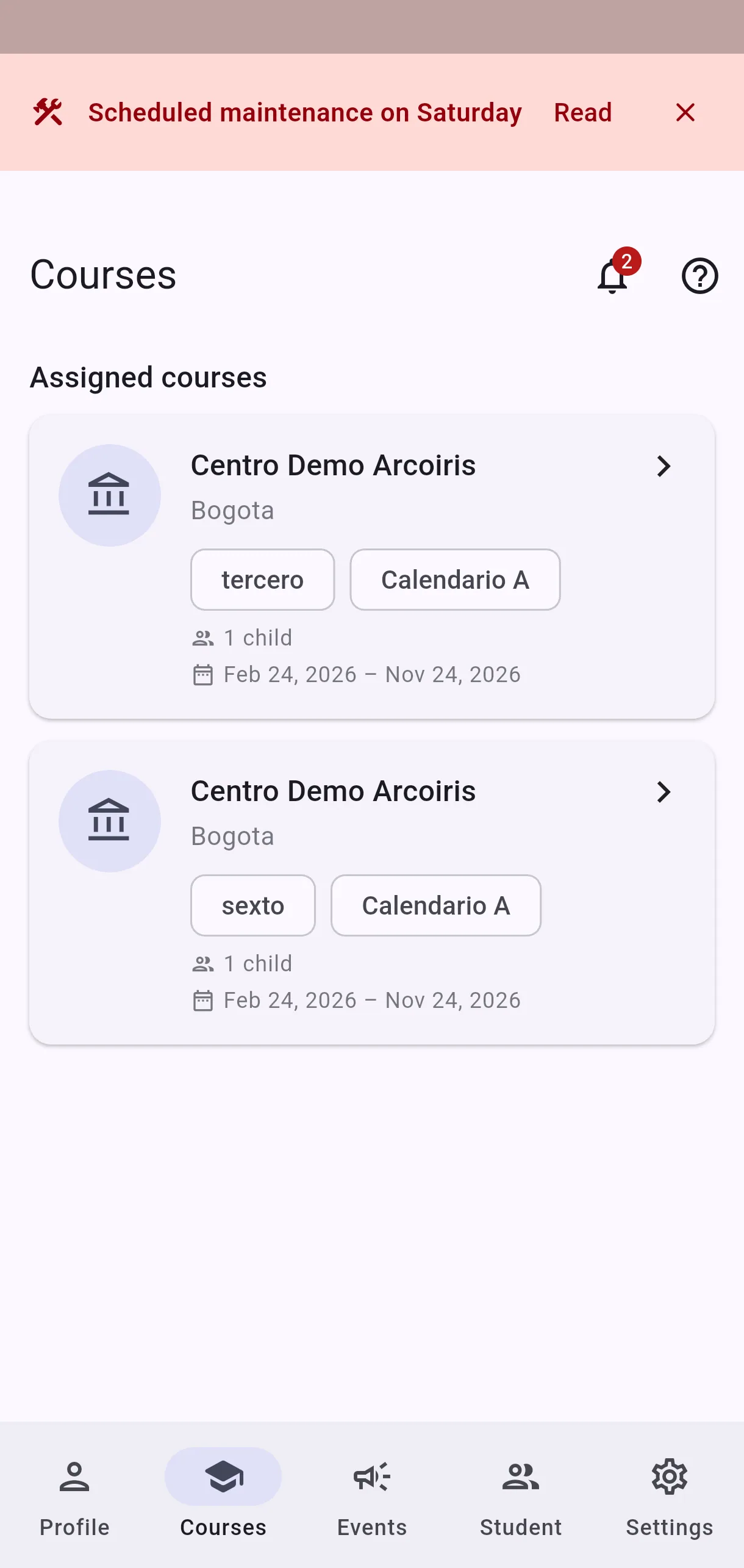
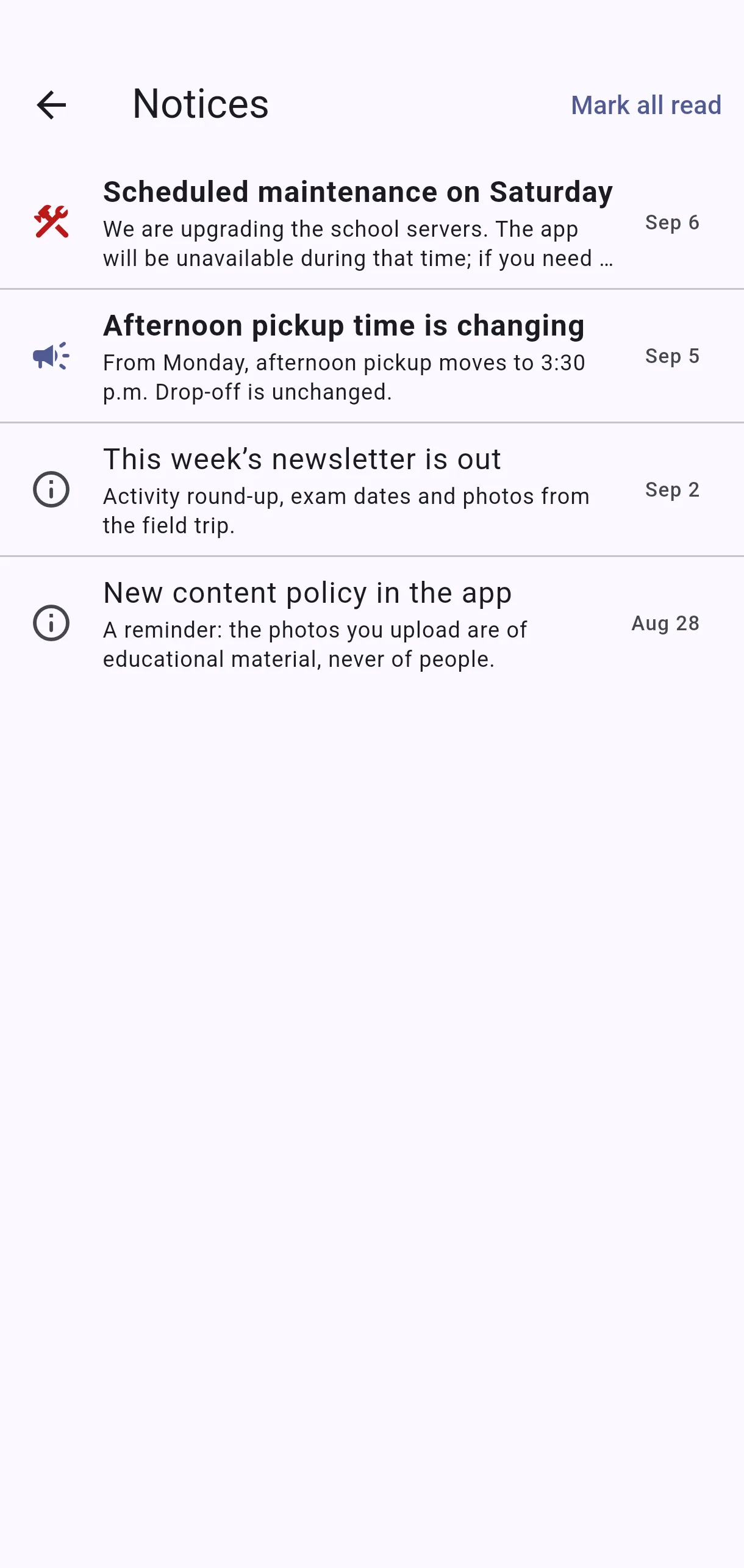
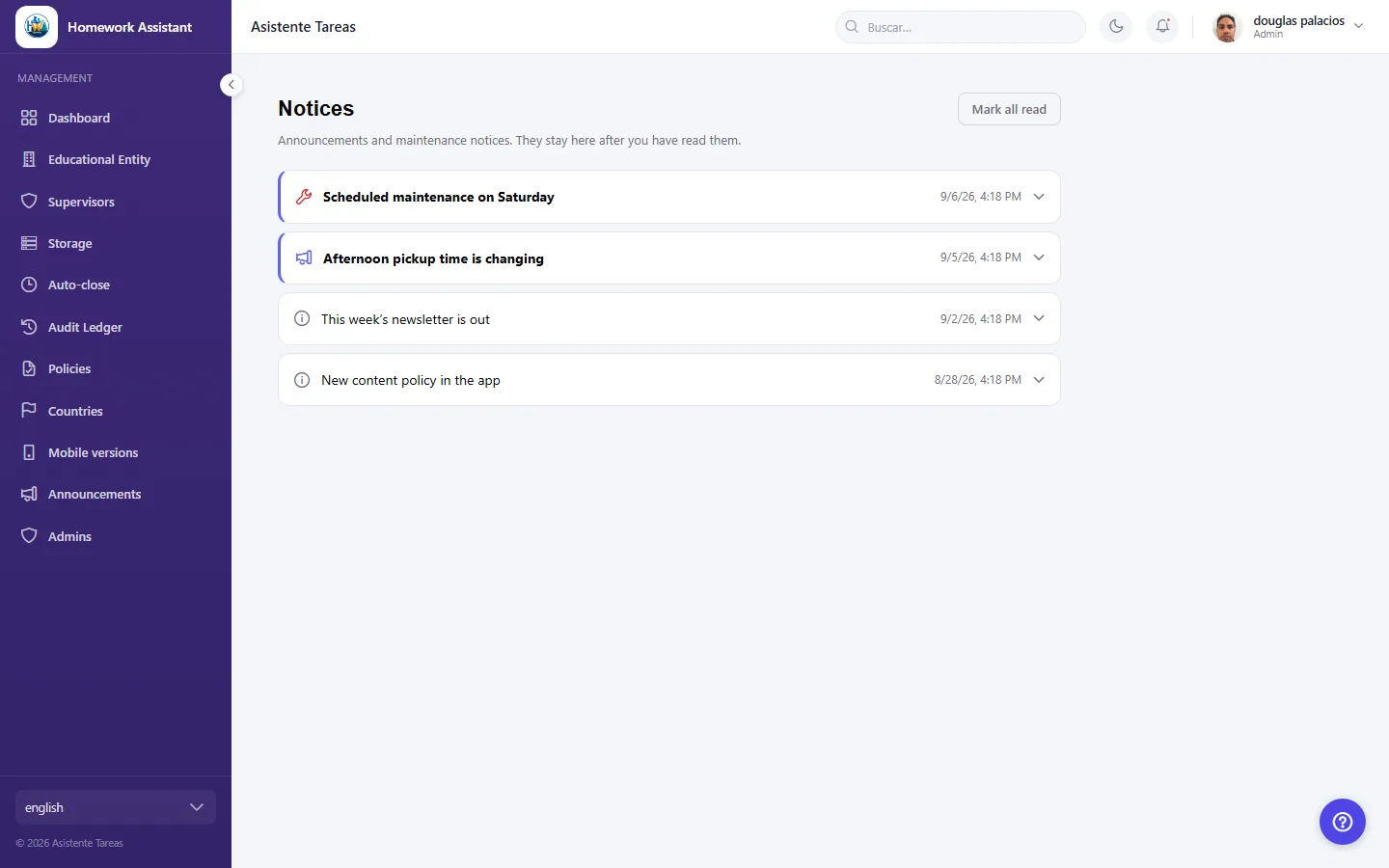
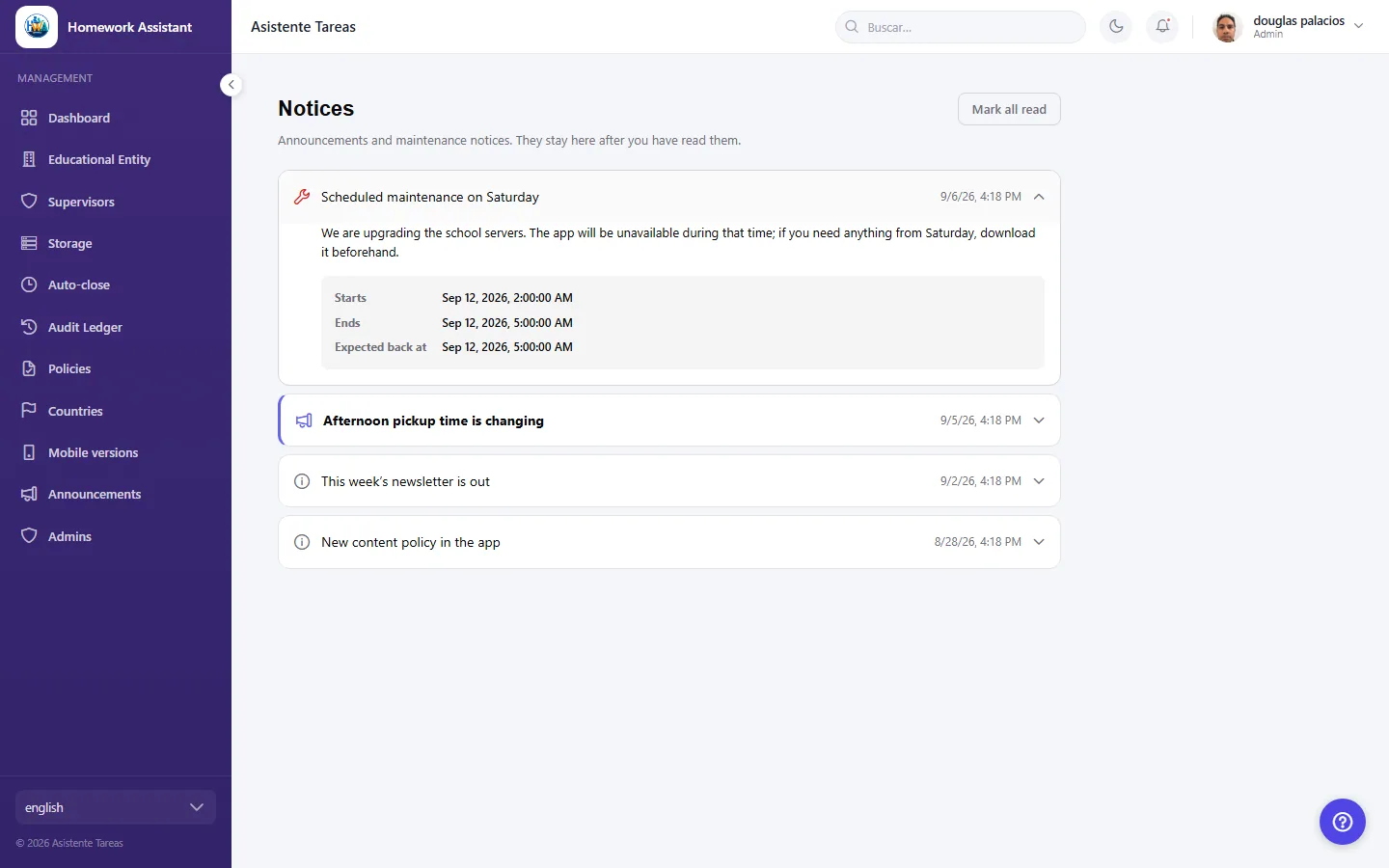
They are the messages the school sends about the app itself: maintenance, timetable changes, reminders. Open them with the bell in the top bar, on both the app and the web.

The number on the bell is what you have not read yet. Unlike a phone notification, nothing here is lost: a notice can be re-read whenever you want.

Do not confuse Notices with Events: Events are the school's meetings, trips and dates, and they live in their own tab.
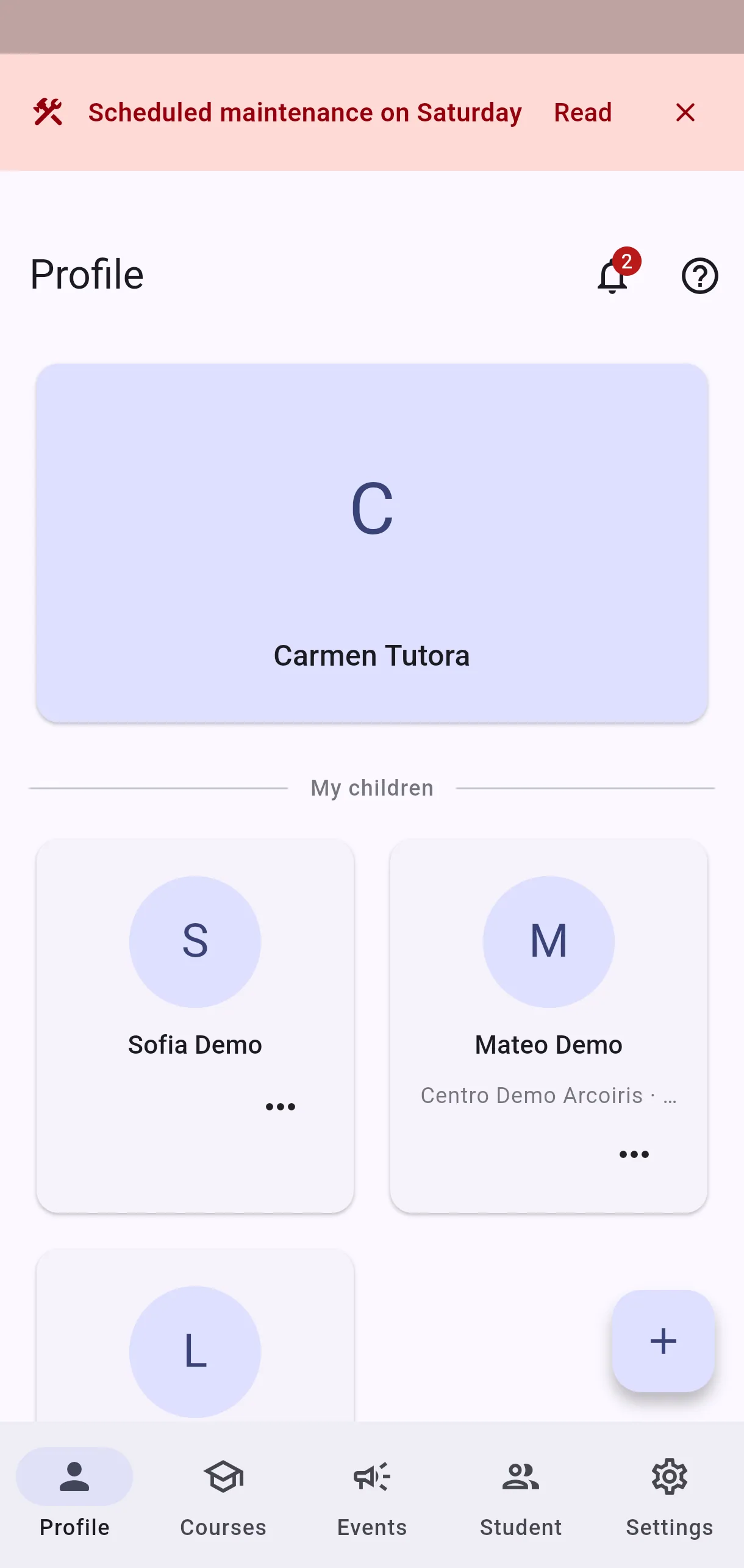

  • Screenshot: What are Notices and where do I find them?
  • Screenshot: What are Notices and where do I find them?

#What is that coloured bar across the top?

  • Families
  • Mobile app
  • Web

It is an important notice. The bar follows you from screen to screen while the notice is current, so it does not go unnoticed.

  • Read opens the full notice.
  • The ✕ hides the bar.

Hiding it deletes nothing: the notice stays in the bell and can be read again.

  • Screenshot: What is that coloured bar across the top?

#How do I tell which ones I have not read?

  • Families
  • Mobile app
  • Web

In the list, the ones you have not opened yet are in bold. Opening one clears that and the number on the bell goes down.

The icon on the left says what kind of notice it is: maintenance (spanner), announcement (megaphone) or information (i).

Mark all as read clears the counter in one go. It deletes nothing.

  • Screenshot: How do I tell which ones I have not read?
  • Screenshot: How do I tell which ones I have not read?

#A maintenance notice shows three times. What does each one mean?

  • Families
  • Mobile app
  • Web
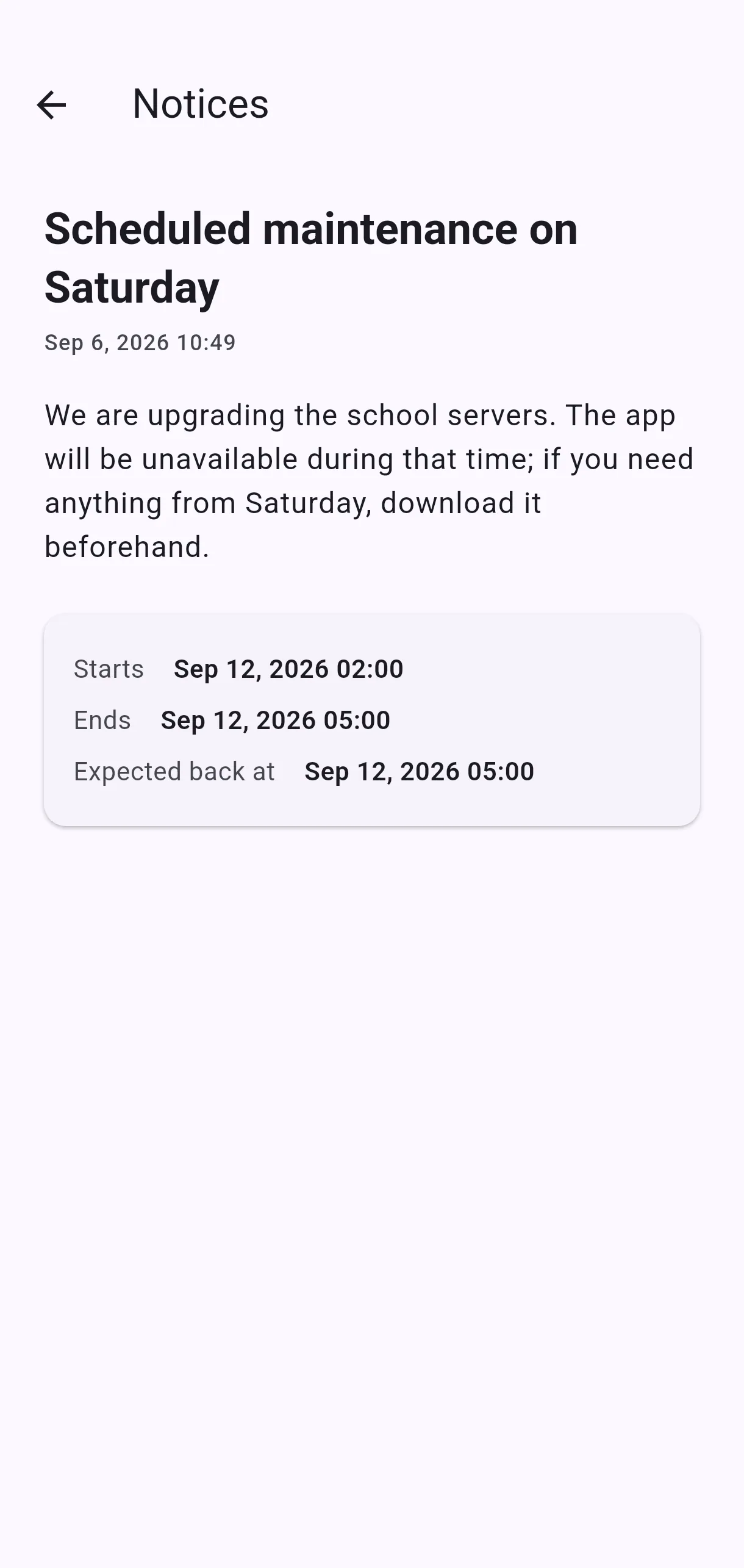
  • Starts and Ends — the window during which the app cannot be used.
  • Expected back — the time everything is expected to work again.

All of them are shown in your phone's own time, so there is nothing to convert.

A notice already sitting in the bell does not mean the app is blocked now: outside that window it works as normal. That is why maintenance is announced days ahead.

  • Screenshot: A maintenance notice shows three times. What does each one mean?
  • Screenshot: A maintenance notice shows three times. What does each one mean?

#I cannot get in during maintenance. Is something broken?

  • Families
  • Mobile app
  • Web

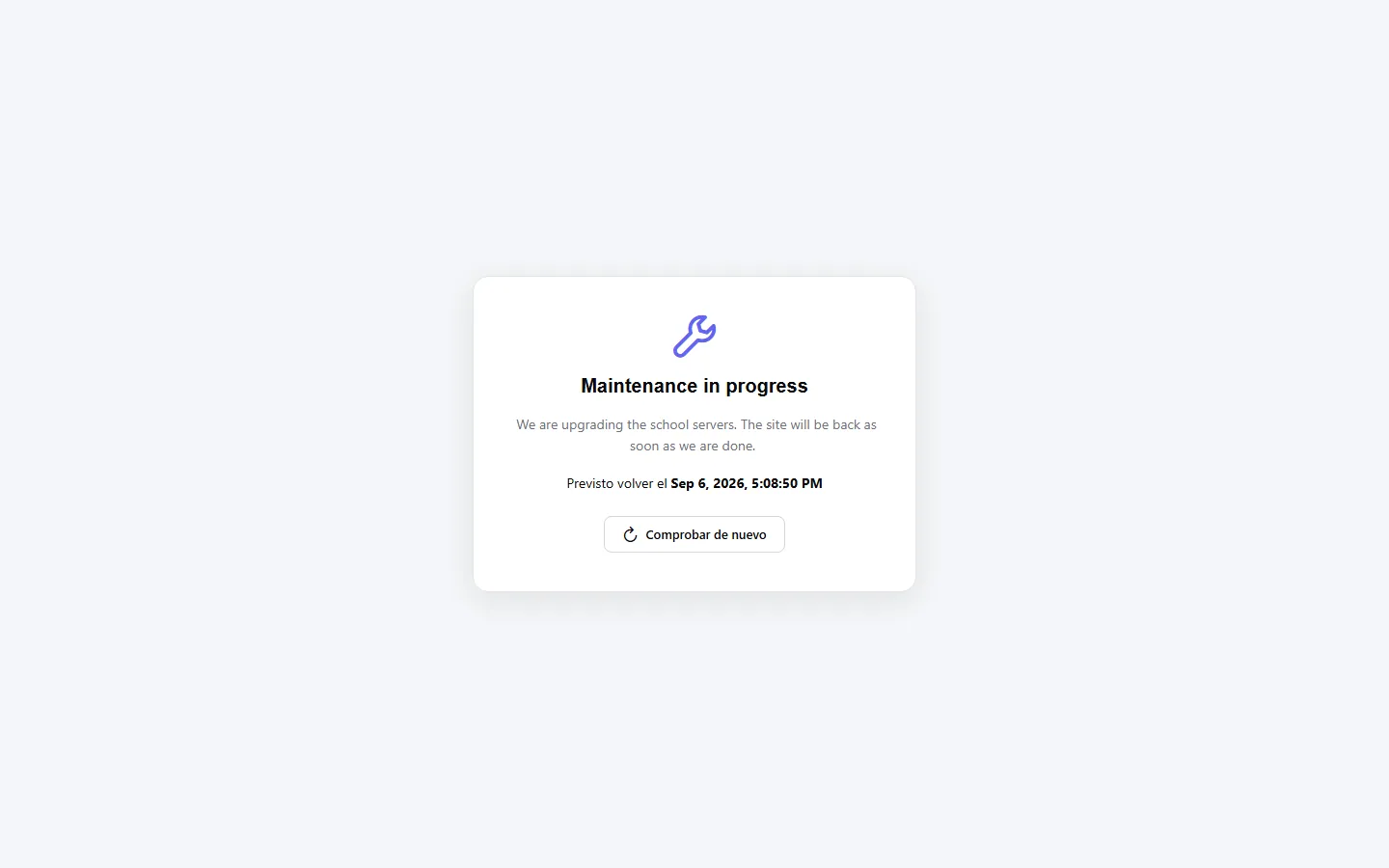
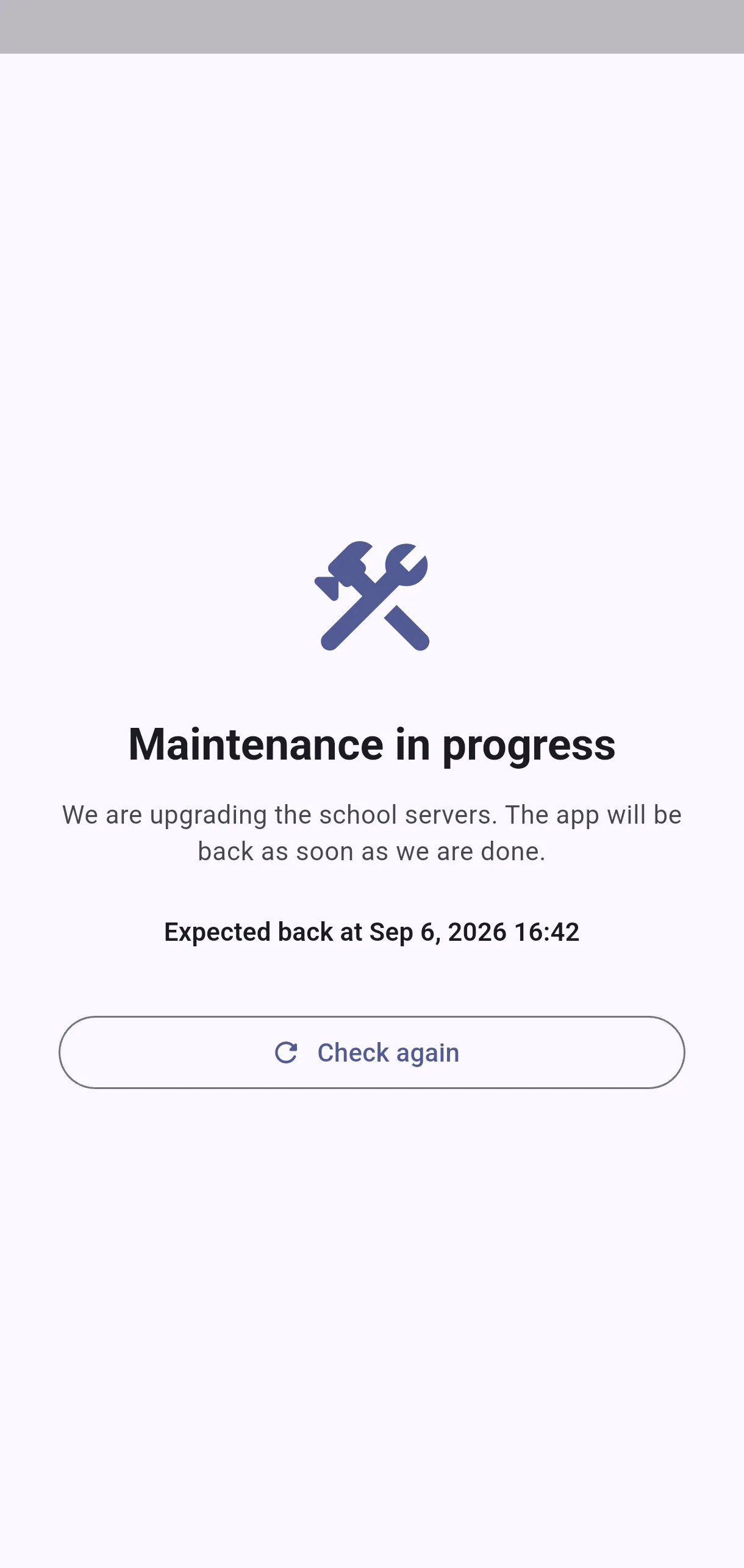
No. Inside the announced window, the app and the web show a Maintenance in progress screen with the expected return time, and do not let you through. That is deliberate: the data is being worked on, and letting you halfway in would leave it inconsistent.

There is nothing to do and nothing is lost. It releases itself as soon as the window ends; Check again only brings that check forward.

If the screen is still there well after the expected time, let the school know.

  • Screenshot: I cannot get in during maintenance. Is something broken?
  • Screenshot: I cannot get in during maintenance. Is something broken?

#How do I publish a notice to the app?

  • Schools
  • Web

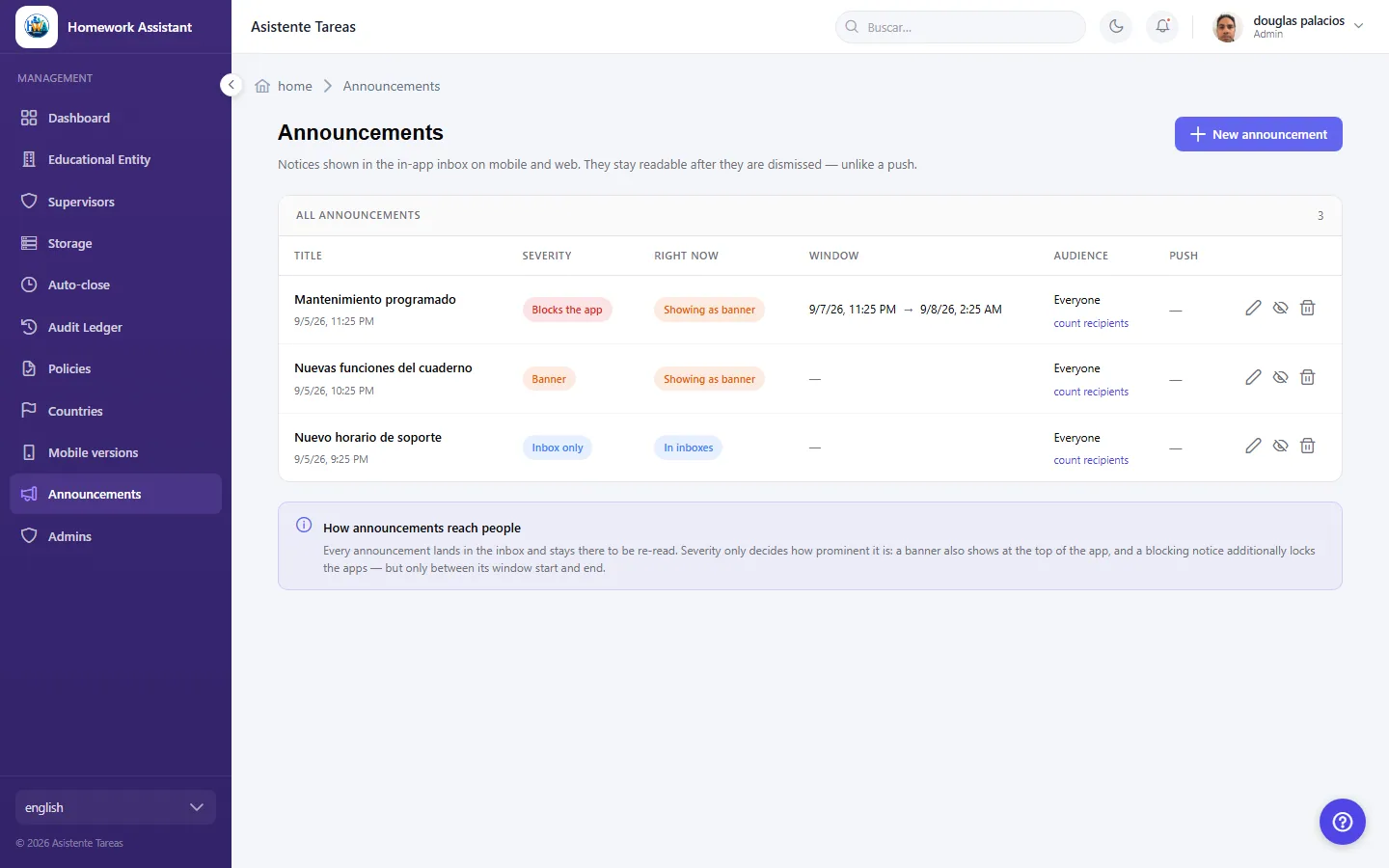
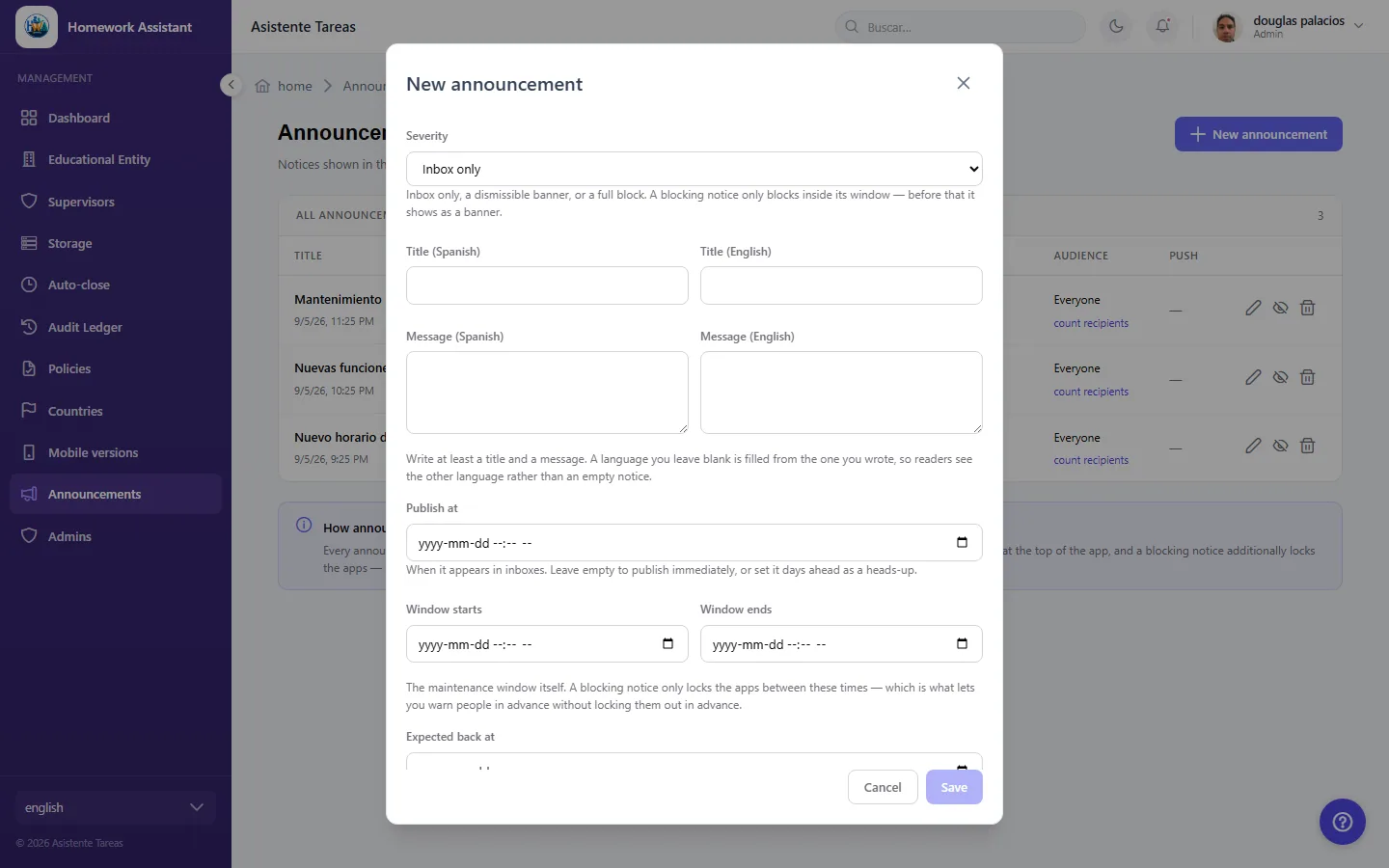
On the web, Announcements. The table lists what has been published with its severity, its maintenance window if it has one, who it targets and whether it carries a push.

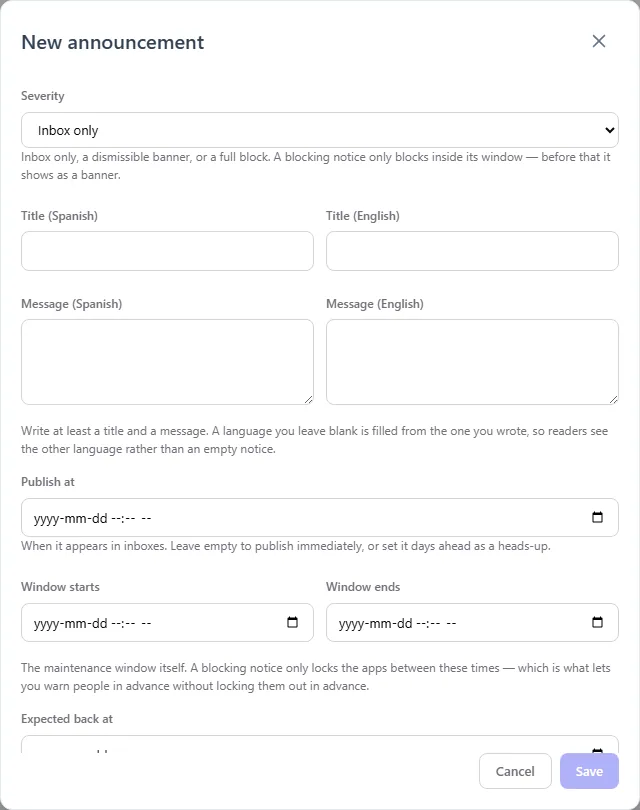
Creating one asks for the title, the text, the severity, the dates and the audience. With no audience rules the notice reaches everyone, which is what you want for maintenance.

Count recipients resolves the number using the same rule the inbox uses, so it matches what actually gets delivered.

Ticking also send a push only sends a pointer that opens the entry: the content lives in the inbox, not in the notification, which is why it can be re-read.

  • Screenshot: How do I publish a notice to the app?

#What is the difference between Inbox only, Banner and Blocks the app?

  • Schools
  • Web

It is how loudly the notice arrives:

  • Inbox only — it appears in Notices and nowhere else.
  • Banner — it also puts a bar across the top of the app.
  • Blocks the app — it also bars the way with a full-screen gate, but only inside its window.

Pick the mildest one that does the job: a standing banner for something that does not deserve one teaches people to ignore all of them.

  • Screenshot: What is the difference between Inbox only, Banner and Blocks the app?

#How do Publish at, the window and expected back differ?

  • Schools
  • Web

Confusing these is the main way to get this wrong.

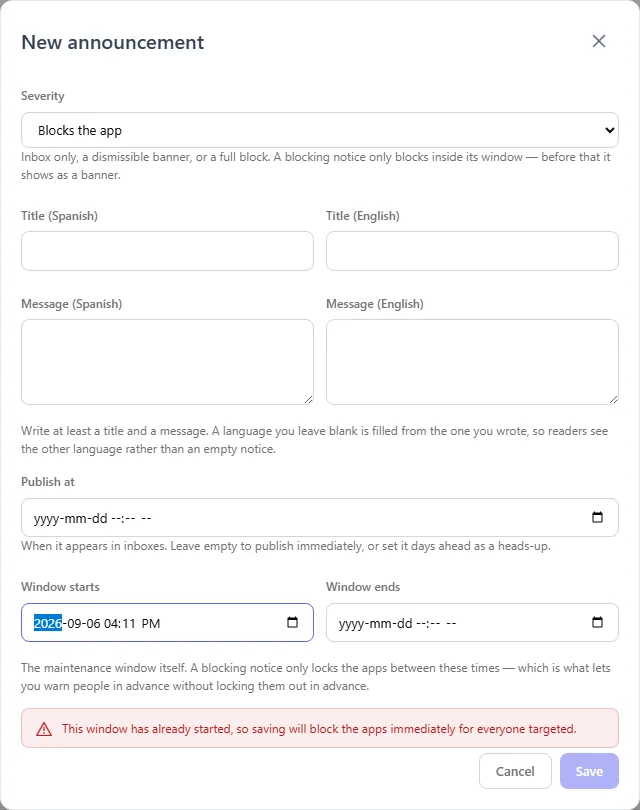
  • Publish at — when it appears in inboxes. Set it days ahead for a heads-up.
  • Window starts / ends — only inside this range does a Blocks the app notice actually block. Before the window it shows as a banner.
  • Expected back — text on the maintenance screen only. It decides nothing.

That separation is the point: you can publish "maintenance on Saturday 02:00-05:00" on Wednesday, and users see a banner all week and a lockout only on Saturday morning.

  • Screenshot: How do Publish at, the window and expected back differ?

#I set Blocks the app and nobody was blocked. Why?

  • Schools
  • Web

Almost always because the notice is aimed at a specific audience. The gate is served from a public, signed-out endpoint — deliberately, because during an outage sign-in is often the first thing to break — and there is no caller there to match rules against. Only a notice with no audience rules actually gates the apps.

A targeted notice does still reach its audience through the inbox, where it shows as a banner.

Check the window too: outside it nothing is blocked, by design. And if you pick a window that starts immediately, the form warns you before saving, because the moment it is saved everyone is locked out until it ends.

  • Screenshot: I set Blocks the app and nobody was blocked. Why?

Other areas