1. HWA
  2. Help centre
  3. Settings, profile and account deletion
All areas

Settings, profile and account deletion

#How do I change my name or photo?

  • Families
  • Mobile app

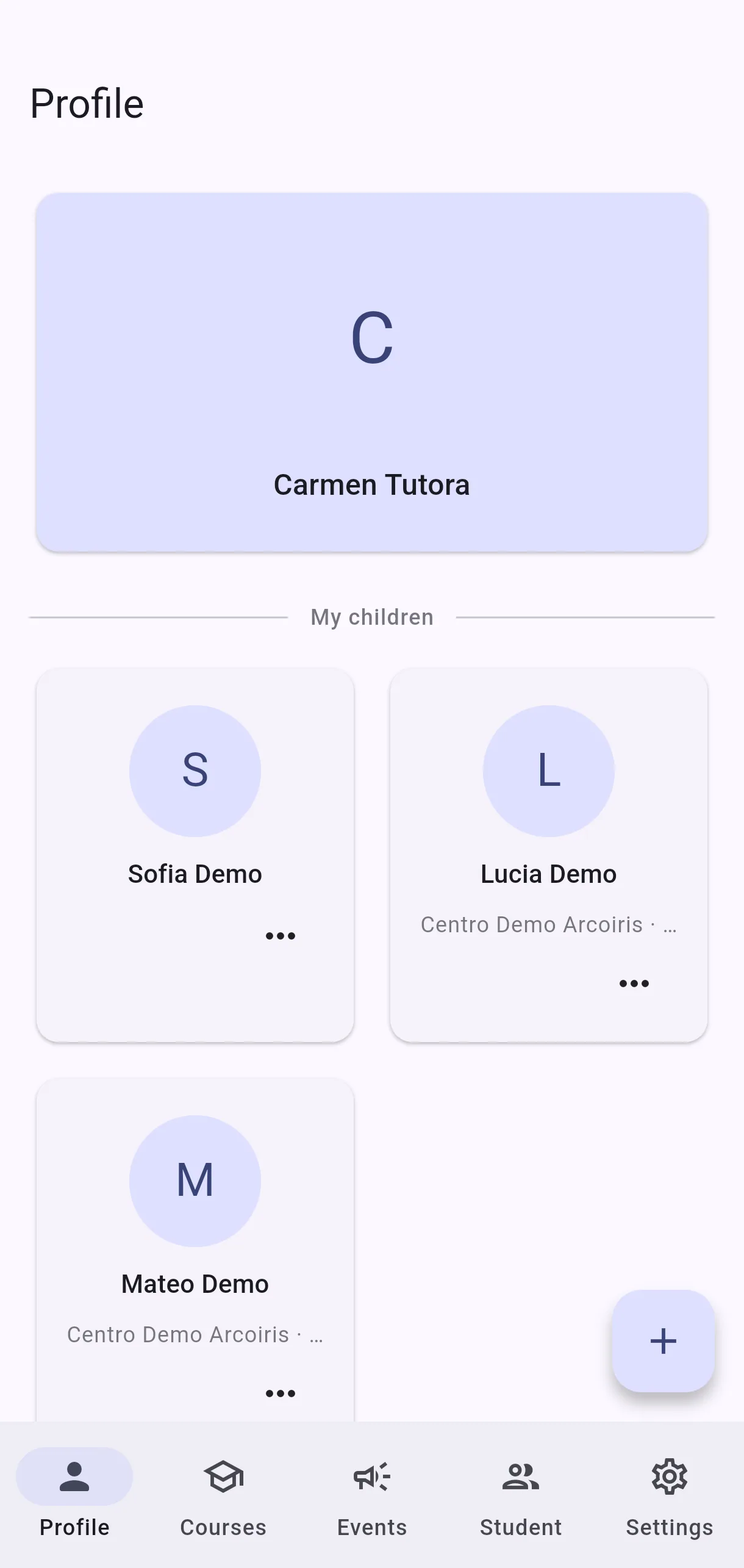
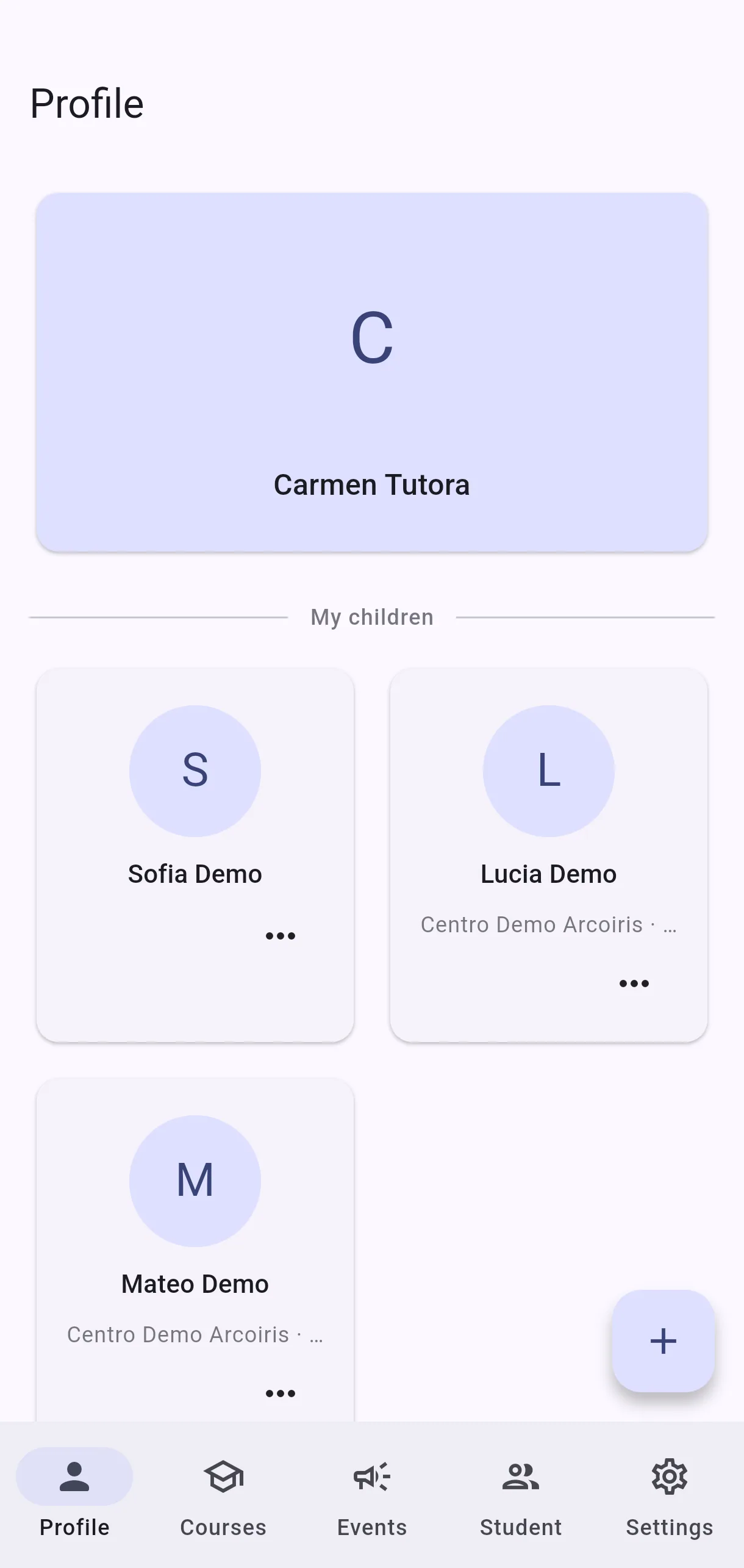
Go to My profile. For your name, edit Name and tap Save profile — you will see Name updated. For your photo, choose Take photo or Choose from gallery; once uploaded you will see Profile photo updated.

Your name is what other parents and teachers see, so make it recognisable. If the photo fails with Failed to upload photo, try again.
#How do I change the app's language?

  • Families
  • Mobile app

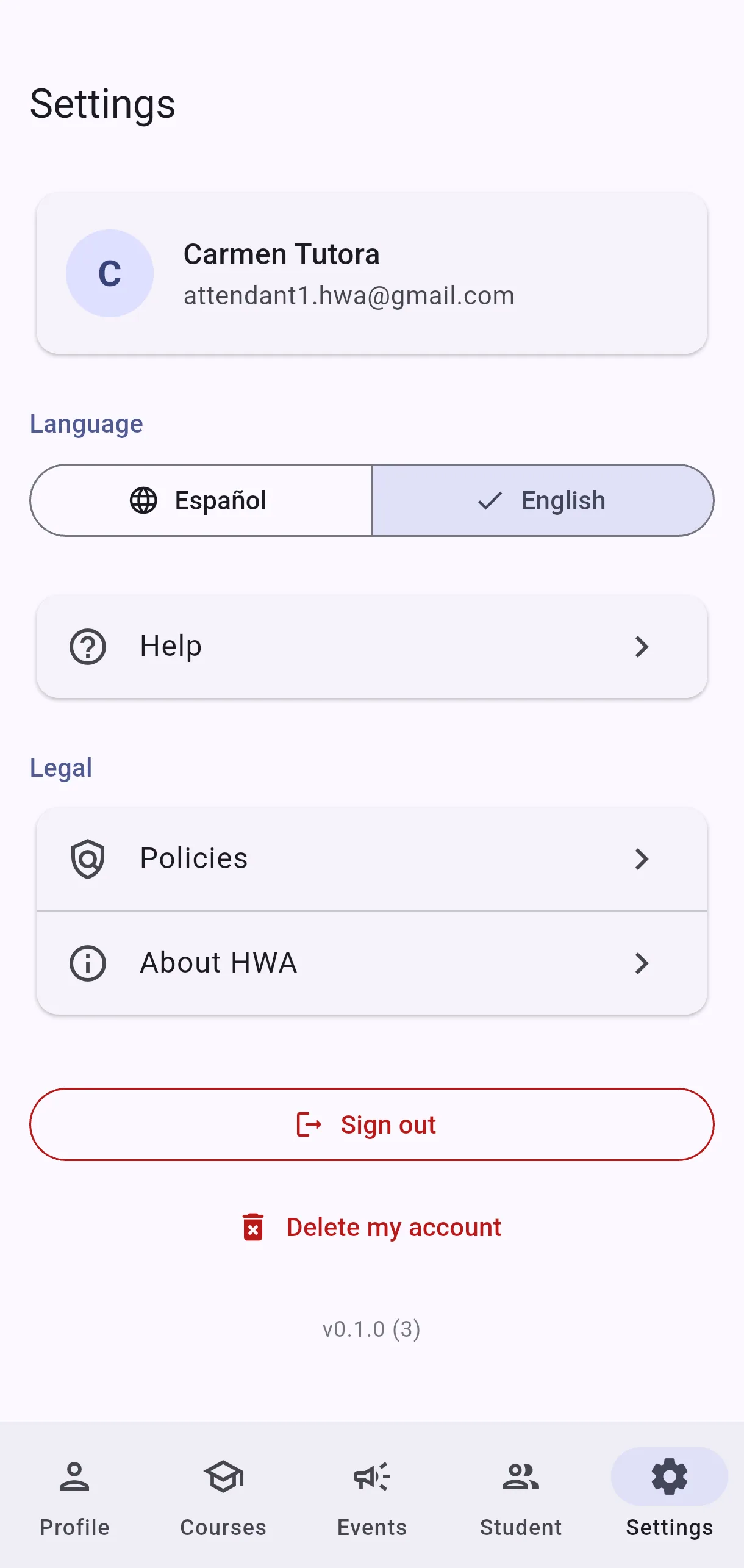
In Settings, open Language and pick the one you want. The change applies straight away. It is the same setting offered at sign-up under Choose your language, so you can change it as often as you like.

  • Screenshot: How do I change the app's language?

#How do I sign out?

  • Families
  • Mobile app

Tap Sign out. You return to the sign-in screen and can come back in with Continue with Google.

Signing out deletes nothing: your children, notes and requests are all still there when you sign back in. It is entirely different from Delete my account.

#It says Account not found when I sign in.

  • Families
  • Mobile app

It means you signed in with Google successfully, but that email does not match any account in the system. Almost always this is because you used a different email from the one your administrator used when creating your account.

Sign out and sign back in with the email your invitation was sent to. If you are not sure which that is, ask your administrator.

#What happens if I delete my account?

  • Families
  • Mobile app

It is under Settings → Delete my account. It is immediate and permanent — there is no recovery window.

What is deleted: your profile, all your centre enrolments, your children's records and photos, your private board notes and images, your devices, and your login.

What is kept: content you shared with your class — shared board notes, shared classroom-board photos, and homework threads with their attachments — stays visible to other parents, re-attributed to "[deleted user]".

If you just want to stop using the app for now, use Sign out instead.

  • Screenshot: What happens if I delete my account?
  • Screenshot: What happens if I delete my account?

#If I delete my account, why do my shared notes stay visible?

  • Families
  • Mobile app

Because content you shared stopped being only yours — other parents are relying on it to follow their own children's classes. Removing it would leave holes in threads and conversations other people depend on.

So that content remains, but re-attributed to "[deleted user]", without your name. Anything that was private to you — your unshared notes, your photos, your children's records — is deleted completely.

#I tried to delete my account and it failed.

  • Families
  • Mobile app

If you see We couldn't delete your account, try again from Settings → Delete my account.

If the message is We couldn't reach the server, close the app and reopen it. If you can still sign in, the account was not deleted and you can try again.

If you cannot sign in and are unsure whether the deletion completed, contact your administrator to confirm. Do not assume it went either way.

  • Screenshot: I tried to delete my account and it failed.

#What are the Assigned courses on my profile?

  • Families
  • Mobile app

They are the centre's courses you are linked to as a guardian, along with their Subjects. From there you can use View calendar to check the timetable.

If you see No courses assigned yet, your administrator has not linked you to a course yet — not something you can change from the app.

  • Screenshot: What are the Assigned courses on my profile?
  • Screenshot: What are the Assigned courses on my profile?

#What can I change about scanning and alarms?

  • Families
  • Mobile app

Under Settings:

  • Scanning → Capture the agenda page with: Camera or Document scanner. If the notes often come out wrong, try the other option.
  • Scanning → Don't offer scanning: hides Scan the agenda page when creating notes. You can turn it back on at any time.
  • School planner → Default alarm time: the time used for the "days before the due date" alarms.

You reach Settings from More.

Other areas