1. HWA
  2. Help centre
  3. Automatic cleanup
All areas

Automatic cleanup

#Why did a photo or an attachment disappear?

  • Families
  • Mobile app
  • Web

To keep the centre's storage from filling up, HWA automatically removes files that are no longer needed: School Planner photos whose notes are closed, Catch Up attachments of closed homework, and files of events that have ended — always after the waiting period the centre has set.

The notes and the homework are not deleted: only the attached file.
#I took a photo but did not create any notes, and it disappeared. Is that normal?

  • Families
  • Mobile app

Yes. A photo that never became a note does not show up on any screen but still takes up the centre's space, so it is removed automatically after 24 hours. To keep it, create at least one note from it.

#Can a file removed by the cleanup be recovered?

  • Families
  • Mobile app
  • Web

No. Once the file is removed from storage it cannot be restored. If you need it, ask whoever uploaded it to send it again.

To find out why it was removed, ask the centre to look it up in the Cleanup history.

#What is the Cleanup history?

  • Schools
  • Web

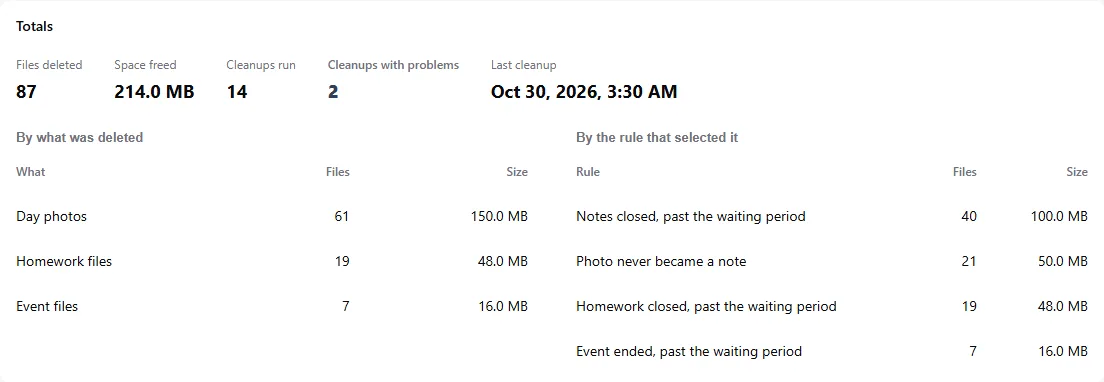
It is the screen that shows what the automatic storage cleanups deleted, and why. It is read-only: nothing here deletes anything.

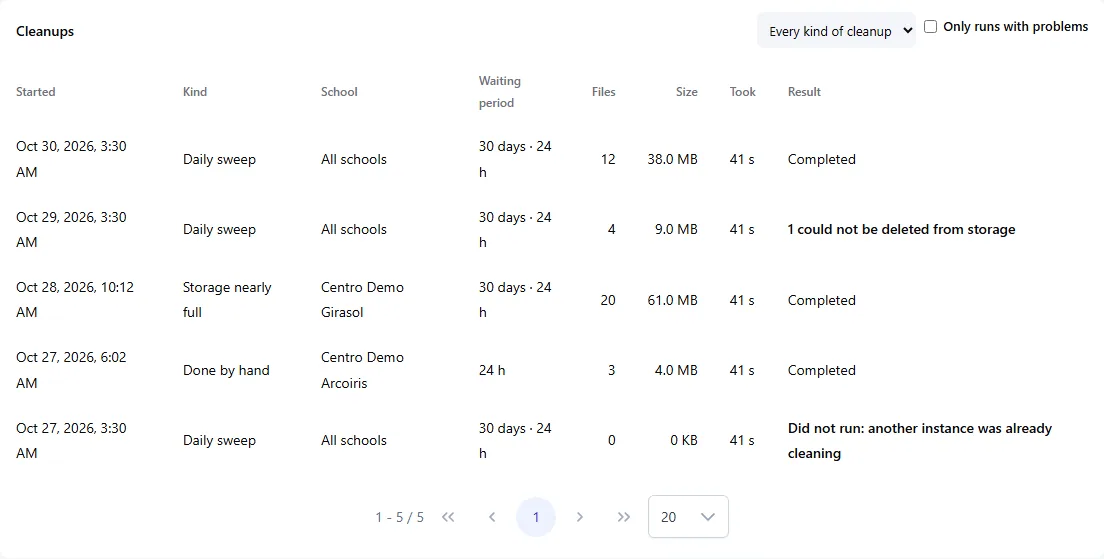
At the top are the Totals for the period (Files deleted, Space freed, Cleanups run, Cleanups with problems and the Last cleanup). Below are the Cleanups list, the Files deleted list and the Why is this file gone? lookup.

  • Screenshot: What is the Cleanup history?
  • Screenshot: What is the Cleanup history?

#What do Daily sweep, Storage nearly full and Done by hand mean?

  • Schools
  • Web

They are the three Kinds of cleanup in the Cleanups list:

  • Daily sweep: the scheduled check that runs once a day.
  • Storage nearly full: the one triggered when a centre reaches the danger zone.
  • Done by hand: the one an administrator starts from Free up space, choosing the items.

Use the Every kind of cleanup filter to see just one.

  • Screenshot: What do Daily sweep, Storage nearly full and Done by hand mean?

#What do Rule, Waiting period and Counted from mean?

  • Schools
  • Web

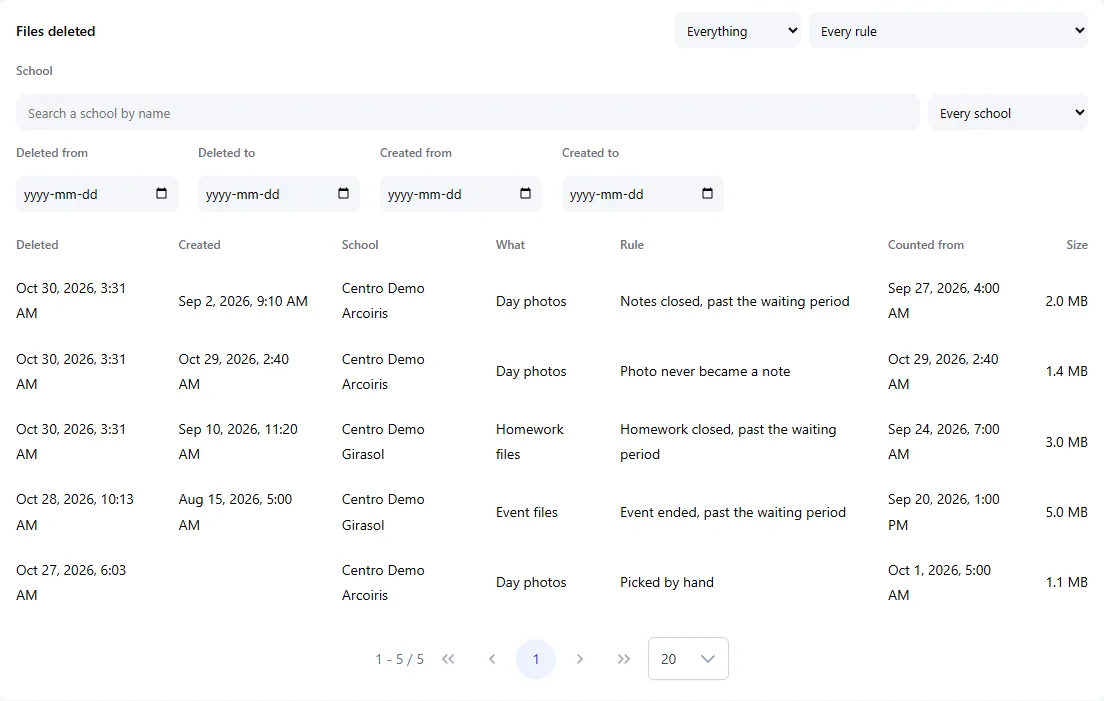
Each deleted file shows the Rule that selected it:

  • Notes closed, past the waiting period and Homework closed, past the waiting period: the content was closed and the centre's Waiting period has passed.
  • Photo never became a note: no note used it within the short period (24 hours).
  • Event ended, past the waiting period: the event ended and the period has passed.
  • Picked by hand: an administrator selected it in Free up space.

Counted from is the moment the waiting period started (for example, when the last note was closed). Created is when the file was uploaded; it can be empty on older records.

  • Screenshot: What do Rule, Waiting period and Counted from mean?
  • Screenshot: What do Rule, Waiting period and Counted from mean?

#How do I filter the Files deleted list?

  • Schools
  • Web

Above the list you can choose the Period, the Country, the kind of cleanup, Everything or a type of content, and a rule. Also:

  • School: type in Search a school by name or pick one from the list.
  • Deleted from / Deleted to: when the file was deleted.
  • Created from / Created to: when the file was uploaded.

Dates include both days. If the start is after the end you will see The start date must be on or before the end date. Use Clear dates to reset all four. Records without a creation date do not appear when you filter by it. The list is paginated: choose how many rows per page at the bottom.

  • Screenshot: How do I filter the Files deleted list?

#A user asks about a file that is gone. How do I find out what happened?

  • Schools
  • Web

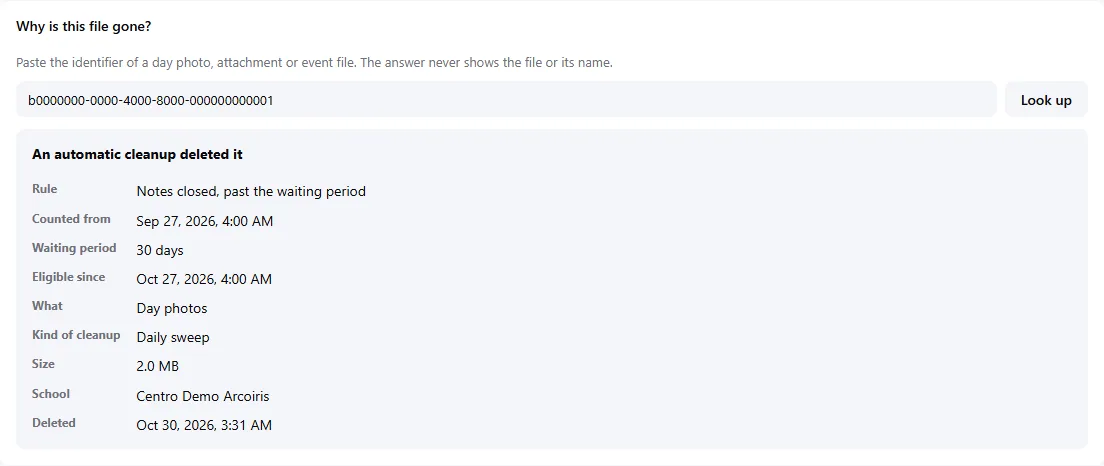
Use Why is this file gone?: paste the identifier of the day photo, attachment or event file and click Look up. The answer never shows the file or its name. It can be:

  • An automatic cleanup deleted it: you will see the rule, the waiting period and since when it was eligible.
  • It was deleted, but not by a recorded cleanup: a person or an account deleted it, or a cleanup ran before cleanups were recorded.
  • It is still stored: nothing has deleted it.
  • No file matches that identifier: check the identifier; one that never existed looks the same as one removed long ago.

If you see The file record was deleted but removing it from storage failed, the file still takes up space and the technical team should be told.

  • Screenshot: A user asks about a file that is gone. How do I find out what happened?

Other areas