1. HWA
  2. Help centre
  3. Getting started and invitations
All areas

Getting started and invitations

#How do I invite a guardian?

  • Schools
  • Web

In the educational centre, open Guardians and click Create guardian. Fill in Name, Email, Calendar year and Course, then click Create. They receive an email invitation with a link to create their account. Until they accept it, they show as Unregistered.

#I can't create a guardian — it says the course is not set up.

  • Schools
  • Web

This course is not set up for the selected year means that course has not been assigned to the calendar year you picked. Go to Calendars, open the year with View Courses, and use Assign Subject to set it up. Then return to Create guardian.

#What do Unregistered, Registered and Inactive mean?

  • Schools
  • Web

They show where each guardian is in the process:

  • Unregistered — the invitation was sent but they have not created their account yet.
  • Registered — they accepted the invitation and can use the app.
  • Inactive — their access is switched off.

If someone stays Unregistered for a long time, the likeliest reason is that they have not opened the invitation email.

#I received an invitation — how do I create my account?

  • Families
  • Mobile app

Open the invitation link on your phone and tap Create account. You will see Accepting invitation... then Invitation accepted. When Your account is ready appears, tap Get started. You will then Choose your language and, if your account does not have a name yet, set What should we call you? — that is the name other parents and teachers will see. Both can be changed later in Settings.

The language screen appears in your phone's language: choosing Español does not change the text until you confirm with OK.

✅ Verified on a device, 2026-09-01. Language is the first step. The name step did not appear for an account that already had a name, so it is conditional. Screenshots: help/android/en/onboarding/.

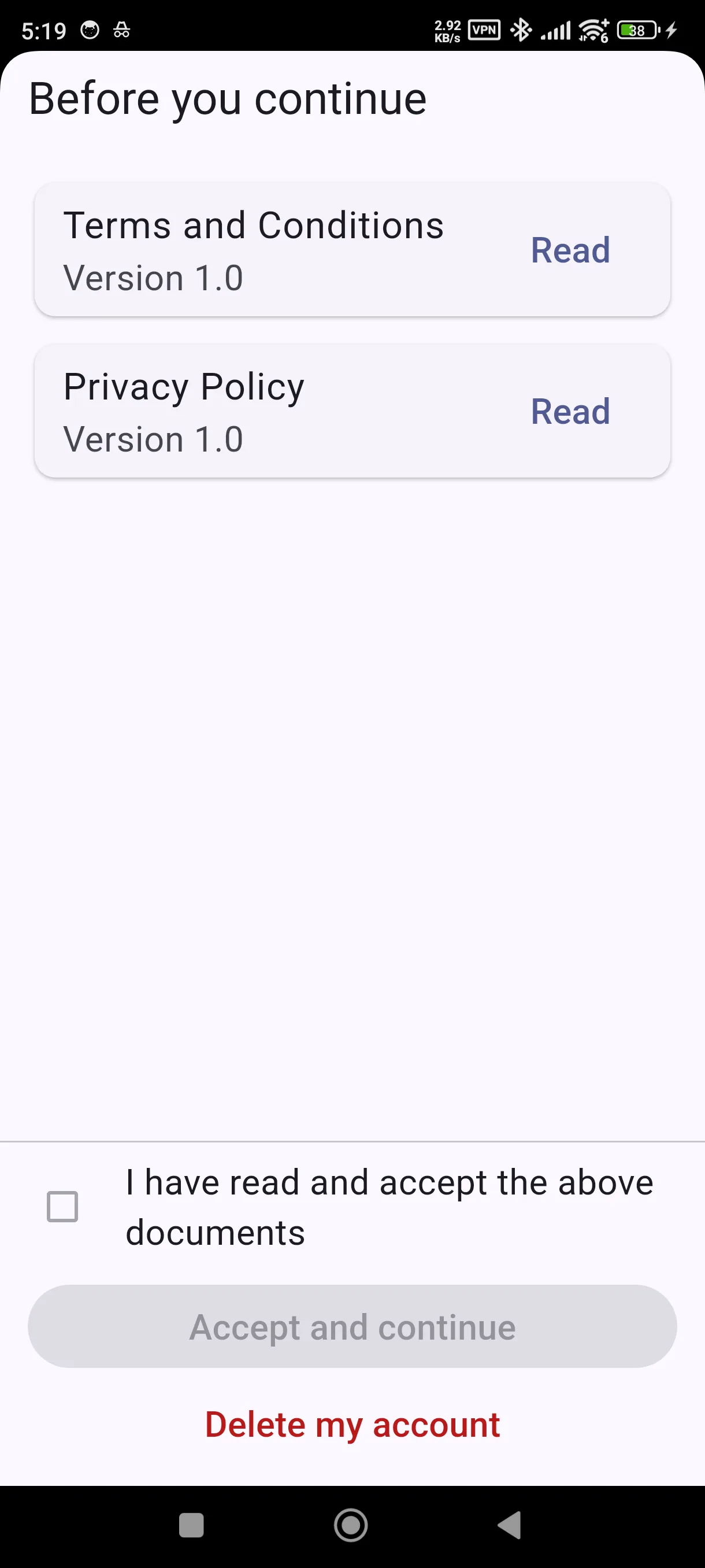
  • Screenshot: I received an invitation — how do I create my account?

#My invitation link says it has expired or is invalid.

  • Families
  • Mobile app

The link is single-use, but it does not expire: an invitation from months ago still works, as long as you have not accepted it yet. So this message almost never means you missed a deadline.

Most often it means you have already accepted it, or you are opening the link while signed in as a different account from the one invited. Tap Try again in case it was a momentary glitch, and if it persists, contact your administrator. It is not something you can fix from the app.

#It says the invitation doesn't belong to my account.

  • Families
  • Mobile app

The invitation is tied to the exact email it was sent to. If you signed in with a different one — a separate personal account, say — you will see This invitation link doesn't belong to your account. Sign out and sign back in with the email the invitation was sent to. If you are not sure which that is, check which address received the message.

#It says I'm already registered.

  • Families
  • Mobile app

Your account already exists — most likely you used the invitation before. There is no need to create it again: tap Sign in and use Continue with Google with your usual email.

  • Screenshot: It says I'm already registered.

#How do I change my name or language?

  • Families
  • Mobile app

Both are in Settings. Your name is what other parents and teachers see, so it is worth making it recognisable. If you skipped these steps at sign-up with Skip, you can set them there at any time.

Other areas