1. HWA
  2. Help centre
  3. Calendars
All areas

Calendars

#How do I create an academic year?

  • Schools
  • Web

Open the educational centre and go to Calendars. On Academic Years, click Create Academic Year and fill in Year, Start Date, End Date and Status. Click Submit to save. The year then appears in the list, ready for you to assign courses to it.
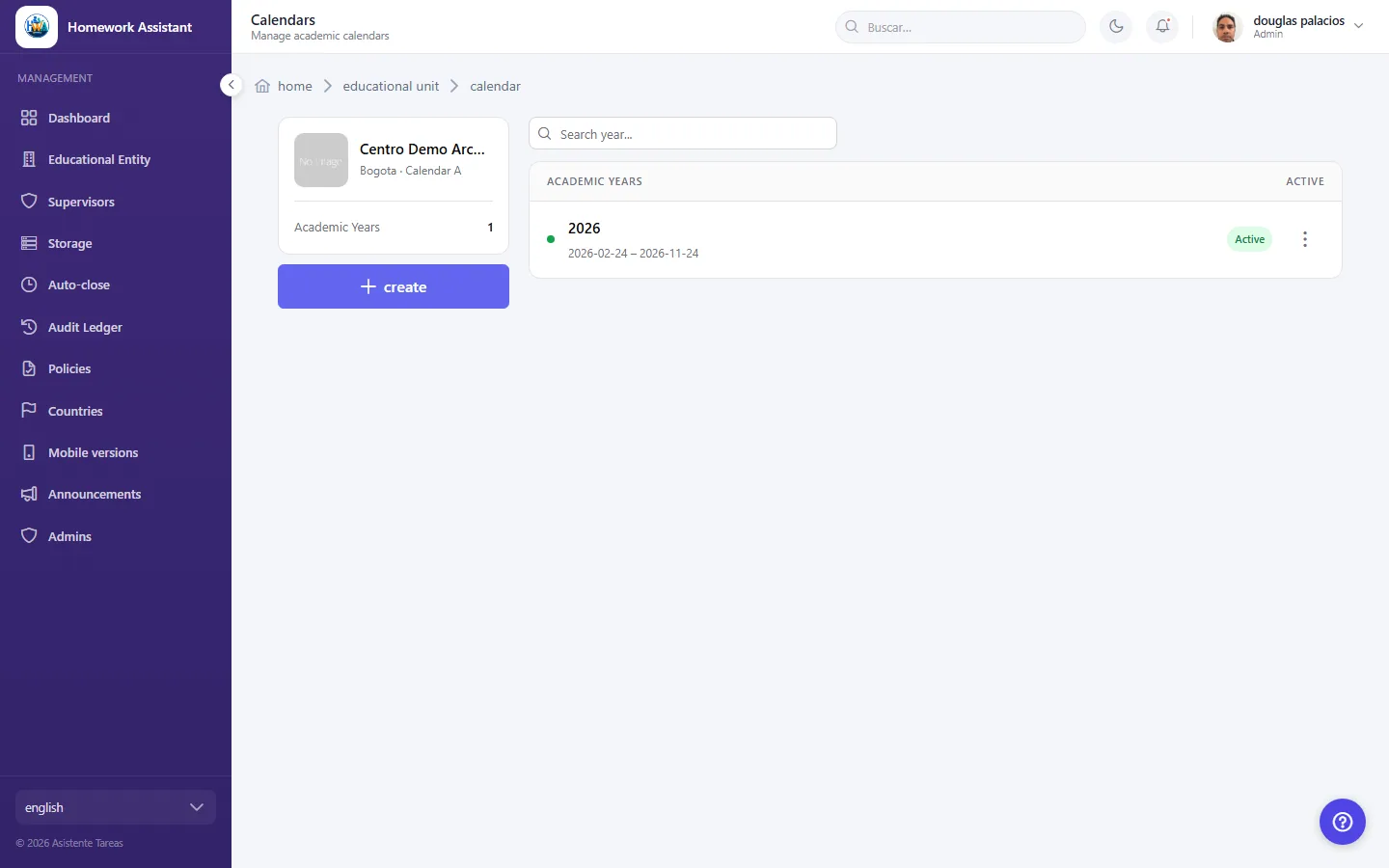
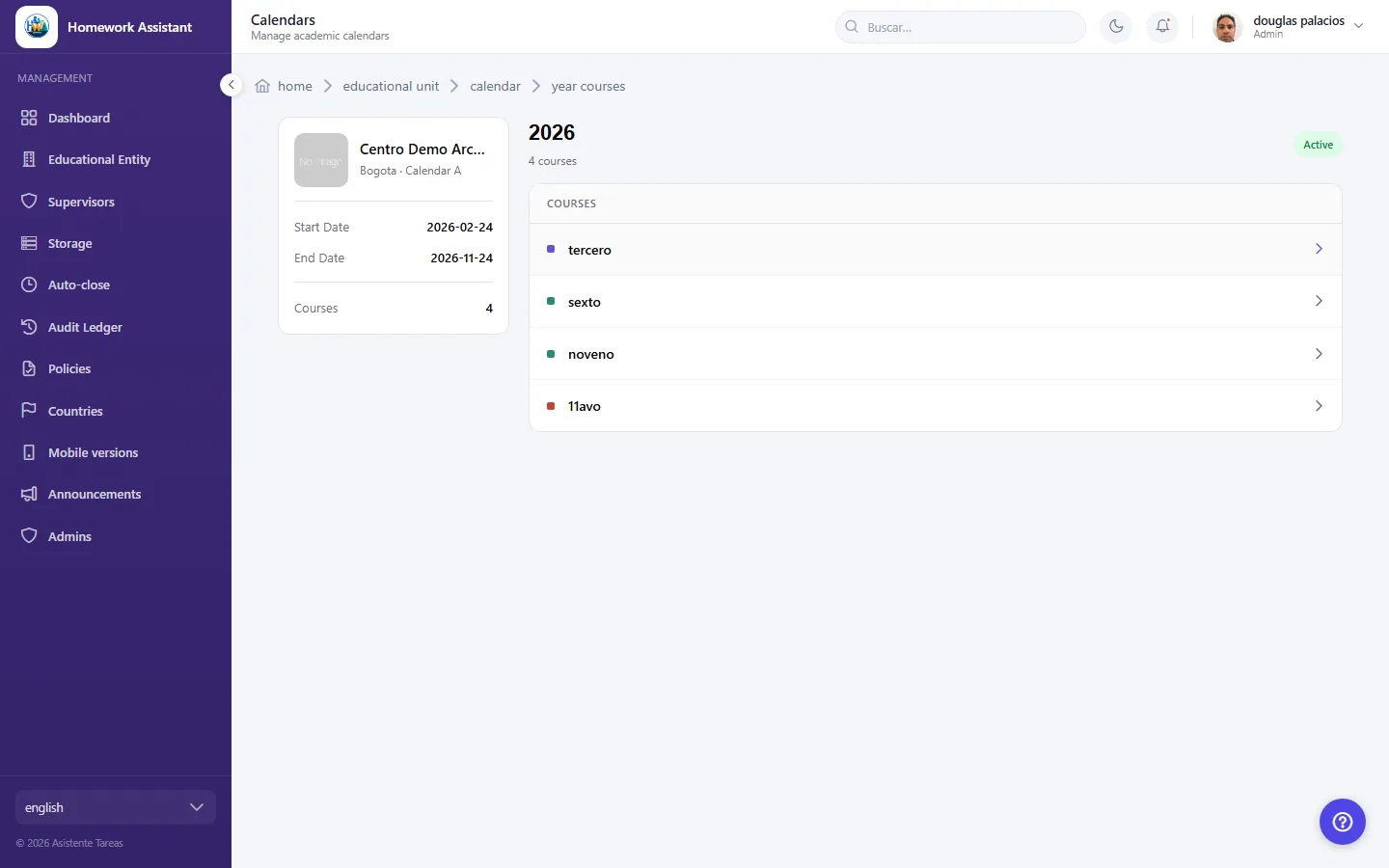
  • Screenshot: How do I create an academic year?
  • Screenshot: How do I create an academic year?

#How do I assign a subject to a course?

  • Schools
  • Web

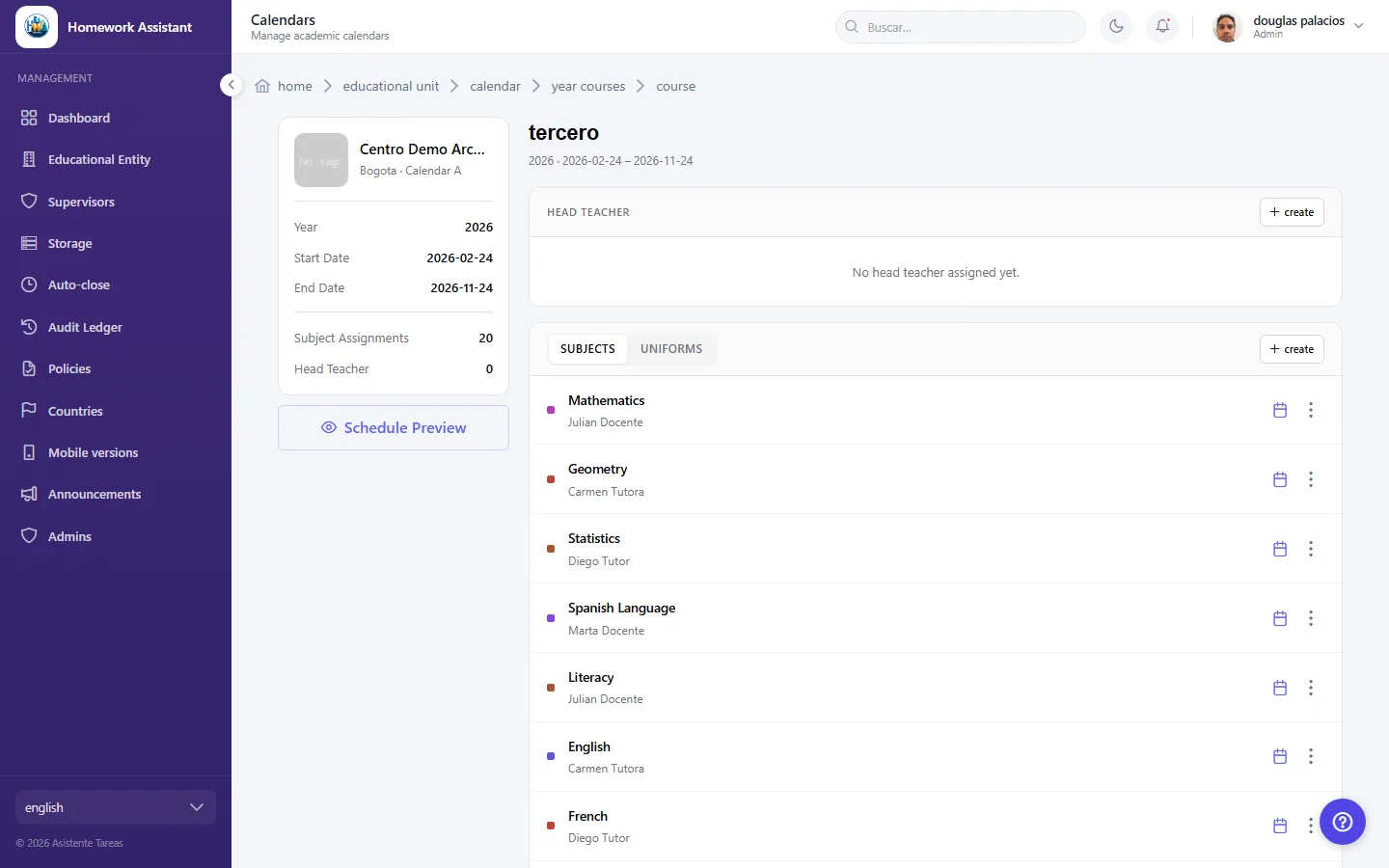
On Academic Years, click View Courses on the year you want. Under Subject Assignments, click Assign Subject and choose Course, Subject and Teacher. Click Submit. Repeat for each subject that course takes.

  • Screenshot: How do I assign a subject to a course?
  • Screenshot: How do I assign a subject to a course?

#How do I add a class time slot?

  • Schools
  • Web

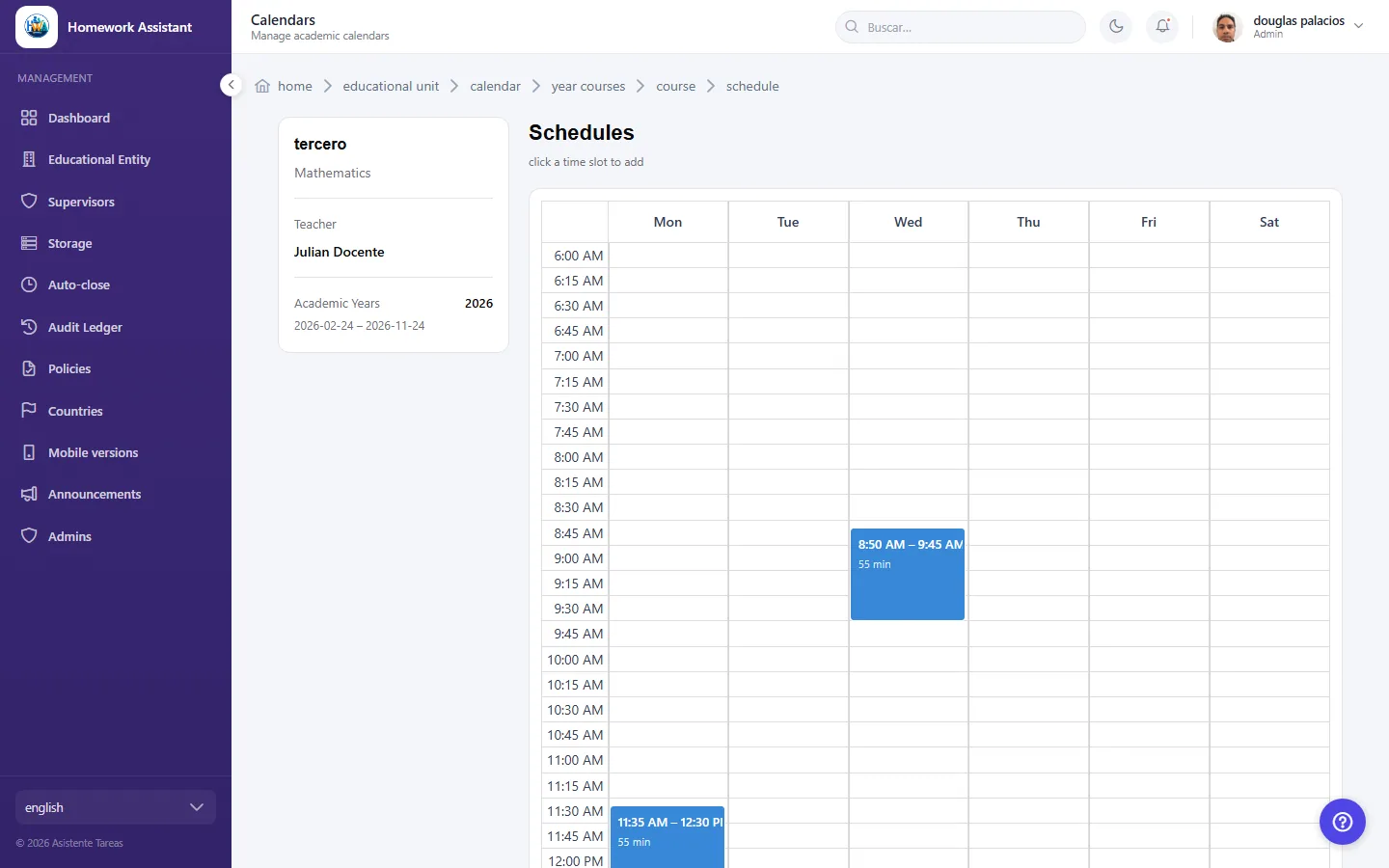
From Subject Assignments, click Assign Schedule on the subject you want. On Schedules, click a time slot to add, or use Add Schedule. Fill in Day of Week, Start and Duration (minutes) — End is worked out for you — then click Submit. Add one entry per day the class runs.

  • Screenshot: How do I add a class time slot?
  • Screenshot: How do I add a class time slot?

#Why can't I see any schedules?

  • Schools
  • Web

If you see No schedules assigned yet., that subject has no days or times set yet — schedules are added one at a time from Assign Schedule. If instead you see No courses assigned yet., you need to assign subjects to the year first, using Assign Subject.

  • Screenshot: Why can't I see any schedules?
  • Screenshot: Why can't I see any schedules?

#How do I edit or delete an academic year?

  • Schools
  • Web

On Academic Years, find the year — use Search year... if there are several. To change it, open Edit Academic Year, adjust Year, Start Date, End Date or Status, then click Submit. To remove it, choose the delete option and confirm on the Confirm dialog.

  • Screenshot: How do I edit or delete an academic year?

#What do Active and Inactive mean on a year?

  • Schools
  • Web

Status marks whether the academic year is the one currently in use. Active is the year being worked on; Inactive is for years that have finished or have not started yet. You can change it at any time from Edit Academic Year.

#How do I assign a head teacher to a course?

  • Schools
  • Web

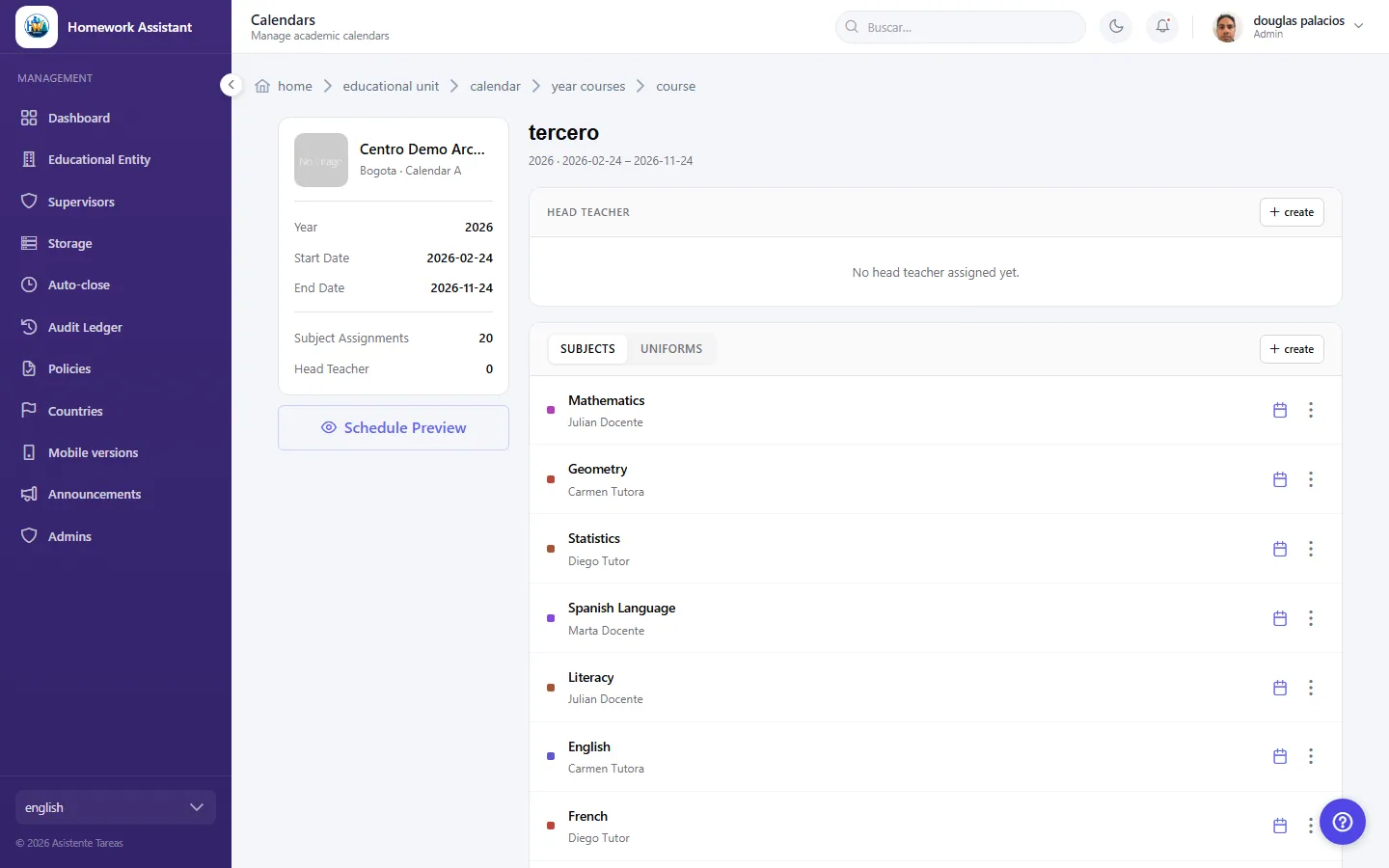
The head teacher is assigned from the course, not from the year. In Calendars open the year, click the course, and in the Head Teacher panel click create. Until one is set the panel shows No head teacher assigned yet. One head teacher is assigned per course.

✅ Corrected 2026-08-26 from capture. The earlier draft placed this inside the academic year; it is on the course page, one level deeper (/calendars/educational-unit/:id/year/:yearId/course/:courseId). Screenshots: help/web/{es,en}/calendar-setup/04.png.

  • Screenshot: How do I assign a head teacher to a course?
  • Screenshot: How do I assign a head teacher to a course?

#How do I see the full timetable for a year?

  • Schools
  • Web

On Academic Years, click Schedule Preview on the year you want. It shows the schedules already set for that year. If nothing appears, no schedules have been added to the subjects yet.

  • Screenshot: How do I see the full timetable for a year?
  • Screenshot: How do I see the full timetable for a year?

Other areas