1. HWA
  2. Help centre
  3. Courses and schedule
All areas

Courses and schedule

#What is in each tab of the app?

  • Families
  • Mobile app

The bottom bar has:

  • Profile — your details, your assigned courses, and access to the calendar.
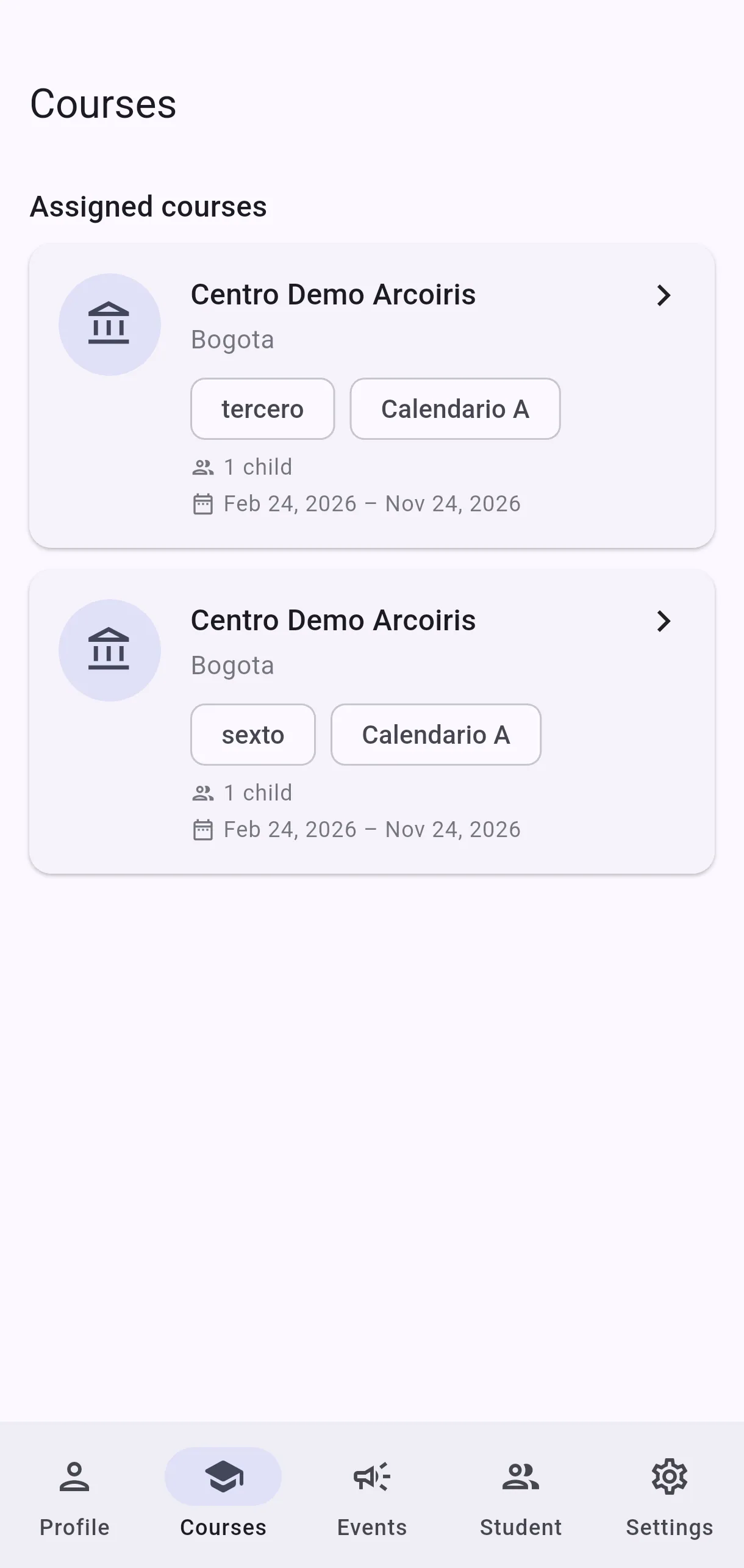
  • Courses — the centre's courses and their class schedules.
  • ⚡ (in the middle) — shortcuts for your children: Tomorrow, This week, Catch Up and School Planner. It appears once you have children enrolled.
  • Student — your children and the subjects they are enrolled in.
  • More — Events and Settings (language, profile and account options).

Catch Up and the School Planner are also inside each child's page.
  • Screenshot: What is in each tab of the app?
  • Screenshot: What is in each tab of the app?

#What do I see under Courses?

  • Families
  • Mobile app

The centre's courses you are linked to. Each shows how many of your children are enrolled — for example 1 child or No children.

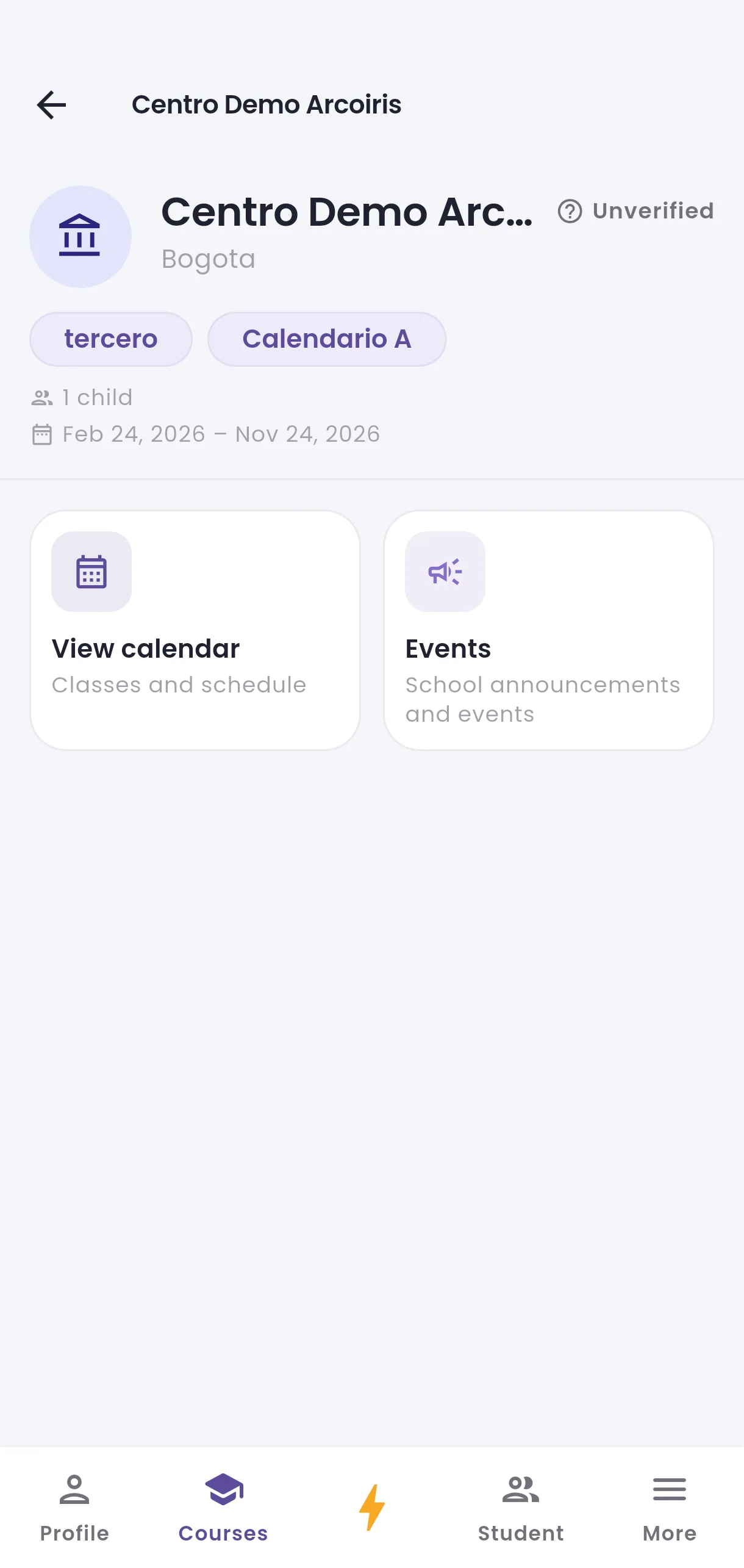
Opening a course shows Classes and schedule, with its subjects and when they are taught.

  • Screenshot: What do I see under Courses?
  • Screenshot: What do I see under Courses?

#How do I see the class schedule?

  • Families
  • Mobile app

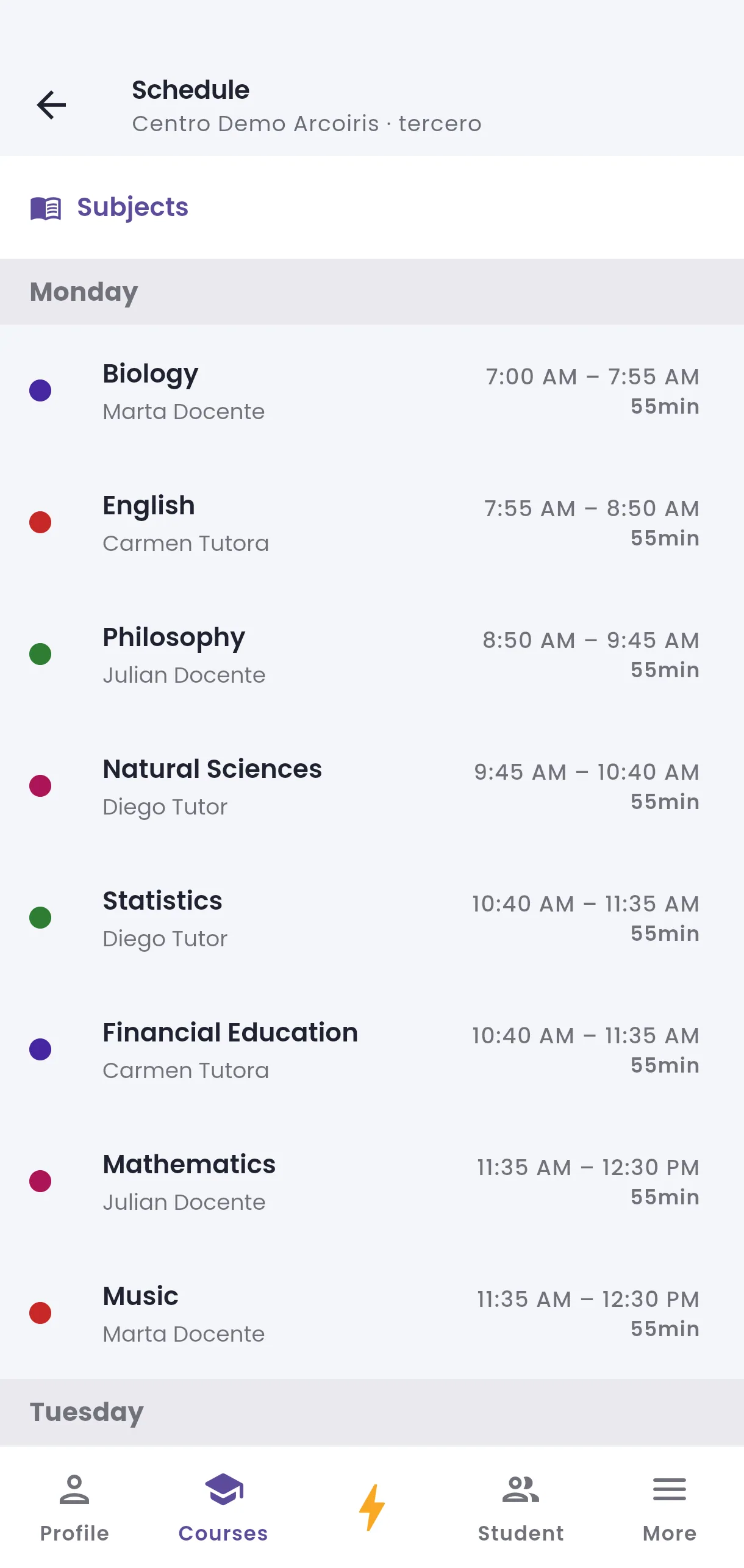
Open the course under Courses and tap View calendar, or use View calendar from your Profile. The Schedule screen shows the week's classes and marks Today so you can find the current day quickly.

Each class shows its time, how long it runs and who teaches it. Where the timetable leaves a gap between two classes you will see a Break; if classes run back-to-back, there is none.

To see only some subjects, tap Subjects, pick them and tap Apply. The ones you picked stay at the top and you can remove them one by one, or tap Clear to see everything again.

  • Screenshot: How do I see the class schedule?
  • Screenshot: How do I see the class schedule?

#Why does it say No schedule available?

  • Families
  • Mobile app

That course has no schedules set for the current school year yet. The centre defines these; they cannot be changed from the app.

If you think there should be a schedule, raise it with the centre. And if you also see No active enrollment, that is a different problem — your child is not enrolled yet.

  • Screenshot: Why does it say No schedule available?

#What are Break and Extracurricular in the schedule?

  • Families
  • Mobile app

They are two kinds of block that are not regular classes:

  • Break — the gaps between lessons.
  • Extracurricular — activities outside the core timetable, like those you sign up for under Extracurricular activities.

They appear alongside classes so the day reads as a whole.

  • Screenshot: What are Break and Extracurricular in the schedule?

#What is the Student tab for?

  • Families
  • Mobile app

It is where you manage which subjects your children are enrolled in. Tap Select a child and from there you can review and adjust their courses.

It is another route to the same thing as Add to course on the child's page — use whichever suits you.

#The Student tab says no children are enrolled.

  • Families
  • Mobile app

No children are enrolled in any course yet appears when you have children on your list but none are enrolled in any subject.

It is the same situation as No active enrollment: add the child to a course with Add to course, or from this tab via Select a child. If you have no children on the list at all, start with Add child under My children.

  • Screenshot: The Student tab says no children are enrolled.
  • Screenshot: The Student tab says no children are enrolled.

#It says All courses assigned and will not let me add more.

  • Families
  • Mobile app

That is a notice rather than an error: this child is already enrolled in every subject available for their course, so there is nothing left to add.

If you expected a subject that is not listed, the centre has not set it up for that course in the current school year yet.

Other areas