1. HWA
  2. Help centre
  3. Administration
All areas

Administration

#How do I change a centre's storage limit?

  • Schools
  • Web

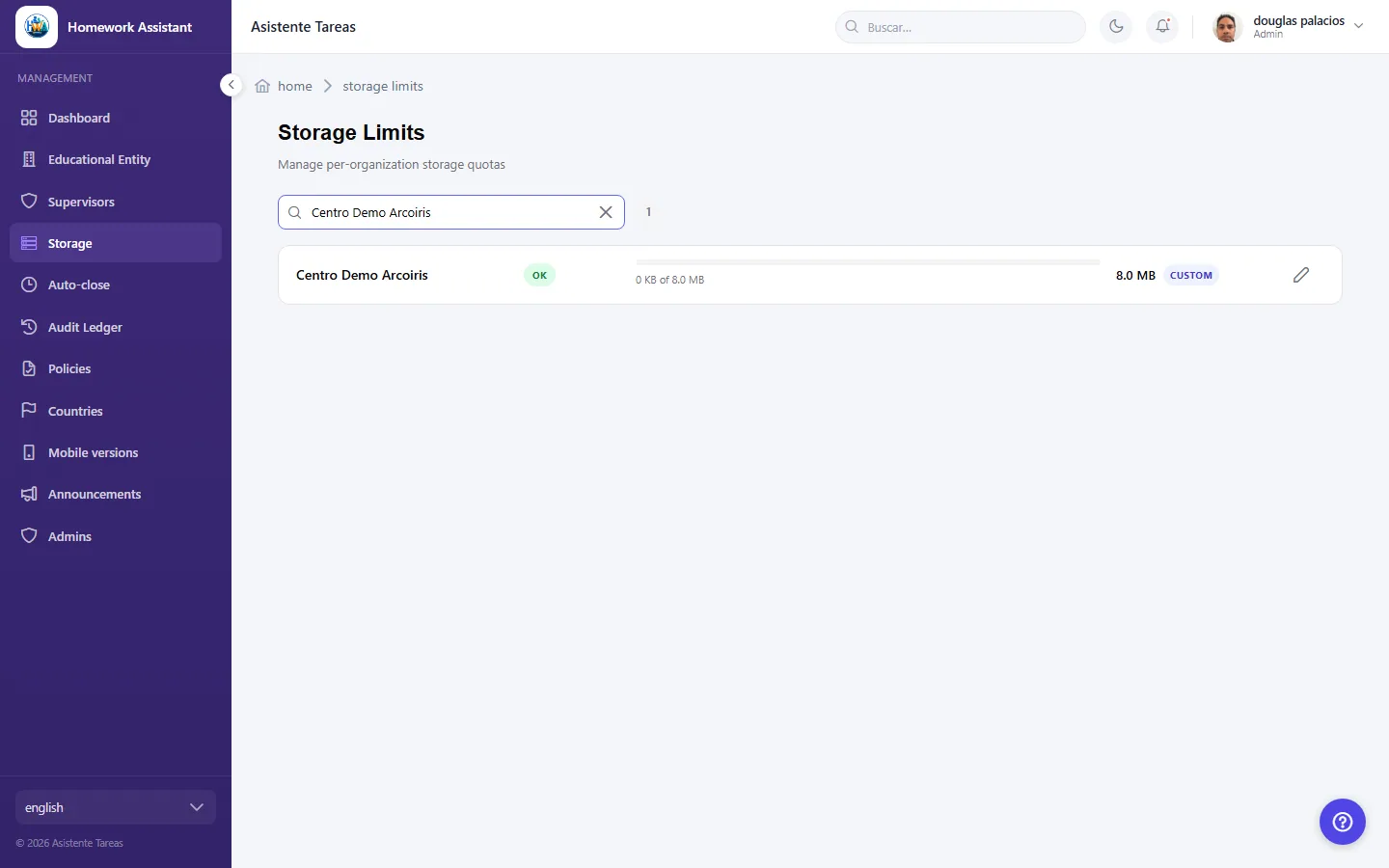
Under Storage Limits you can Search by organization name and edit the one you need. Each shows whether it uses the System default or a Custom value. Change it and click Save — you will see Limit updated successfully. To go back to the shared value, use Reset to default.

  • Screenshot: How do I change a centre's storage limit?
  • Screenshot: How do I change a centre's storage limit?

#What are the Warning and Danger thresholds?

  • Schools
  • Web

The usage percentages at which the system raises alerts: Warning at {x}% · Danger at {y}%. Crossing them sends a Storage alert to administrators, and when the centre is back within limits, Storage cleaned up.

  • Screenshot: What are the Warning and Danger thresholds?
  • Screenshot: What are the Warning and Danger thresholds?

#What does Free up space actually delete?

  • Schools
  • Web

Only two things: School Planner photos and Catch Up replies with attachments.

It does not cover the centre's icon or files uploaded through the generic resource upload — those still count toward usage but cannot be freed here. If space does not drop far enough, it is likely held by files this screen never touches.

Removing those means deleting the resource itself, which only an administrator can do.

✅ Confirmed 2026-09-01. Usage is the sum of every non-deleted resources row for the centre, while cleanup only reaches rows tied to a School Planner day image or to a Catch Up attachment on a closed ledger. Everything else has no parent link, and the code names that set exactly — "EO icon, generic resource uploads" — calling it a deliberate scope limitation (OrphanResourceRepository.java:18). Orphan reconciliation skips them too, so nothing reclaims them automatically.

#Why do some items free 0 bytes?

  • Schools
  • Web

Their status is not eligible yet — usually because they are still Open or Pending. You can select them anyway, but they free nothing. Hover the status to see why.

The All items tab is informational only: it shows everything, including what cannot yet be freed, so you can see the reason.

#What happens if I delete a shared photo?

  • Schools
  • Web

If a photo is marked Shared · {n} notes, it is referenced by several notes across different subjects, and deleting it removes it from all of them.

Deletion is permanent: you will be asked to confirm Permanently delete {n} selected item(s)? Their files will be removed from storage and this cannot be undone. When it finishes you will see Cleanup complete — {bytes} freed.


B. Auto-close settings (batch 15)

#What is Auto-close?

  • Schools
  • Web

It sets how long Catch Up requests and School Planner notes stay open before closing themselves, so old content does not pile up. The Global defaults apply to every centre unless one overrides them.

#Can I switch auto-close off?

  • Schools
  • Web

Yes: set the value to 0 to disable it for that item type, globally or for one centre.

Note also that a note with a future deadline is not closed until that date passes, so some items outlive the configured limit — by design.


C. Policies and consent (batch 16)

  • Screenshot: Can I switch auto-close off?

#What are Compliance Policies?

  • Schools
  • Web

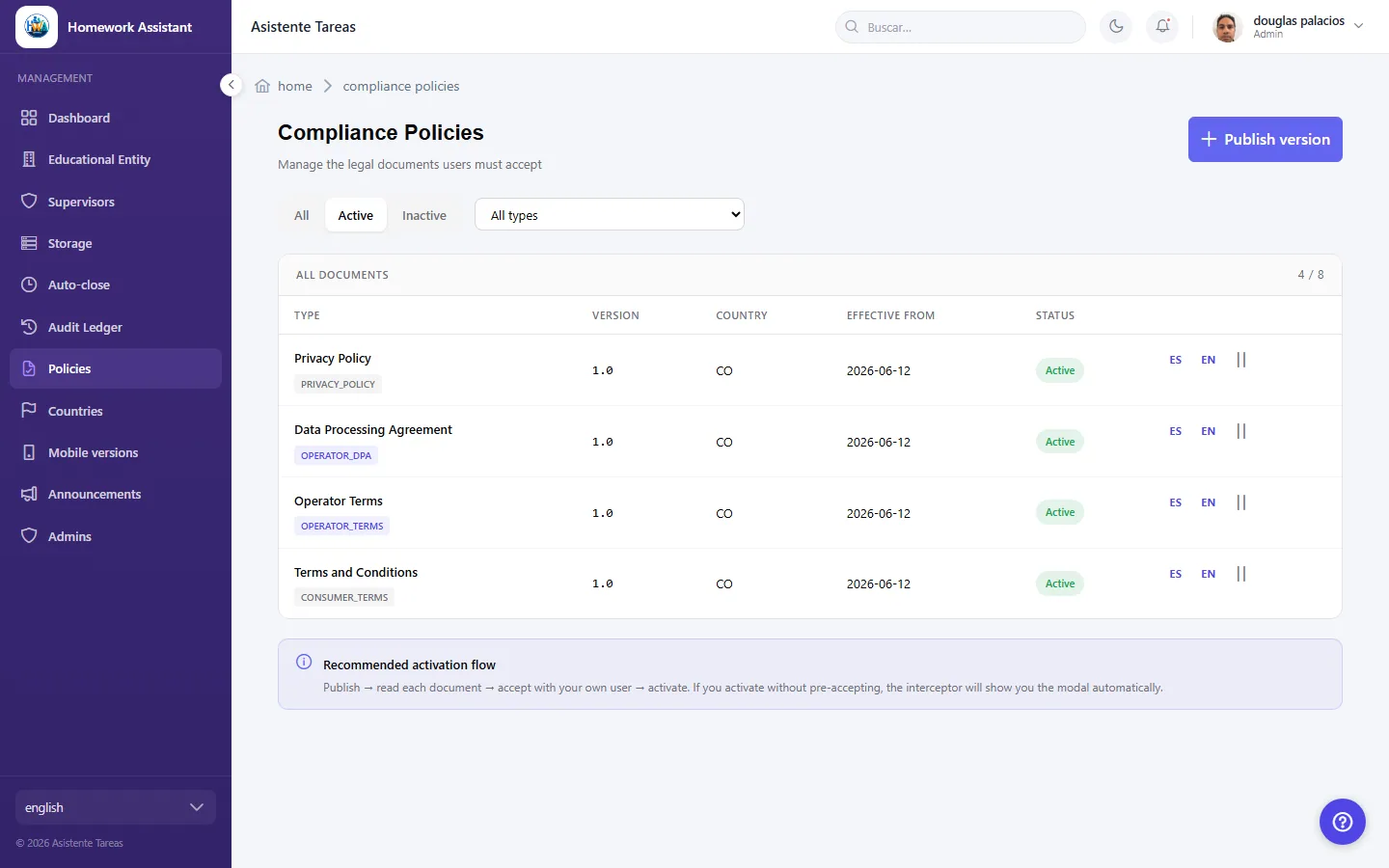
The legal documents users must accept — terms, privacy and the like. They are published per country or as Global, each with its own version.

A country without the required coverage cannot be used to create centres.

  • Screenshot: What are Compliance Policies?
  • Screenshot: What are Compliance Policies?

#How do I publish a policy?

  • Schools
  • Web

Use Publish version, giving the document, its version and scope. If there are none yet you will see No policies published yet.

Publishing does not require anything of users yet — that happens on activation.

  • Screenshot: How do I publish a policy?
  • Screenshot: How do I publish a policy?

#What happens when I Activate a document?

  • Schools
  • Web

Every user who has not accepted it is blocked immediately until they do — including you, if you have not pre-accepted it.

Accept the document yourself before activating. On confirming you will see Document activated. Users will be blocked until they accept. Deactivate lifts the requirement.

If you do lock yourself out it is not permanent: the acceptance dialog appears on your next action, you accept, and you are back in. What you cannot do while blocked is deactivate the document — the policies screen is blocked too, so accepting is the only way out.

✅ Recovery path resolved from code, 2026-08-27. /api/policies/accept is exempt from the policy filter and the 451 interceptor raises the acceptance modal automatically, so recovery is self-service. /api/admin/policies/** is not exempt, which is why undoing the activation is not an option. Not reproduced live — doing so would block every other user of the shared dev database.

  • Screenshot: What happens when I Activate a document?
  • Screenshot: What happens when I Activate a document?

#It is asking me to accept documents before continuing.

  • Schools
  • Web

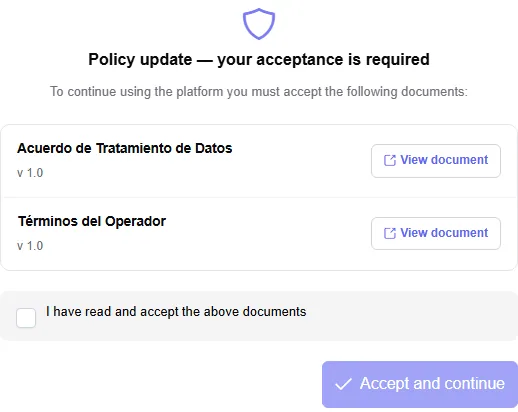
When a new policy is activated you will see Policy update — your acceptance is required, listing the documents. Open them with View document, tick I have read and accept the above documents and click Accept and continue.

If a document will not display inside the app, use Open in new tab.

✅ Captured 2026-08-26. Screenshots: help/web/{es,en}/policy-acceptance/. On web the checkbox can be ticked immediately — opening the documents is optional. Mobile is stricter; see C4b.


  • Screenshot: It is asking me to accept documents before continuing.
  • Screenshot: It is asking me to accept documents before continuing.

#The app is asking me to accept documents before I can get in.

  • Families
  • Mobile app

You will see Before you continue with the pending documents. They must be confirmed one at a time: tap Read, wait for it to load, then tap I have read this document. Each confirmed document gets a tick.

Once all of them are confirmed you can tick I have read and accept the above documents, which enables Accept and continue.

You do not need to scroll to the end — opening each document and confirming it is enough.

✅ Captured on a device, 2026-09-01, both locales: help/android/{es,en}/policy-acceptance/. Split from C4 because the wording differs on every control — web says Actualización de políticas / Ver documento, mobile says Antes de continuar / Leer — and because mobile requires confirming each document while web does not (followup 18).


D. Audit ledger, countries and admin roster (batch 17)

#What is the Audit Ledger?

  • Schools
  • Web

An append-only, read-only record of every change made in the system. It cannot be edited or deleted — only read and filtered.

You can filter by entity type, actor, action and so on, and Clear filters to start again. Changes made by automated processes appear as system / scheduler.

#How do I enable a country?

  • Schools
  • Web

Under Countries you can enable or disable them and check their policy coverage. Search by name or code and filter by Active or Inactive.

Enabling a country is not sufficient on its own: it also needs its policies published before centres can be created there.

#What is the Admin Notification Roster?

  • Schools
  • Web

The list of who receives storage alerts and other admin notifications. It is not access control.

Removing someone here only stops notifications — it does not revoke their admin role. If they still hold it and perform another admin action, they are automatically re-added. To actually withdraw permissions, remove the role in the identity provider.


E. Reports — the moderator side (batch 18, formerly 9b)

#Where do I review abuse reports?

  • Schools
  • Web

Under Abuse Reports within the centre. Each row shows Reporter, Reported, Reason, Center, Reported date and its status: In Progress, Accepted or Rejected.

Open Report Detail to see the Reported content, the reporter's Comment, and Download attachment where there is one.

#How do I resolve a report?

  • Schools
  • Web

In the detail, use Accept or Reject, adding a review comment. Reviewed by and Reviewed at are recorded, and both parties see the decision.

The review comment is required — you cannot resolve without one.

Resolving closes the thread for both parties and the decision is final: neither you nor the guardian can send further messages, and the report cannot be reviewed again. Resolve it once you no longer need anything from the other side.

✅ Confirmed 2026-09-01. The same 409 guards both directions — "Report is closed; no further messages allowed" at AdminReportManager:156 and HomeworkManager:754 — and a second review attempt is refused with "Report is closed and cannot be reviewed again".

#Can I ask for more information before deciding?

  • Schools
  • Web

Yes. Under Message thread, type in Write a message… and click Send. If there are none you will see No messages yet.

It is worth using before resolving: once you accept or reject, the thread closes.


#How do I find a registered person?

  • Schools
  • Web

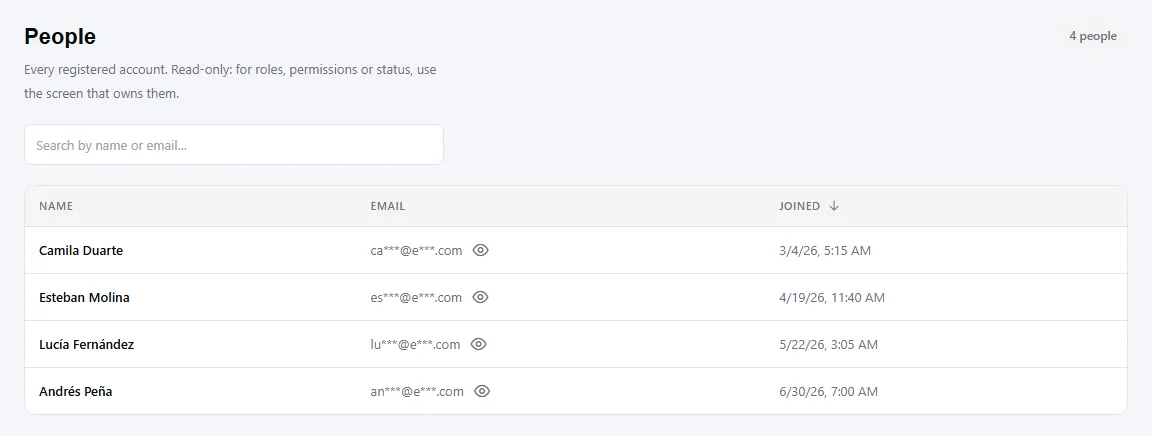
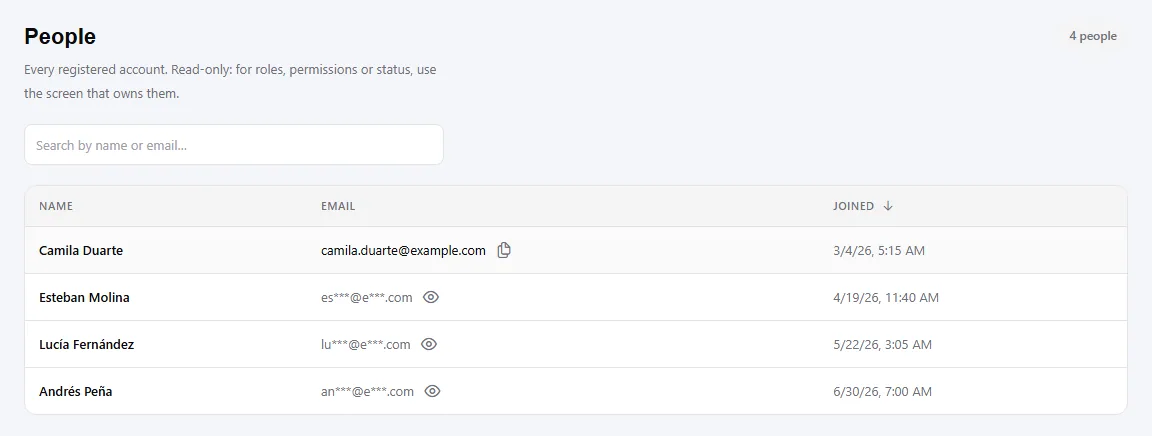
Under People in the admin menu. It is a read-only list — name, email and joined date, sortable by name or date.

Emails are shown masked (ma***@c***.com). To see one in full, click the eye icon on that row: who looked and when is written to the audit log. That is why addresses are revealed one at a time, never for the whole list.

Search needs at least 4 characters. That floor exists because a contains-search over addresses would otherwise let someone walk the entire table, and search terms are audited too.

Roles, permissions and status are deliberately not here — each is managed on the screen that owns it.

  • Screenshot: How do I find a registered person?
  • Screenshot: How do I find a registered person?

#What is the waitlist?

  • Schools
  • Web

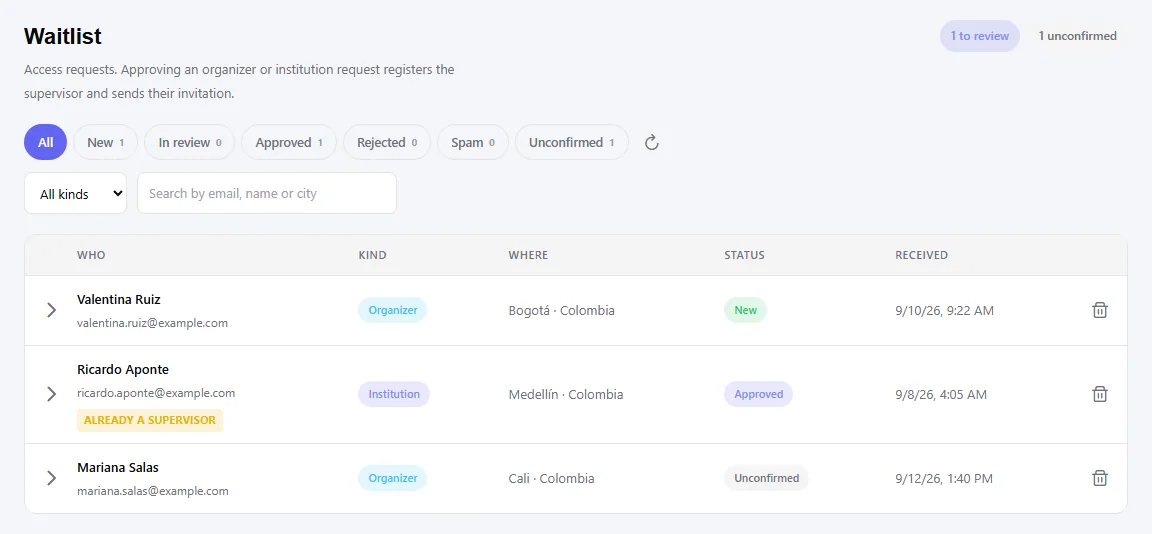
HWA has no self-signup: an admin registers supervisors. The waitlist is the way in for someone who has no account yet — the form on the public page — and it appears under Waitlist in the admin menu.

It is a way in, not the only one: you can still create supervisors and centres directly from the backoffice with no request involved.

Each lead moves through Unconfirmed → New → In review → decided (Approved, Rejected or Spam). Click a row's status to have it explain what that stage means and what happens next.

  • Screenshot: What is the waitlist?

#How do I approve a request, and which supervisor kind do I choose?

  • Schools
  • Web

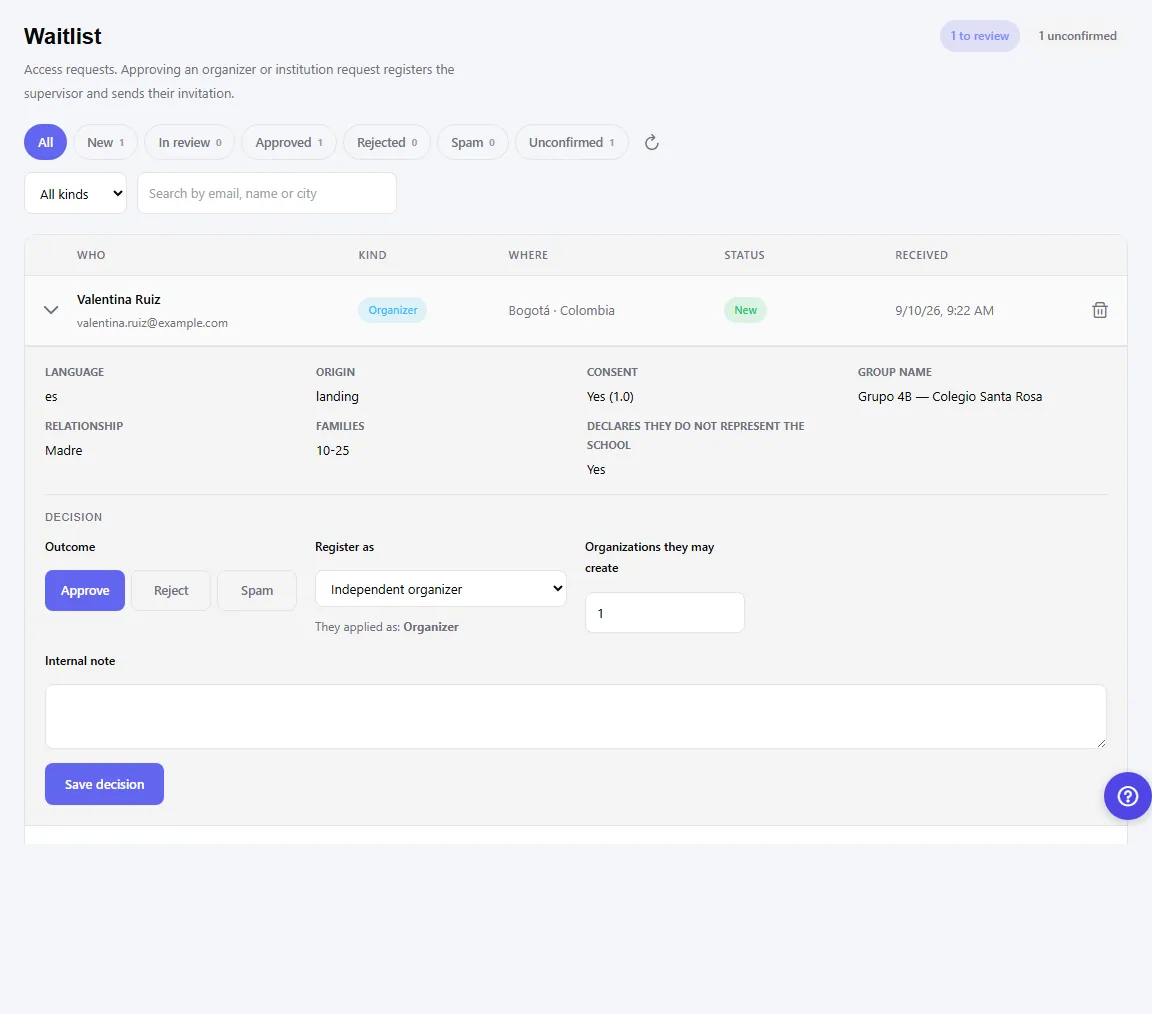
Expand the row and choose Approve. Then pick the supervisor kind and, where relevant, how many centres they may create.

The kind is your decision, not the request's. What the person claimed when they wrote in is shown next to the choice, precisely so that approving an institution request as an independent organizer is a visible decision rather than an oversight.

Approving uses the same supervisor registration as adding one by hand — the invitation, the email and the audit entry are the usual ones.

  • Screenshot: How do I approve a request, and which supervisor kind do I choose?

#Why can I not decide on a request?

  • Schools
  • Web

Because it is Unconfirmed: the person has not clicked the link in the email sent to them. Nobody has yet proven the address is theirs, so the decision is waiting on the visitor, not on you. Those rows are shown as context, not as work.

A lead that has already been decided cannot be decided again either — the panel says so and keeps the decision note.

Unconfirmed requests are deleted after 48 hours, and closed ones after 180 days.

  • Screenshot: Why can I not decide on a request?

#What does Declares they do not represent the school mean?

  • Schools
  • Web

It is the box the person ticked on the public form, kept with their request exactly as they left it.

  • Someone applying as an organizer ticks "I confirm I do not legally represent the educational institution". The panel shows it as Declares they do not represent the school: Yes.
  • Someone applying as an institution ticks the opposite: "I declare I am authorised to represent the institution".

It is stored as evidence, not merely validated. If a badge later has to be withdrawn, or a school complains, that declaration is what makes the decision defensible: there is a record of what this person asserted on the day they asked for access.

It decides nothing on its own. The supervisor kind is your choice when approving and may differ from what they declared — the request keeps their version, so any mismatch stays visible.

A Yes here is the normal case for an independent organizer: it is precisely what separates a group of families from a school. A claim of representation is what leads to in-person verification before any badge is granted.

  • Screenshot: What does Declares they do not represent the school mean?

#How do I decide whether an entity is an institution or a group?

  • Schools
  • Web

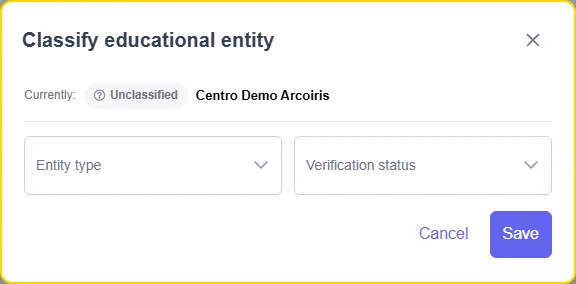
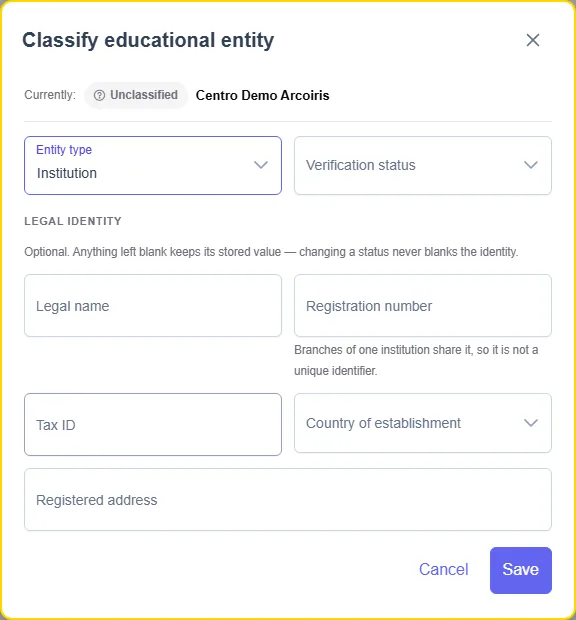
Open the entity and click Classify (admins only). Choose the Entity type and the Verification status.

Only an admin classifies. An entity a supervisor created is always an independent group whatever the form said, and this screen is the only place that changes.

For an institution you can record its legal identity: legal name, registration number, tax ID, country of establishment and registered address. Anything left blank keeps its stored value. An independent group has no legal identity and the system refuses those fields — a registered address for a parents' group would be somebody's home.

  • Screenshot: How do I decide whether an entity is an institution or a group?
  • Screenshot: How do I decide whether an entity is an institution or a group?

#What do promoting and revoking actually do?

  • Schools
  • Web

Promoting to an institution removes the IND- tag from the public name. The name the organizer typed does not change — the tag simply stops being prefixed.

Verifying reserves the name in that country: no other entity will be able to use it.

Revoking or rejecting keeps the entity and its name. All that happens is the badge stops showing. It is not the same as deleting the entity, which destroys real family data.

Demoting to an independent group clears the stored legal identity, because a group has none. Nothing important is lost: the verification record keeps its own copy of what was confirmed on the day.

  • Screenshot: What do promoting and revoking actually do?

#Where do I record a verification?

  • Schools
  • Web

Open the entity, click Verification (admins only), then Record verification.

It is a record of what was confirmed, not a workflow: verification happens in person and this is where it is written down afterwards. It does not change the entity's status — the badge is granted under Classify, deliberately, so recording a visit and granting a badge stay two decisions.

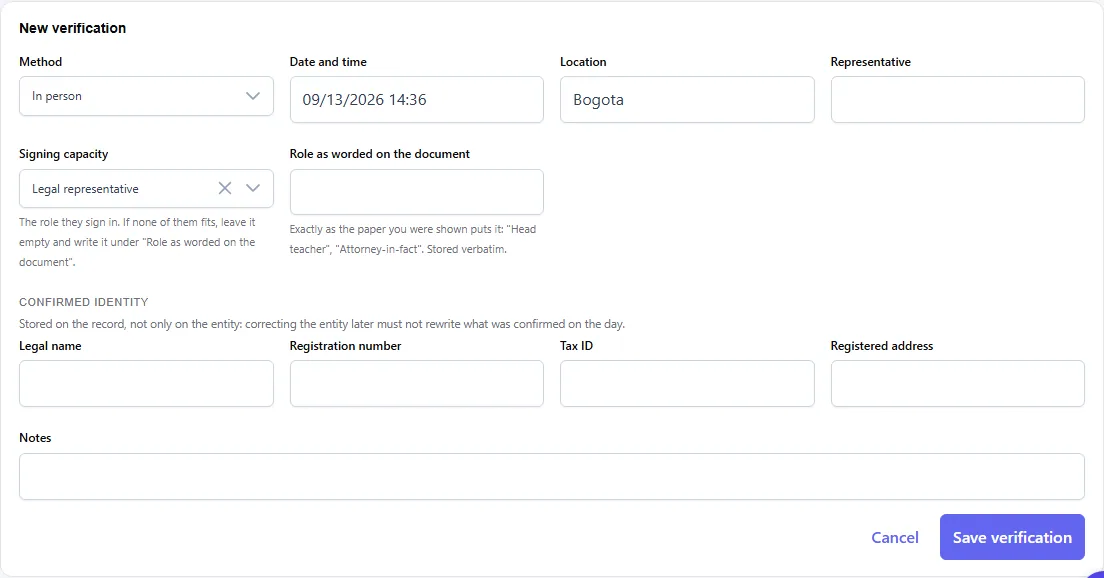
Note the method (in person or referenced), date, location, who signed and in what capacity, and the identity confirmed. The identity is stored on the record as well as on the entity: correcting the entity later must not rewrite what was confirmed on the day.

Referenced is for a further branch of an institution already visited — it leans on the earlier verification instead of requiring another trip.

  • Screenshot: Where do I record a verification?

#Do I have to upload the document I was shown?

  • Schools
  • Web

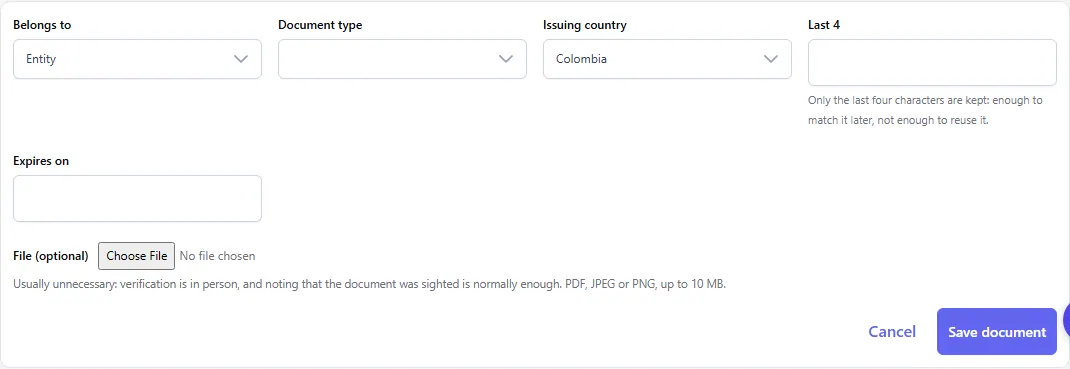
Usually no. What gets recorded is that the document was seen: type, issuing country, last four characters and expiry. Verification is in person and a human has already checked the original, so keeping a copy adds risk without adding assurance. Those entries show as Sighted, which is the expected outcome, not a failed upload.

Only the last four characters of any identifier are stored: enough to match it later, not enough to reuse it.

If a bank or an authority requires the file, the field is at the end of the form (PDF, JPEG or PNG, up to 10 MB). When it is needed, prefer entity documents — certificate of incorporation or tax certificate — over a person's ID card: those are what the payout relationship needs, and they carry the least personal data. Every download is written to the audit log.

  • Screenshot: Do I have to upload the document I was shown?
  • Screenshot: Do I have to upload the document I was shown?

#What are the legal name, registration number, tax id, registered address and country of establishment on a verification?

  • Schools
  • Web

All of them are copied from the papers the institution shows you during the visit. Do not invent or infer any of them: if something is not on the document, leave it blank.

  • Legal name — the name the institution is legally incorporated under. It often does not match the name families know it by, and that is normal: the profile name is one thing, the legal name another.

  • Registration number — the number it holds in its country's registry (companies register, commercial registry, education registry — whichever applies there). Branches of one institution share this number on purpose: it is what groups them, so it is not a unique identifier and must not be used as one.

  • Tax id — its tax number. In some countries this is the same as the registration number, in others it does not exist at all. If there is none, leave it empty.

  • Country of establishment — where it is incorporated, which may not be the country of the campus you visited.

  • Registered address — the address on the papers. It need not be the building you were in either; where the visit happened goes in Location.

  • Representative — who attended the verification.

  • Capacity — chosen from a list, because it is the part that is comparable between records:

    • Legal representative — signs for the institution and can bind it. This is the capacity that supports a verification: it decides that a contract would be with the institution rather than with the person.
    • Delegate — acts for the institution with the legal representative's blessing, but is not them. Ask to see what authorises it — an appointment letter, for instance.
    • Centre staff — works there, without authority to represent it. Useful for recording who received you, not for supporting the verification.
    • Organizer — runs a group on their own behalf. Does not belong to a verified institution.

    If nobody fits, leave it empty. Forcing the closest-looking option turns a doubt into a fact.

  • Role as worded on the document — how the paper puts it, verbatim: "Head teacher", "Attorney-in-fact", "Deputy legal representative". It is stored as written and is what appears beside the name. This is where the nuance the list above cannot hold belongs.

Two things worth knowing: whatever you leave blank keeps the value already stored — changing the status never erases the identity — and the identity is stored on the verification record as well as on the entity, so correcting the entity later does not rewrite what was confirmed that day.

HWA does not judge the legal validity of any of this. You record what you saw, and whoever reads it later knows exactly which document backs it.

Reviewer notes

  1. C3 is the most important answer here — an admin can lock themselves out of the platform in one click. The app warns, but only in the confirmation dialog.
  2. A3 matters more than it looks. Cleanup covers only School Planner photos and Catch Up attachments, so an admin chasing a storage warning may free far less than expected and not understand why. The scope note exists in the UI but is easy to miss.
  3. D3 corrects a natural misreading — the roster looks like an admin list and behaves like a mailing list. Someone "removing an admin" there would achieve nothing and be surprised when they reappear.
  4. The web offers more report reasons than mobile: web adds Offensive content and False information to the four the app shows. Either mobile is missing options or the web list is aspirational — added to the capture checklist.
  5. E2's claim that resolving closes the thread joins the guardian-side "This report is closed" string to the moderator's Accept/Reject. Consistent, but not stated in one place.
  6. Fewer questions per area than the guardian batches, deliberately — these screens serve few people and several become obvious once one concept lands.
  • Screenshot: What are the legal name, registration number, tax id, registered address and country of establishment on a verification?

Other areas