1. HWA
  2. Help centre
  3. Notifications, alarms and media
All areas

Notifications, alarms and media

#What am I allowed to upload as photos and audio?

  • Families
  • Mobile app

Educational material only:

  • Photos of classroom boards.
  • Photos of notebook or textbook pages.
  • Voice notes for homework.

Do not upload photos of people — not your child, not anyone else — in line with the terms you accepted. This is a rule of the service rather than a suggestion, and it applies in both Catch Up and the School Planner.

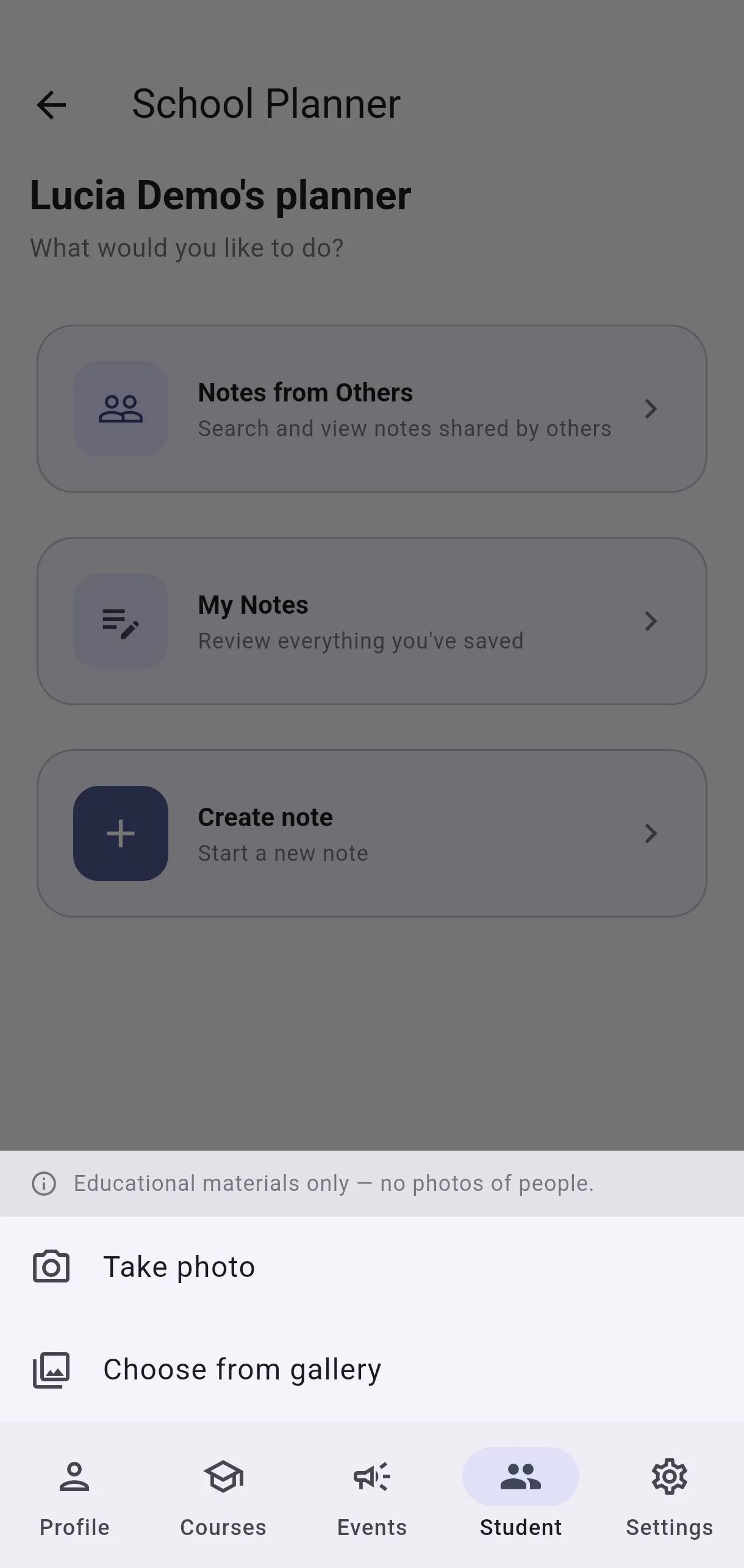
The app reminds you before you choose the photo or audio, not after: the first time, a Before you add media sheet appears with I understand to continue. That full reminder shows only once; after that the rule stays as a single line inside the screen where you pick Take photo or Choose from gallery.

If you see content that breaks it, you can use Report.
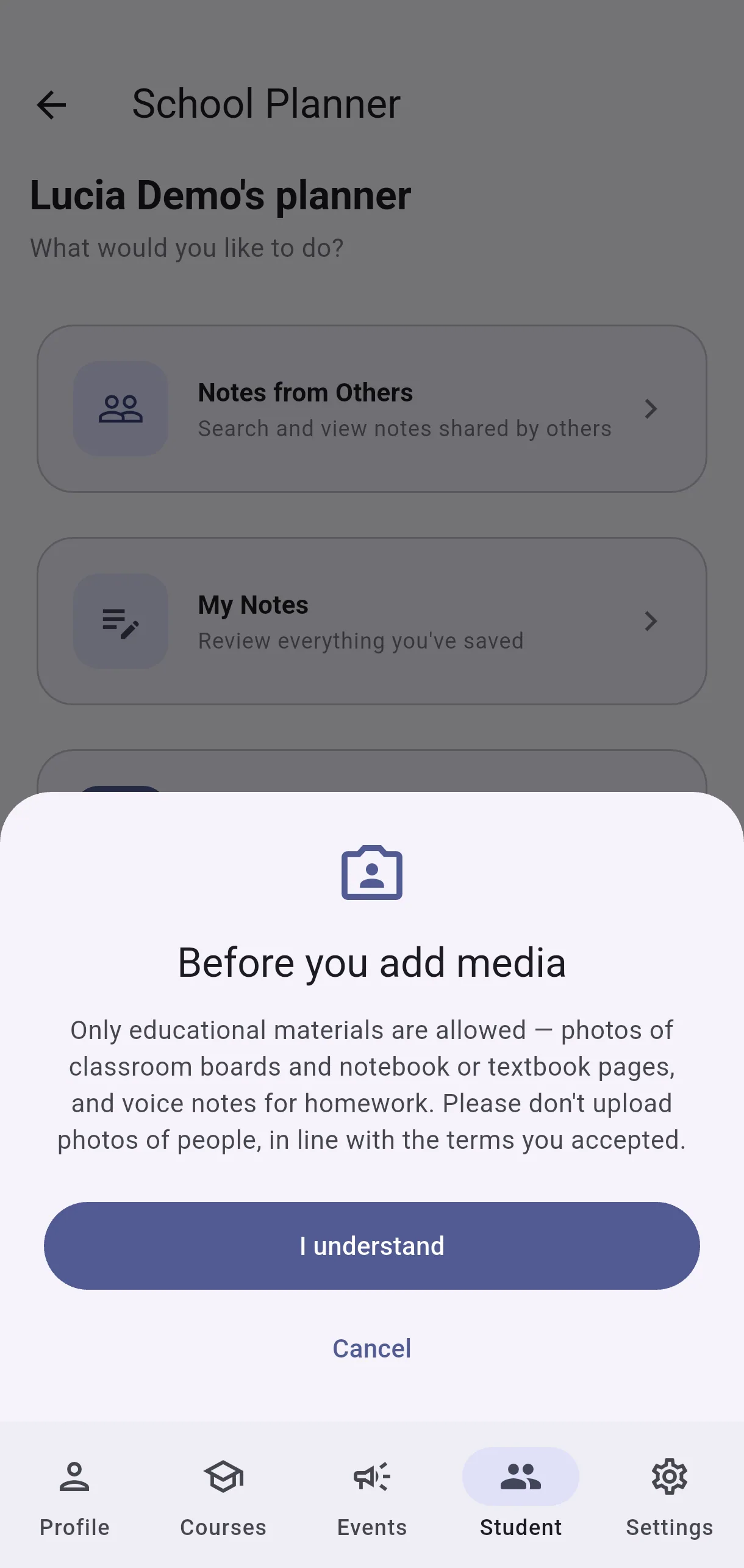
  • Screenshot: What am I allowed to upload as photos and audio?
  • Screenshot: What am I allowed to upload as photos and audio?

#How do I set a reminder on a note?

  • Families
  • Mobile app

Open the note in the School Planner and, under Alarms, tap Add alarm. Pick the date and time — it must be in the future, or you will see Alarm time must be in the future.

If there are none you will see No alarms set. You can remove one with Delete alarm.

  • Screenshot: How do I set a reminder on a note?

#What do Scheduled and Sent mean on an alarm?

  • Families
  • Mobile app
  • Scheduled — its time has not arrived yet; it will notify you when it does.
  • Sent — the notification has already gone out.

A Sent alarm stays visible as a record that you were notified; it does not fire again.

#What does the app notify me about?

  • Families
  • Mobile app

As a guardian, you will be alerted when:

  • A new event is published for your centre or your children's course.
  • An alarm you scheduled comes due.
  • A decision is made on a report of yours.
  • A note's deadline is approaching.
  • A moderator writes on a report involving you.

On reports, precisely: you are told about the decision on a report you filed. If someone reports your content, you get no notification — neither when it is filed nor when it is decided; you will see it under Received.

There is no way to turn notifications off inside the app. If you would rather not see them, use your phone's own notification settings for the app. Note that this stops your phone displaying them; it does not stop them being sent.

  • Screenshot: What does the app notify me about?

#Does publishing an event send a notification?

  • Schools
  • Web

Yes. Publishing sends an alert — New event: A new event has been published — to whoever matches Visible to: the whole centre if General, or only that course's guardians.

Bear that in mind when choosing the scope: a General event notifies everyone.

#What notifications do I get as an admin or supervisor?

  • Schools
  • Web
  • New abuse report — a report has been filed in a centre under your supervision.
  • New message in report — a guardian wrote in a report thread.
  • Storage alert — an organisation's storage usage changed status.
  • Storage cleaned up — it is back within limits.

#What does Reminder sent mean on a note?

  • Families
  • Mobile app

It means an alert has already gone out about that note's deadline, so it does not slip by.

It is different from Alarms, which you schedule yourself: the deadline reminder is tied to the note's own due date.

  • Screenshot: What does Reminder sent mean on a note?

#How do I check which version of the app I have?

  • Families
  • Mobile app

In Settings, look for Version. It is worth having to hand when reporting a problem, since it identifies which build you are on.

Other areas