1. HWA
  2. Help centre
  3. Children and enrolment
All areas

Children and enrolment

#I added my child but I can't do anything with them. Why?

  • Families
  • Mobile app

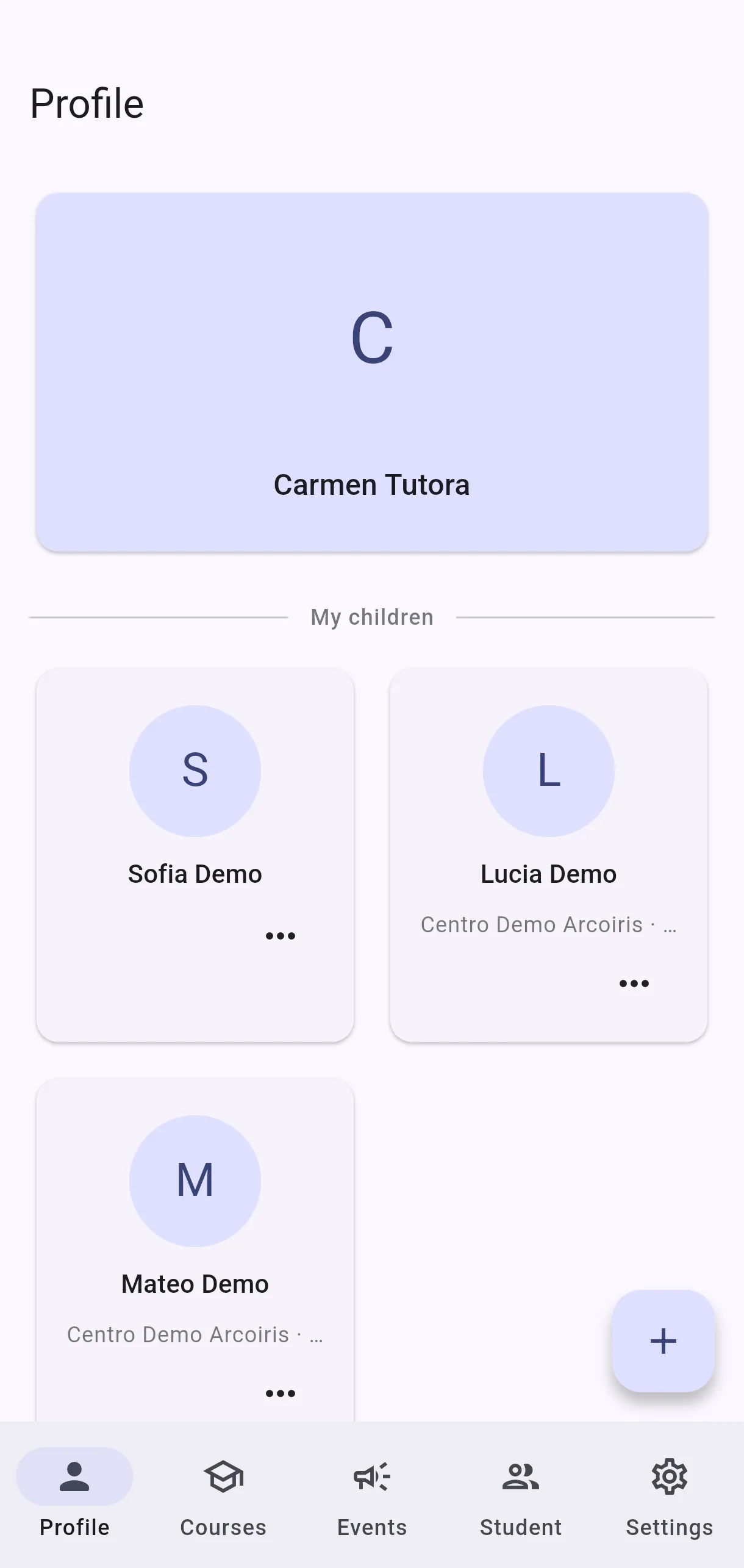
They are two separate steps. Add child only puts them on your personal list — a person on your account, with no connection to a school or course yet. To use Catch Up, the School Planner or activities, you also need to Add to course.

Until you do, you will see No active enrollment. Your child is still on the list — they are just not enrolled in any subject yet.
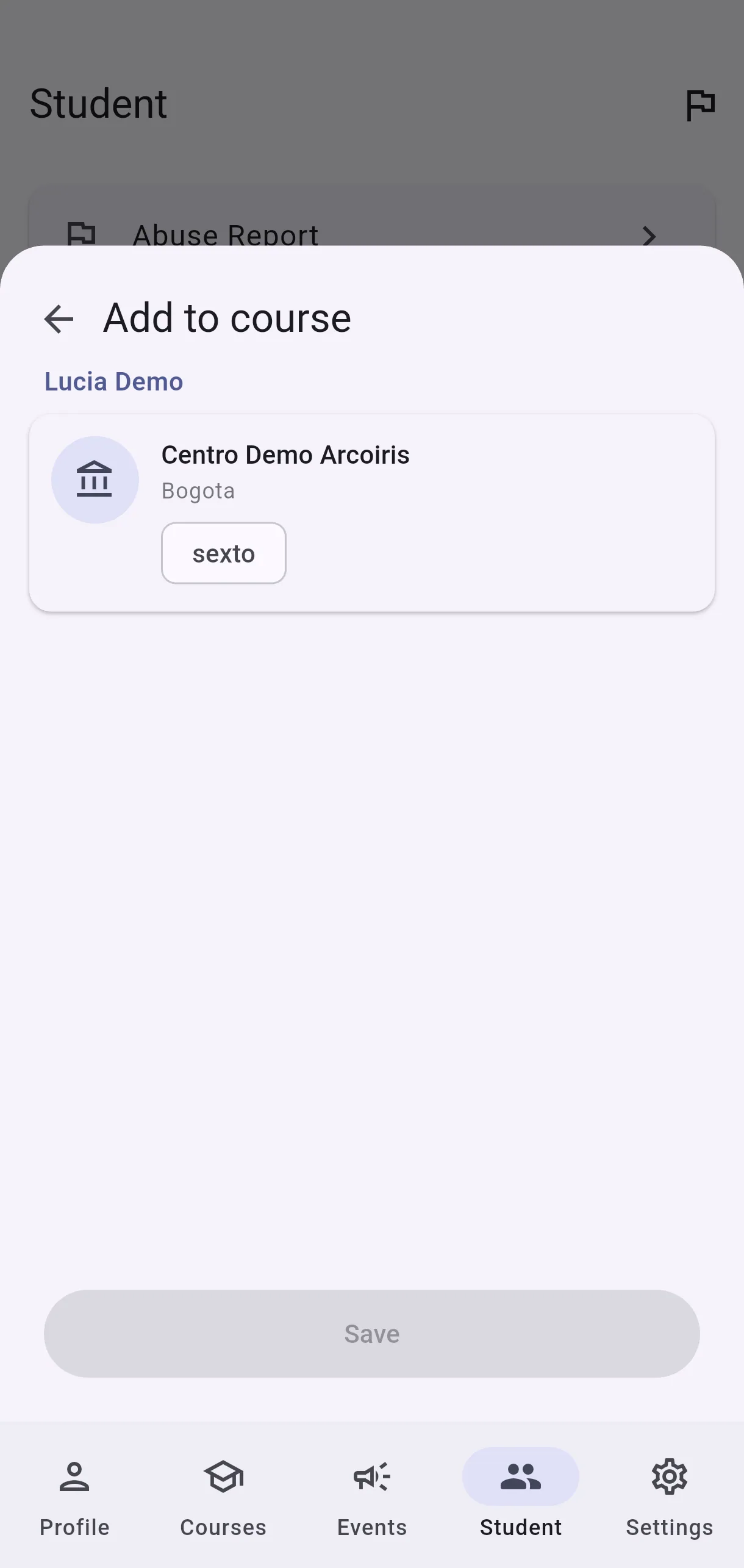
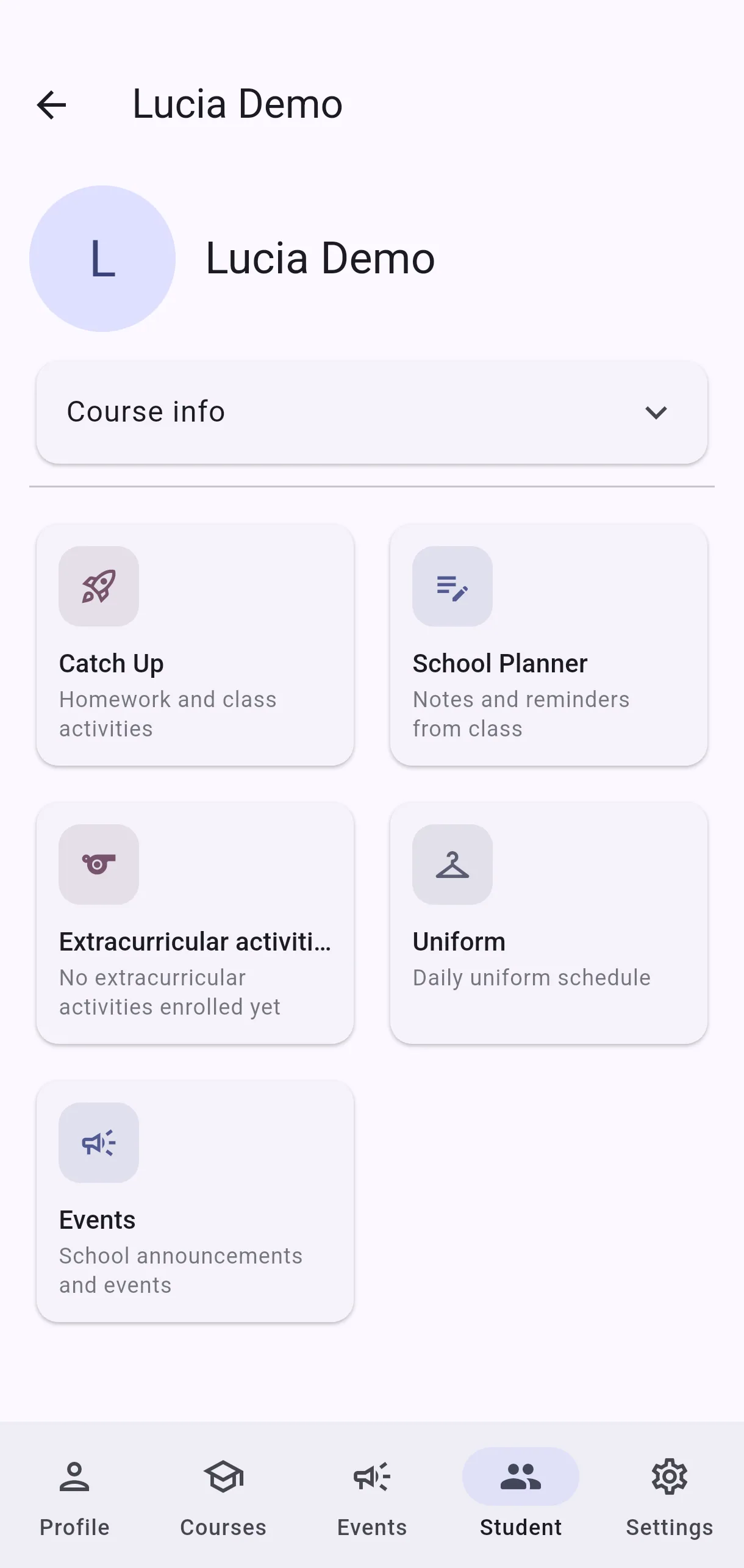
  • Screenshot: I added my child but I can't do anything with them. Why?
  • Screenshot: I added my child but I can't do anything with them. Why?

#How do I add my child?

  • Families
  • Mobile app

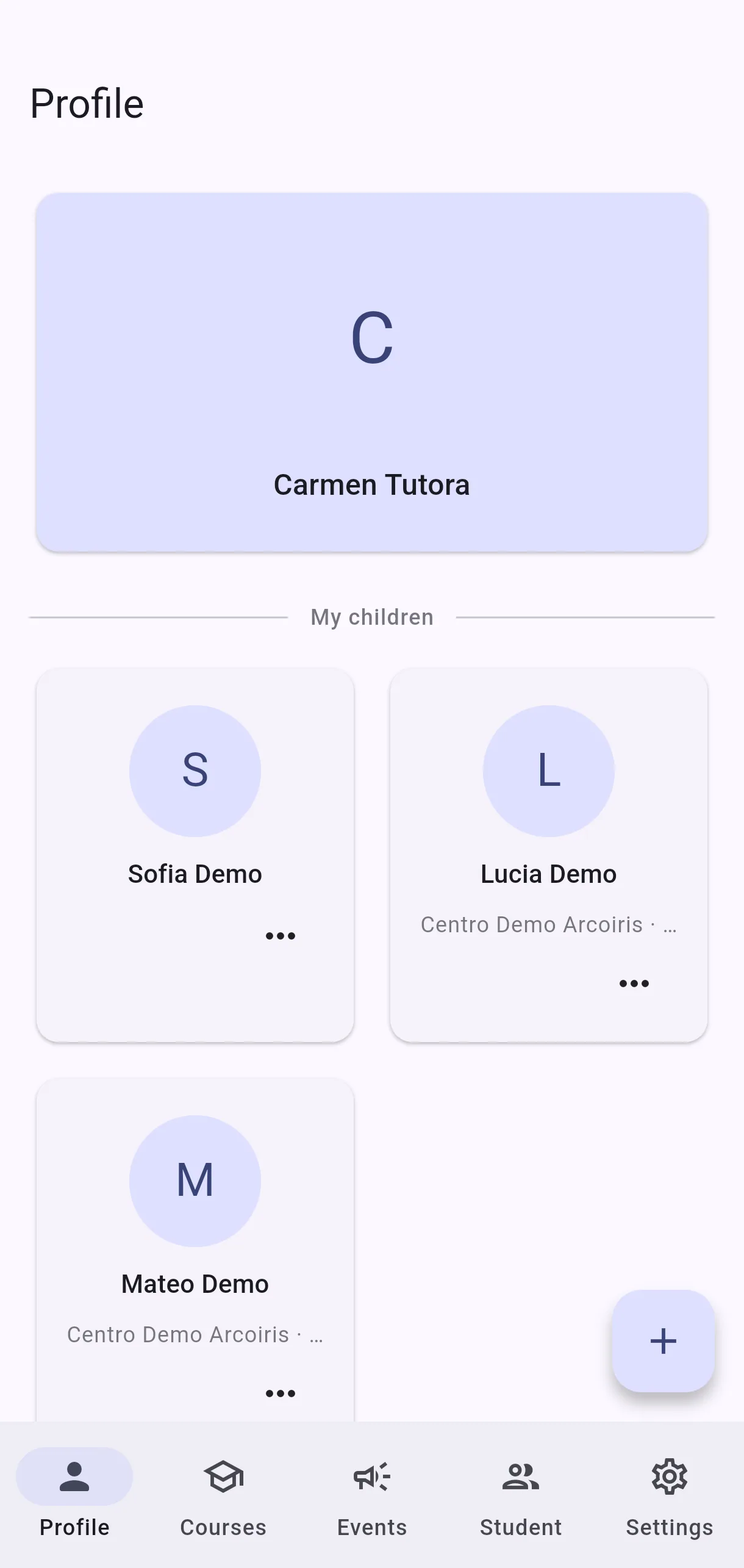
Go to My children and tap Add child. Enter the Child's name and, optionally, an Email (optional). Tap Save and you will see Child added. If you have none yet, you will see No children added yet.

Note this only puts them on your list — to actually use the app with them, you need to enrol them in a course (see the previous question).

  • Screenshot: How do I add my child?
  • Screenshot: How do I add my child?

#How do I enrol my child in a course?

  • Families
  • Mobile app

There are two ways in, and they open the same sheet:

  • On Profile, each child has their own Add to course, which starts straight at the course list.
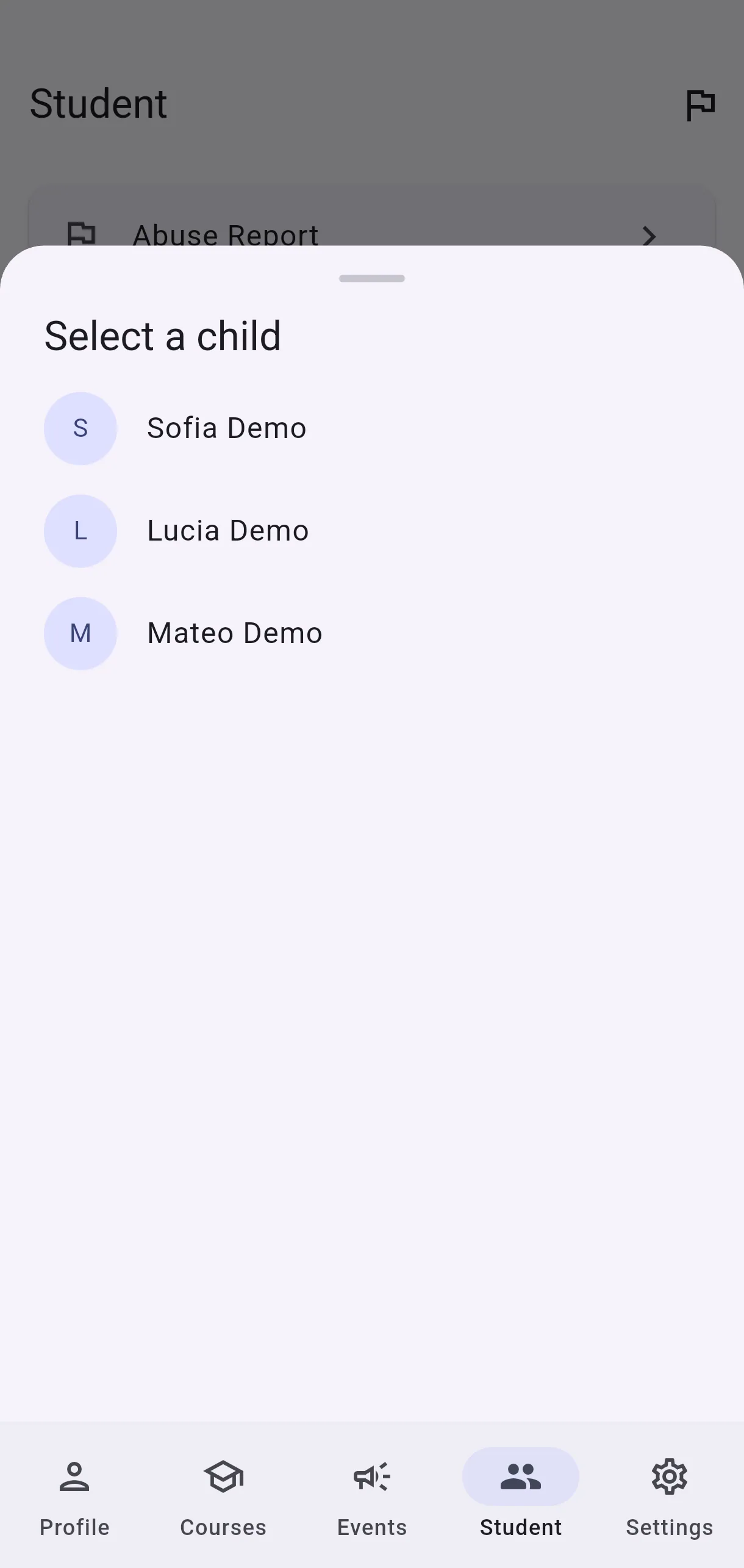
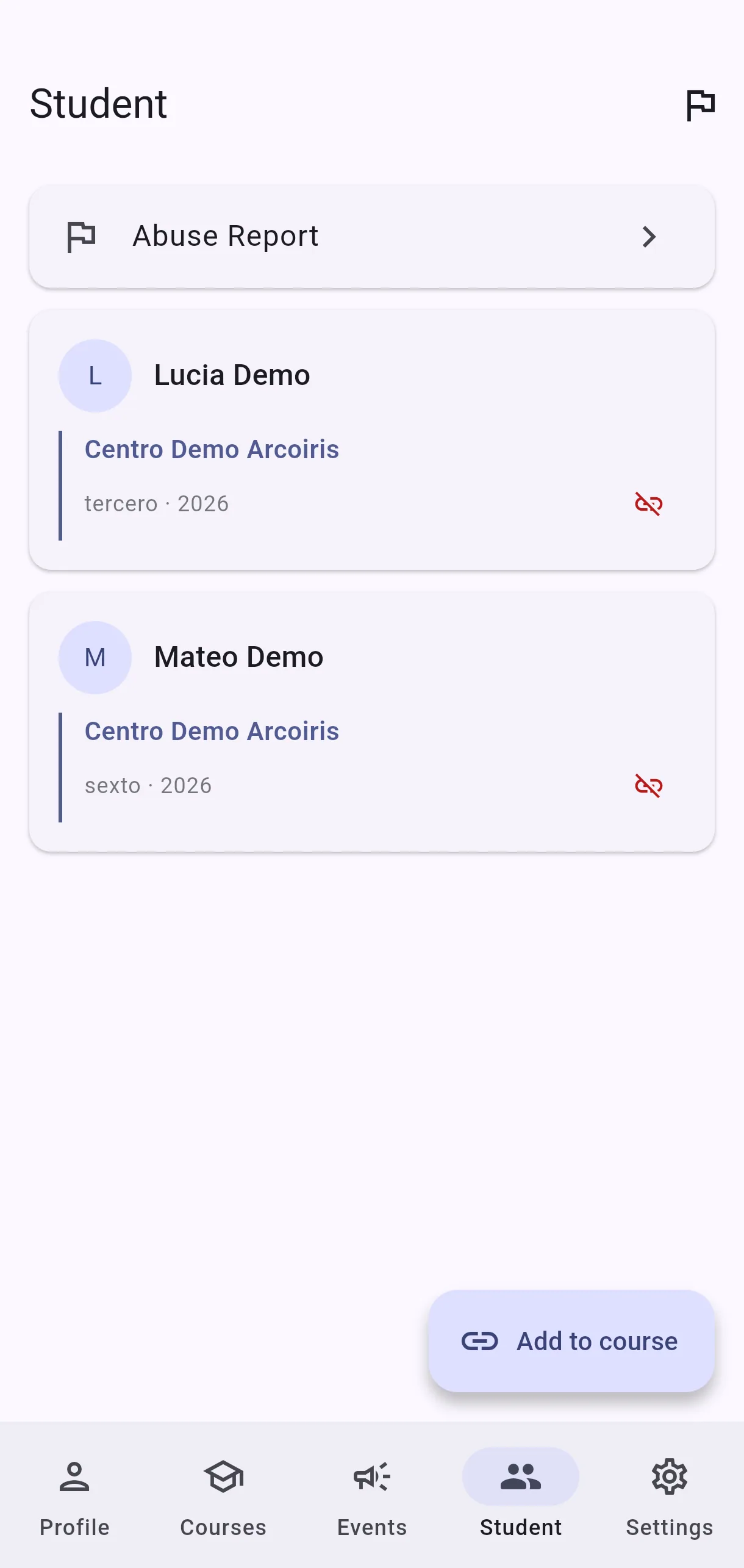
  • On Student, the Add to course button asks Select a child first, then shows the courses.

You choose one whole course, not subject by subject: confirming enrols your child in every subject in that course at once, and you will see Added to course. If they were already enrolled, you will see Child is already enrolled in this course.

The list shows only the courses your child is not already in, grouped by centre with the grade on a chip. If a course is missing, it is usually because they are already enrolled in it. Guardar stays disabled until you select one.

Note the difference when undoing: you add by course, but you remove by subject.

  • Screenshot: How do I enrol my child in a course?
  • Screenshot: How do I enrol my child in a course?

#What does No active enrollment mean?

  • Families
  • Mobile app

That your own link to the centre is not active yet. It is not about your children: while this shows, managing children is blocked entirely — you will not see the + button or Add to course.

It happens when you have not yet accepted the invitation the centre sent you. The invitation link does not expire, so find that email and open it, however old it is. If you cannot find it, ask your administrator to send it again.

Once accepted, the children section appears and you can enrol them.

If buttons seem to be missing, look in Profile. That is the only place the message appears. On Student and in a student's activity, the same cause makes Add to course and New request simply not show up, with nothing on screen explaining why.

  • Screenshot: What does No active enrollment mean?
  • Screenshot: What does No active enrollment mean?

#How do I remove my child from a course, or from my list?

  • Families
  • Mobile app

They are two different actions:

  • Remove from course — from the subject, confirm Remove {name} from {subject}?. You will see Removed from course. Your child stays on your list, just not in that subject.
  • Remove child — confirm Remove child?. This takes them off your list entirely.

If they simply changed course, use the first. The second is for when they should no longer be on your account at all.

Mind the asymmetry: enrolling picks one whole course and brings in all its subjects together, but removing works subject by subject. Undoing a full enrolment means repeating Remove from course for each subject.

  • Screenshot: How do I remove my child from a course, or from my list?
  • Screenshot: How do I remove my child from a course, or from my list?

#How do I enrol my child in an extracurricular activity?

  • Families
  • Mobile app

On your child's page, find Extracurricular activities and tap Add. Pick the activity and tap Enroll — you will see Enrolled successfully.

To remove one, use Unenroll and confirm Are you sure you want to remove this activity?. If they have none yet, you will see No extracurricular activities enrolled yet.

  • Screenshot: How do I enrol my child in an extracurricular activity?
  • Screenshot: How do I enrol my child in an extracurricular activity?

#Why are there no activities for my child?

  • Families
  • Mobile app

No activities available for this grade means the centre has not set up any extracurricular activities for the course your child is enrolled in. This is not something you can change from the app — if you think there should be some, raise it with the centre.

  • Screenshot: Why are there no activities for my child?
  • Screenshot: Why are there no activities for my child?

#What does Course info show?

  • Families
  • Mobile app

It summarises where your child is enrolled:

  • School — the centre.
  • Class — the course or grade.
  • School year — the relevant academic year.

If you see No course information available, they do not have an active enrolment yet — see No active enrollment.

  • Screenshot: What does Course info show?
  • Screenshot: What does Course info show?

#How do I see my child's week and share it as a PDF?

  • Families
  • Mobile app

Tap ⚡, pick your child and tap This week. At the top you choose This week or Next week. You will see their Notes with the subject and due date, Events with their time and details, and Open Catch Up requests.

To hand it to your child, tap the PDF icon (Share as PDF): it builds a document with the week's homework ordered by due day, each with a box to tick, plus the events and requests, and opens the sheet to share or print it.

Tap Reload (↻) or pull down to refresh.

#How do I see what my children have tomorrow?

  • Families
  • Mobile app

Tap ⚡ and then Tomorrow. For each child you will see the uniform, the classes with their times, extracurricular activities, notes that are due and their course's events. Anything for the whole centre appears under General tomorrow.

If there are no classes tomorrow — on a Saturday, say — the screen moves on to the next day with activity and says so with Next activity day: {date}. Notes and events cover tomorrow through that day, so Monday's are not missed.

Tap Reload (↻) or pull down to refresh.

Other areas