1. HWA
  2. Help centre
  3. Catch Up
All areas

Catch Up

#What is Catch Up for?

  • Families
  • Mobile app

Catch Up lets you ask other guardians in the class for the homework and class activities your child missed. You create a request naming the dates and subjects, and the people who receive it reply with what was covered. You will find it on your child's page, under Catch Up.
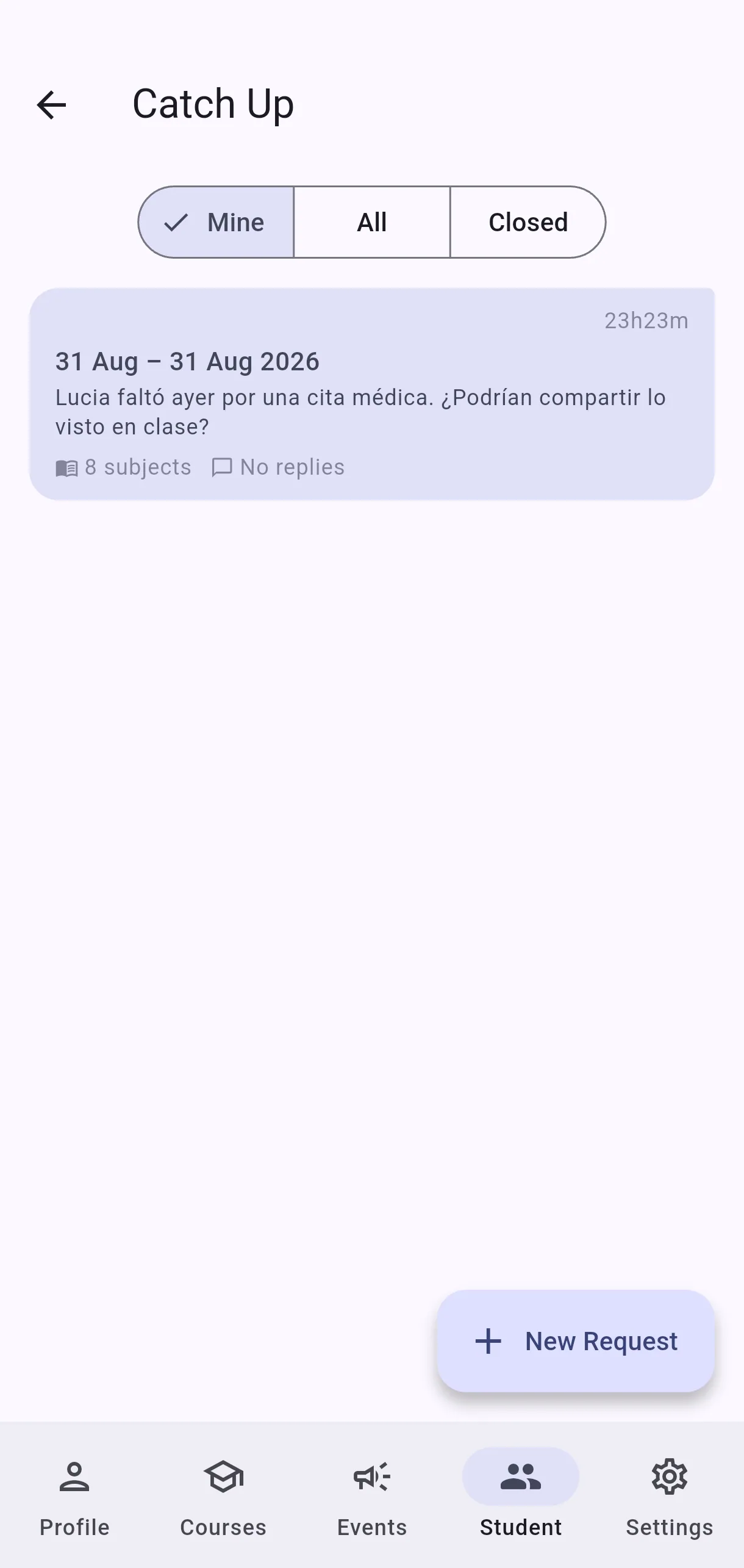
  • Screenshot: What is Catch Up for?
  • Screenshot: What is Catch Up for?

#How do I ask for homework that was missed?

  • Families
  • Mobile app

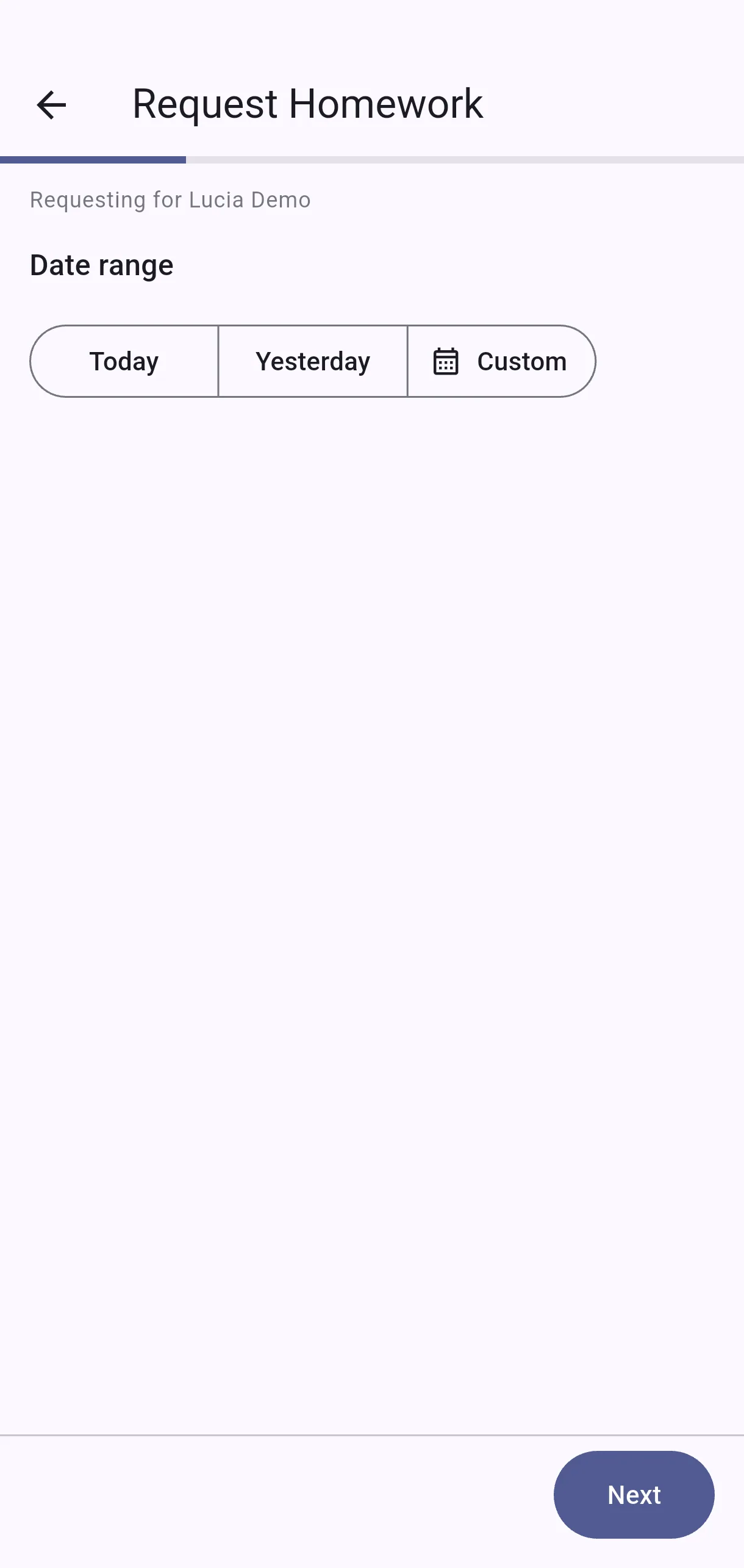
On your child's page, open Catch Up and tap New Request. Then:

  1. Date range — pick Today, Yesterday, or Custom with From and To.
  2. Which subjects? — choose All subjects or just the ones you need.
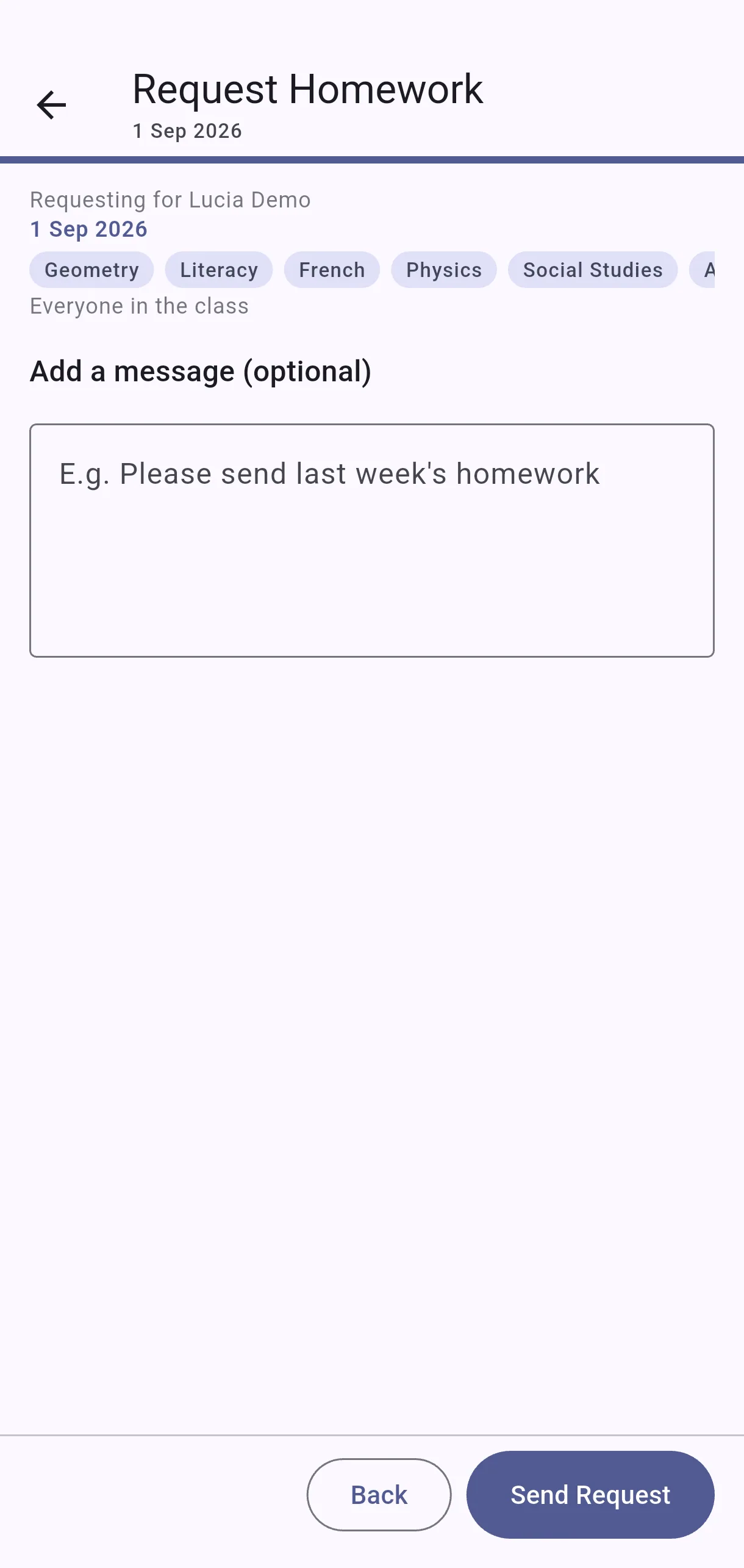
  3. Send to — Everyone in the class or Specific people.
  4. Add a message (optional) — e.g. Please send last week's homework.

Tap Send Request. You will see Homework request created.

  • Screenshot: How do I ask for homework that was missed?
  • Screenshot: How do I ask for homework that was missed?

#How do I reply to a request?

  • Families
  • Mobile app

Open the request and tap Reply. You can answer per subject using Reply to {subject}, or tap Add a general note if your answer is not about one particular subject. Write in Write a note..., set Covers date (optional) if relevant, and post. You will see Reply posted.

  • Screenshot: How do I reply to a request?

#Can I send a photo or audio in my reply?

  • Families
  • Mobile app

Yes. When replying, use Add photo to attach a picture of the notebook, or Add audio to record a voice message — you will see Recording, and can tap Stop or Record again. If you see Upload failed — tap to retry, tap the attachment to try again.

  • Screenshot: Can I send a photo or audio in my reply?

#What do Your request, You were asked and Open to class mean?

  • Families
  • Mobile app

They show your relationship to each request:

  • Your request — you created it.
  • You were asked — it was sent to you directly, via Specific people.
  • Open to class — it went to Everyone in the class, so anyone can reply.
  • Screenshot: What do Your request, You were asked and Open to class mean?
  • Screenshot: What do Your request, You were asked and Open to class mean?

#How do I close a request?

  • Families
  • Mobile app

Open your request and tap Close request. You will be asked to confirm with Close this request? — note that no more replies will be collected, and this cannot be undone. After confirming you will see Request closed, and its status changes from Open to Closed.

  • Screenshot: How do I close a request?

#Why does it say there are no other guardians?

  • Families
  • Mobile app

No other guardians found for the selected subjects appears when no other guardian is registered for the subjects you picked. Try widening the selection with All subjects, or send the request to Everyone in the class instead of Specific people.

  • Screenshot: Why does it say there are no other guardians?
  • Screenshot: Why does it say there are no other guardians?

#Can I change a request after sending it?

  • Families
  • Mobile app

Yes, while it is still Open. On the request you can use Add subjects to include more subjects — if they are all there already you will see No more subjects to add. — and Manage audience to adjust who it went to.

  • Screenshot: Can I change a request after sending it?
  • Screenshot: Can I change a request after sending it?

Other areas