1. HWA
  2. Help centre
  3. Events
All areas

Events

#What are Events?

  • Families
  • Schools
  • Mobile app
  • Web

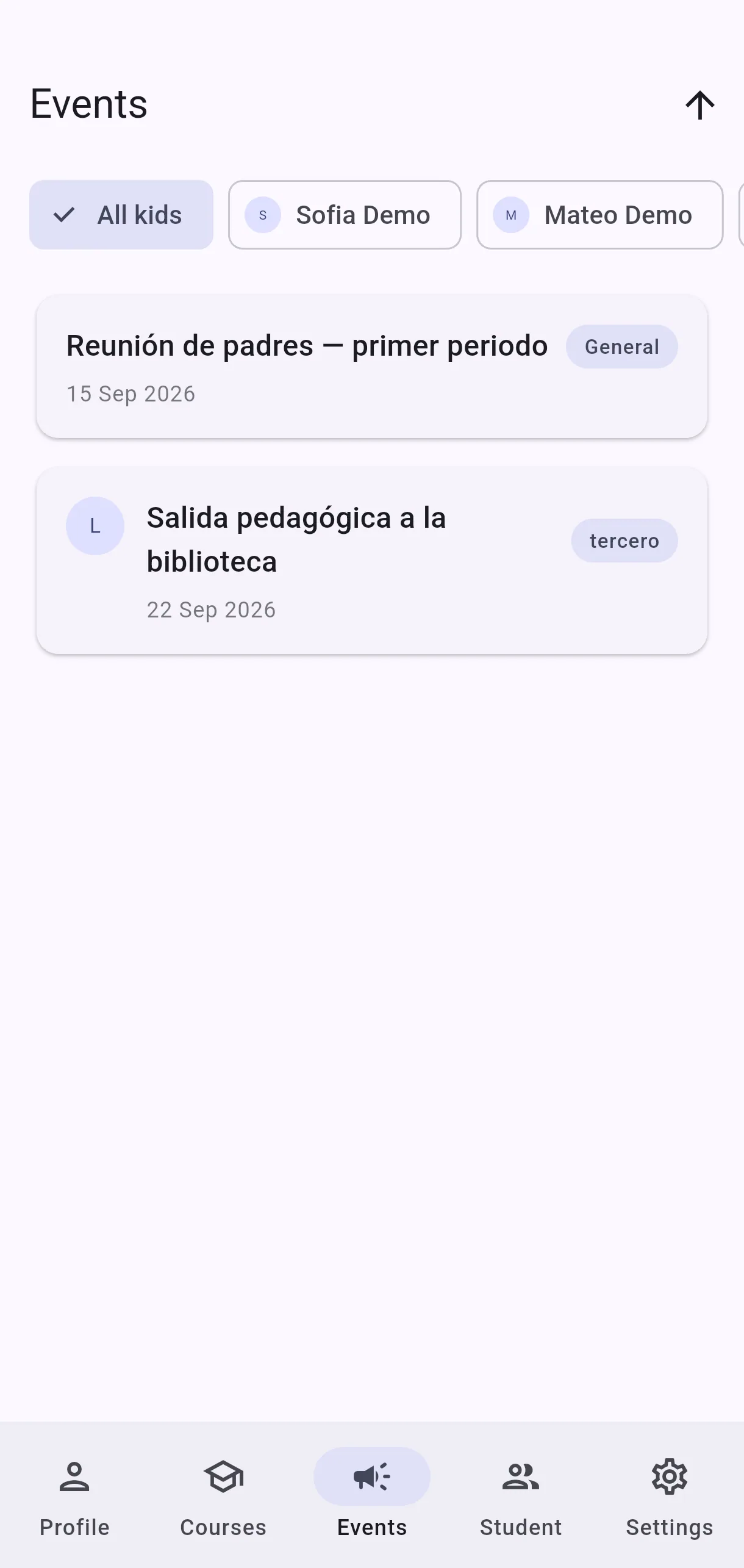
They are the school announcements and events the centre publishes: meetings, trips, important dates. The centre creates them from the web app, and guardians see them in the app under More → Events.

Each event is either General, for the whole centre, or aimed at a specific course.
  • Screenshot: What are Events?
  • Screenshot: What are Events?

#How do I publish an event?

  • Schools
  • Web

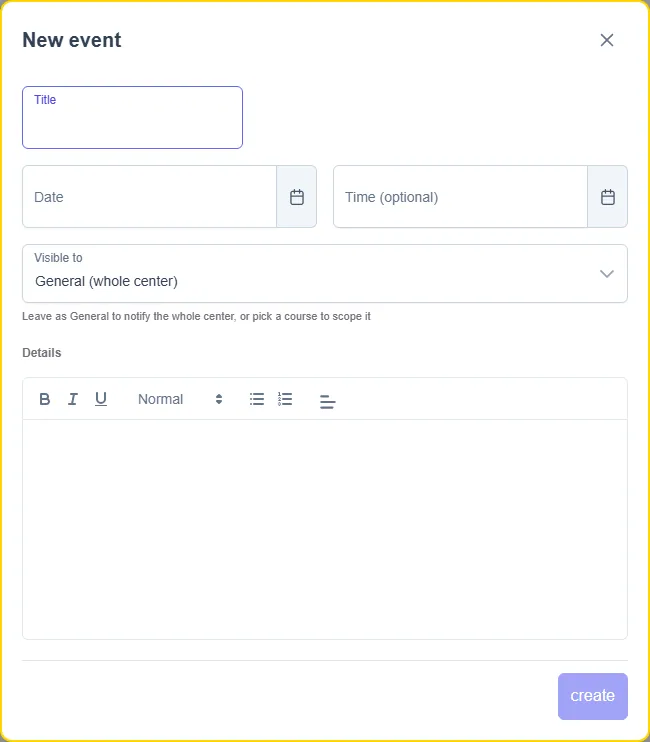
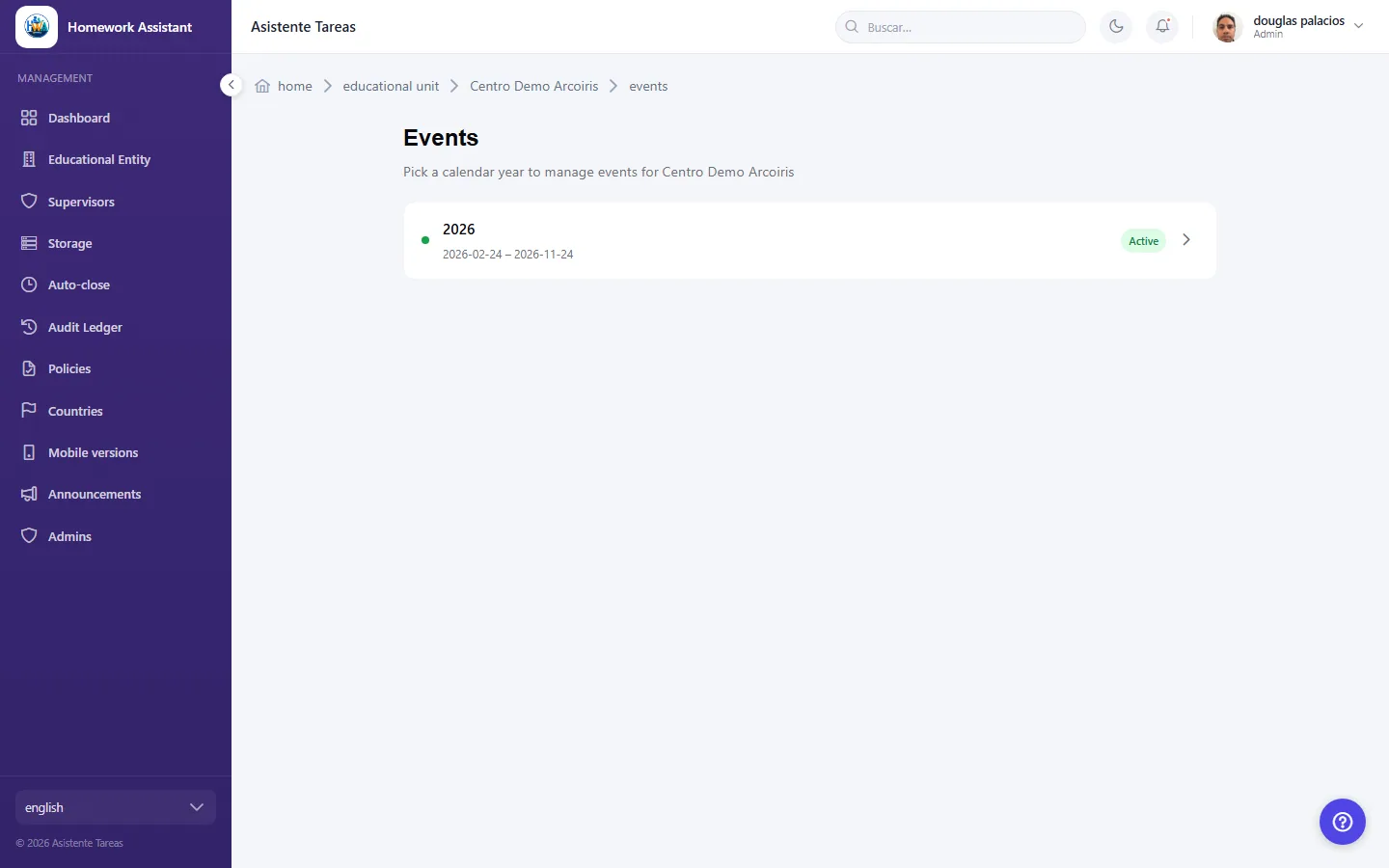
Open Events and choose the calendar year. Click New event and fill in:

  • Title — required, up to 200 characters.
  • Date — required.
  • Time (optional) — if it happens at a set time.
  • Visible to — General (whole center) or a course.
  • Details — required.

Once saved, the event is published and visible to the relevant guardians.

  • Screenshot: How do I publish an event?
  • Screenshot: How do I publish an event?

#What is the difference between General and picking a course?

  • Schools
  • Web

Visible to decides who the event reaches:

  • General (whole center) — every guardian at the centre sees it. Use it for things affecting everyone, like a holiday.
  • A course — only guardians of that course see it. Use it for specific things, like one grade's trip.

When in doubt, scoping to a course is the safer choice: notifying the whole centre about something that affects one group creates noise for everyone else.

  • Screenshot: What is the difference between General and picking a course?
  • Screenshot: What is the difference between General and picking a course?

#How do I find a particular event?

  • Schools
  • Web

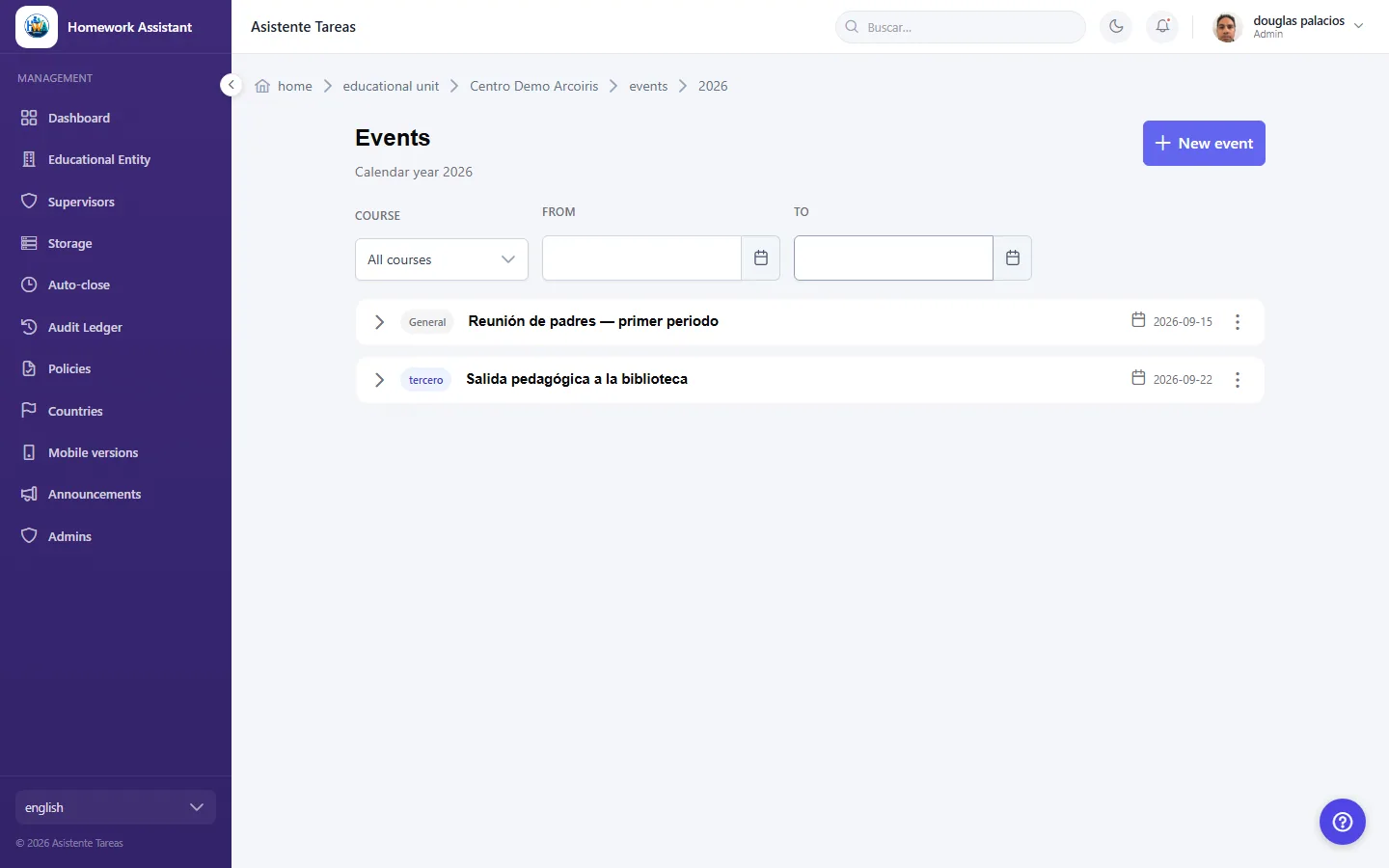
In the Events list you can filter by Course (or All courses) and by date range using From and To. Use Clear filters to see everything again, and Show details to expand one.

If you see No events published yet for this calendar year, that year has none yet — check you are on the right year.

  • Screenshot: How do I find a particular event?
  • Screenshot: How do I find a particular event?

#Where do I see school events?

  • Families
  • Mobile app

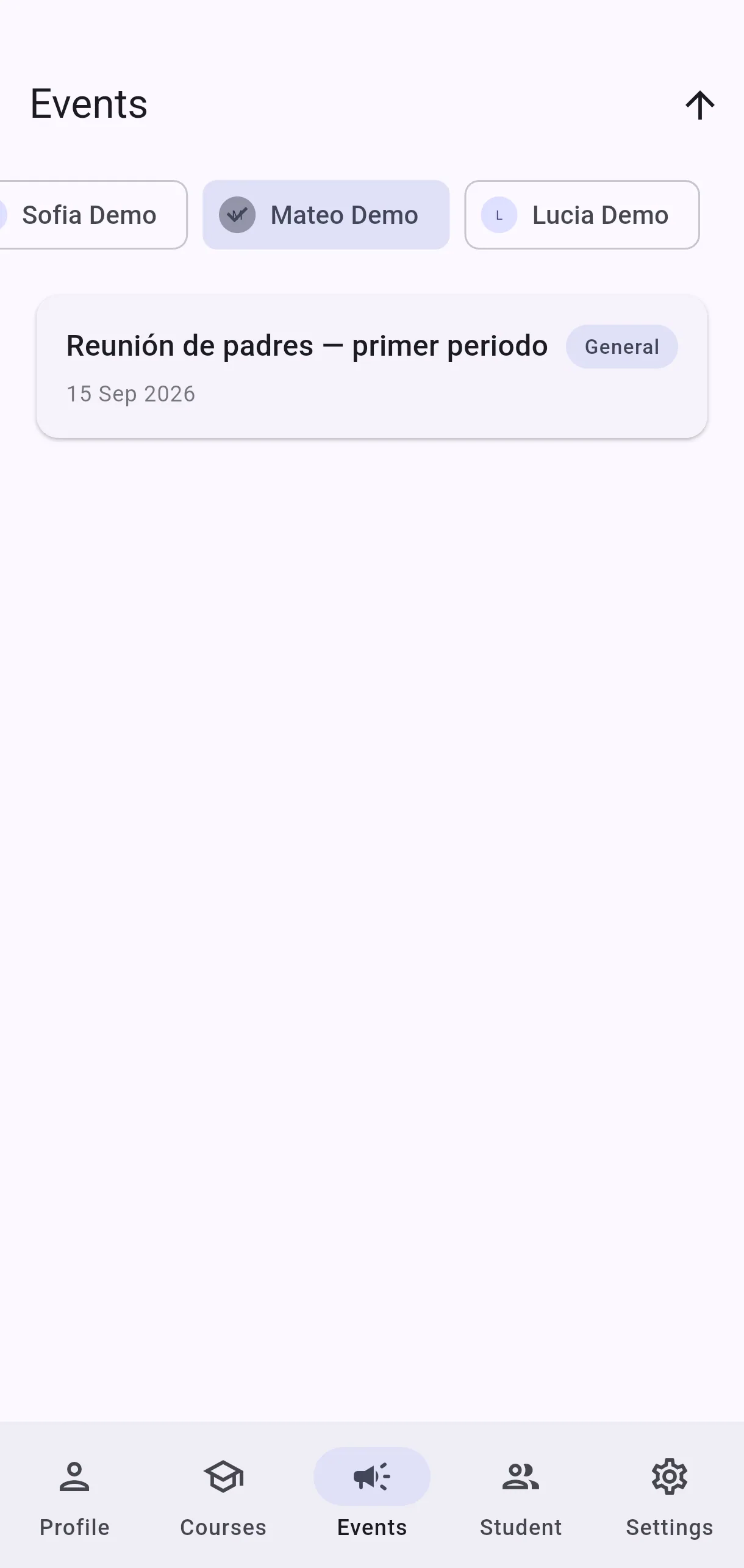
Open More and tap Events. There you will find the school announcements and events that apply to you — the centre's own, and those for your children's courses — in date order under Today, Tomorrow and the days after. A single course's events are also under Courses: open the course and tap Events.

At the top you choose what to see:

  • All — school events and your Event notes, together.
  • School events — only what the centre publishes.
  • Notes — only your pending Event notes from the School Planner, including ones you accepted from other parents. They carry a Note badge.

Events marked General are for the whole centre. If it says No upcoming events, the centre has not published anything relevant to you. Pull down to refresh the list.

  • Screenshot: Where do I see school events?
  • Screenshot: Where do I see school events?

#What order are events shown in?

  • Families
  • Mobile app

By date, soonest first, grouped under Today, Tomorrow and each day's date. An event that has already started and is still running appears under Today. The order is fixed; there is no control to change it.

#What does the All kids filter do?

  • Families
  • Mobile app

By default you see events for all your children together. If you have more than one in different courses, you can filter down to just one of them.

General events always appear, since they belong to the whole centre rather than to any one course. With one child picked, your Event notes are narrowed to that child's too.

The rest are badged with the grade they belong to — tercero, sexto — next to the child's initial, so you can tell them apart at a glance.

  • Screenshot: What does the All kids filter do?
  • Screenshot: What does the All kids filter do?

#How do I edit or delete an event?

  • Schools
  • Web

From the list, open Edit event to change any field — including Visible to, if you scoped it wrongly.

To remove it, use Delete event and confirm: it asks Delete the event "{title}"? This cannot be undone. If it is only a wording mistake, editing is better than deleting and republishing.

  • Screenshot: How do I edit or delete an event?
  • Screenshot: How do I edit or delete an event?

Other areas