1. HWA
  2. Help centre
  3. School Planner
All areas

School Planner

#What is the School Planner for?

  • Families
  • Mobile app

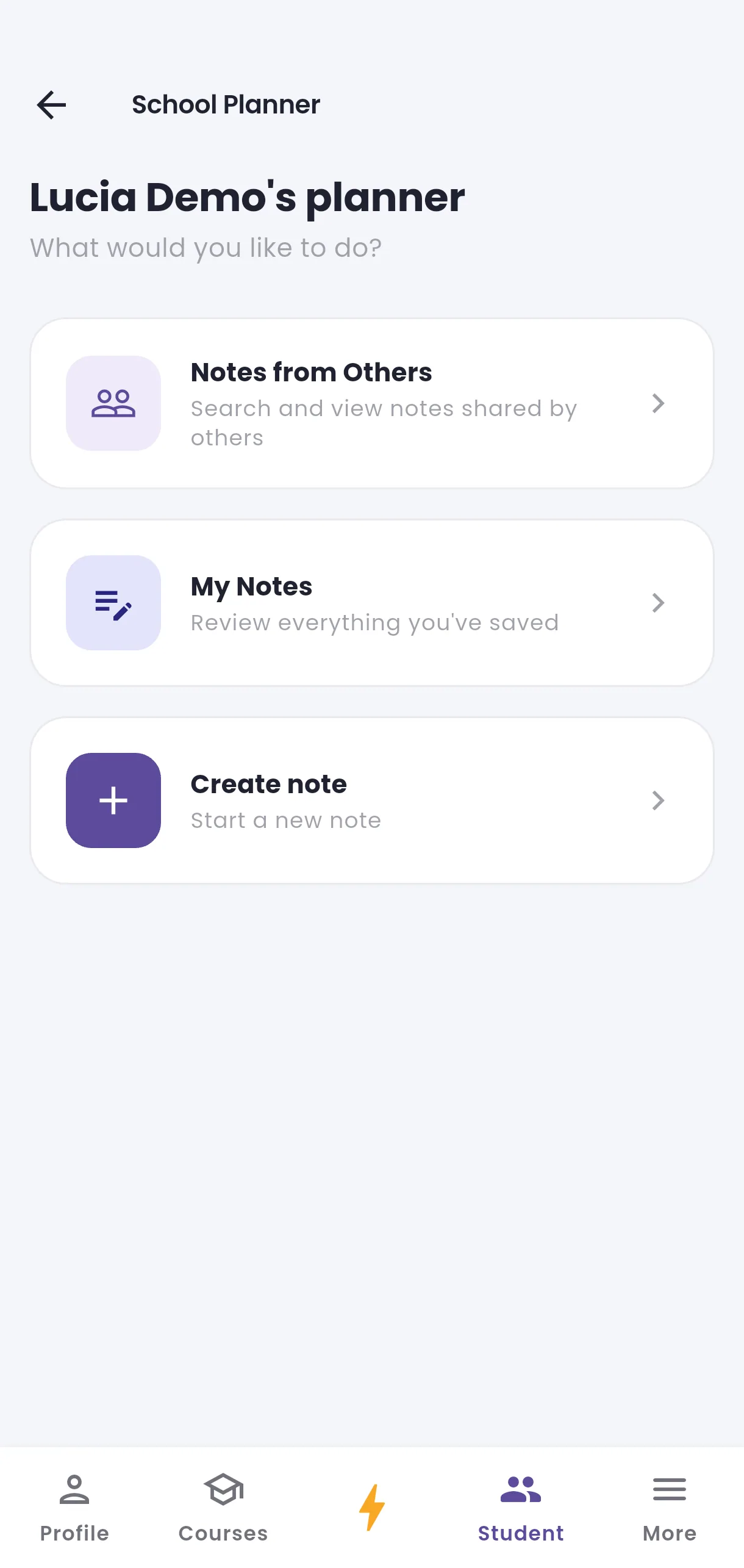
The School Planner holds your child's class notes and reminders: homework, events and deadlines. You can create your own notes, browse notes other parents have shared, and tick tasks off as you complete them. Find it on your child's page, under School Planner.

  • Screenshot: What is the School Planner for?
  • Screenshot: What is the School Planner for?

#How do I create a note?

  • Families
  • Mobile app

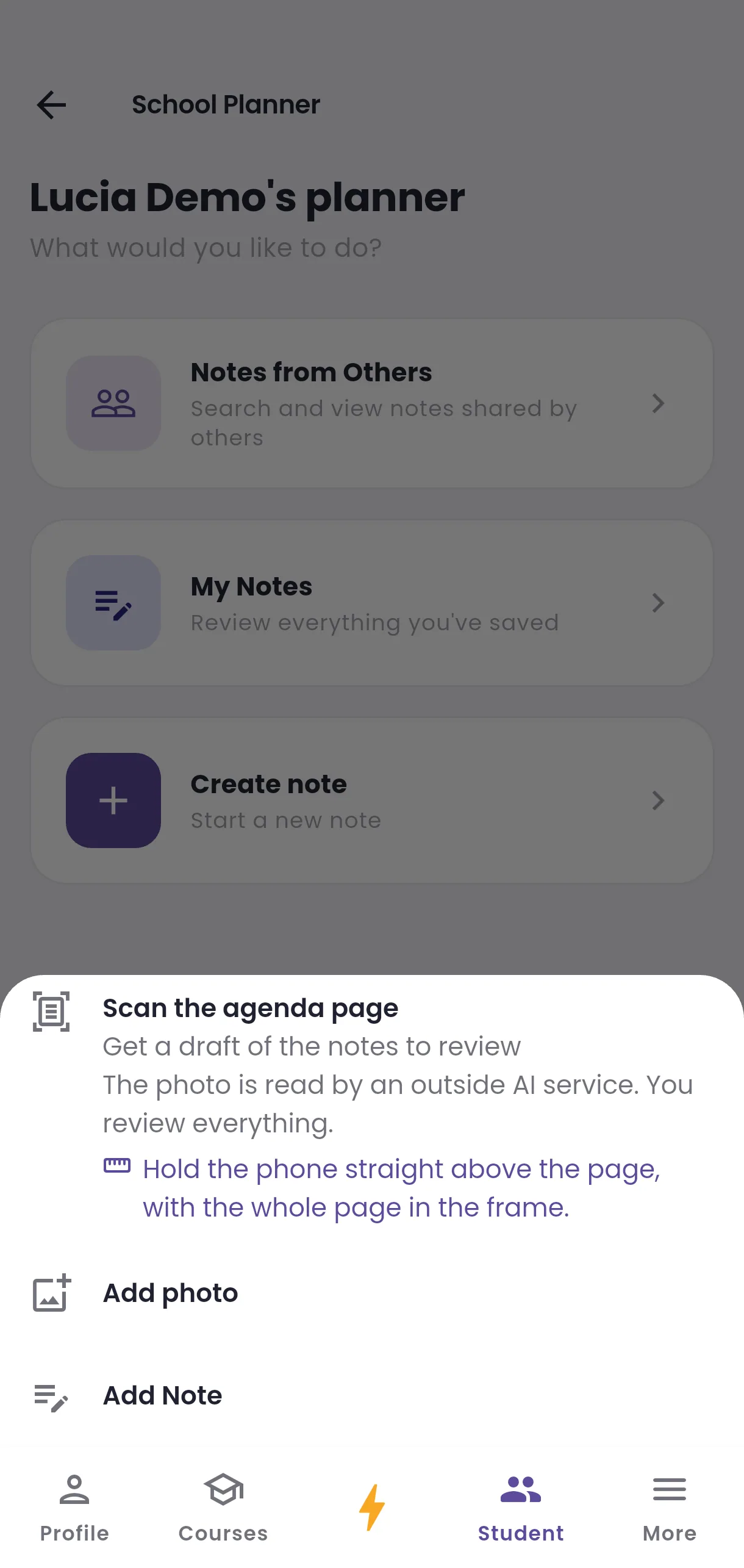
In your child's School Planner, tap Create note. These options open:

  • Scan the agenda page — take a photo of the page and get a draft of the notes to review. It only appears when scanning is available to you.
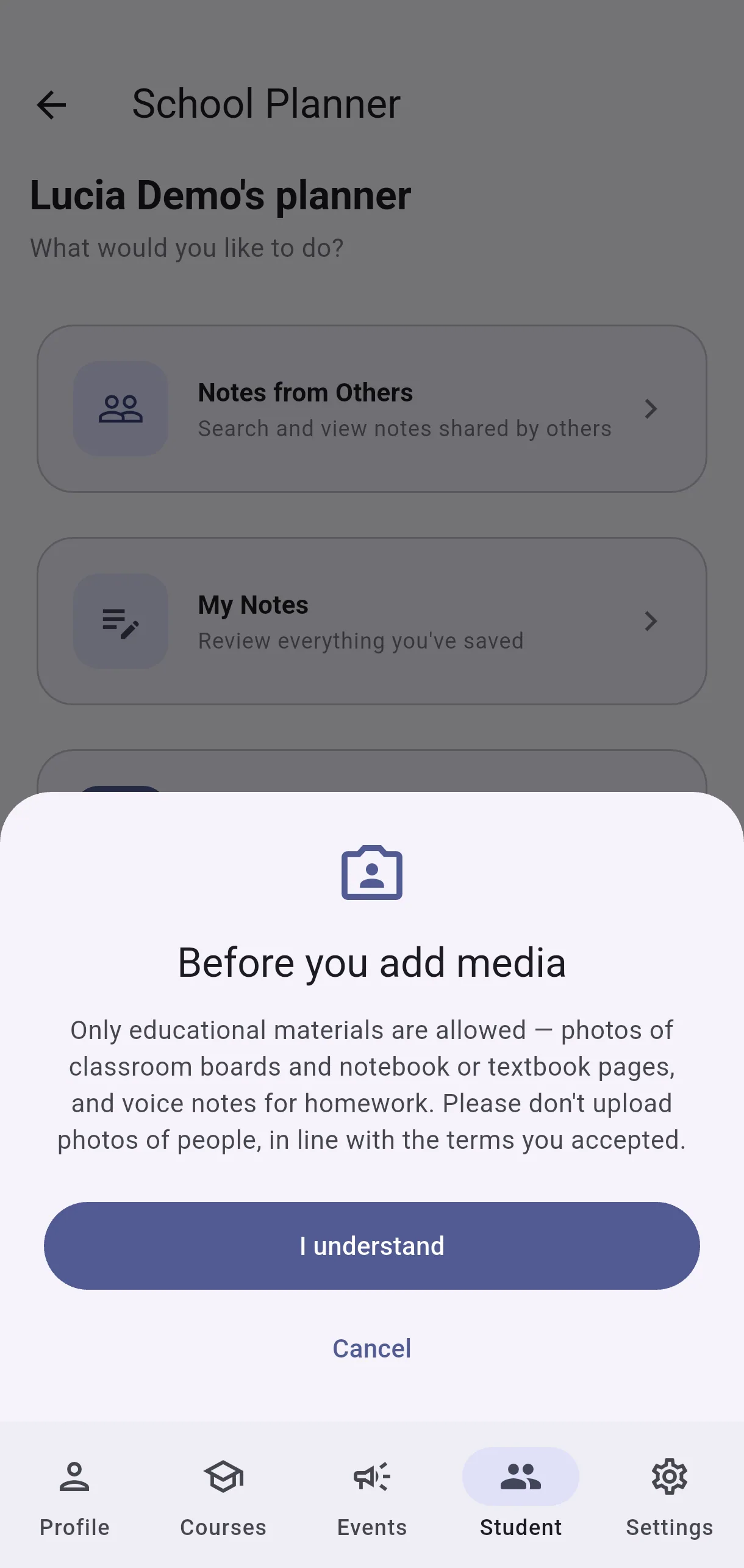
  • Add photo — save a photo of the school day.
  • Add Note — write the note yourself.

With Add Note, on New Note fill in:

  • Class date — the day it relates to.
  • Subject — or choose All subjects (class-wide) for something for the whole class.
  • Homework or Event.
  • Note — the content.
  • Deadline — optional. If the subject has a timetable, you can take it from Next {subject} classes or Pick from the calendar.
  • Alarms — optional. Add alarm offers reminders 1 to 5 days before the deadline, or a Custom date and time.
  • Share with other parents — if you want parents in the same subject to see it.

Tap Save. The note cannot be empty.

  • Screenshot: How do I create a note?
  • Screenshot: How do I create a note?

#What are Tasks and Done in My Notes, and how do I see my notes by day?

  • Families
  • Mobile app

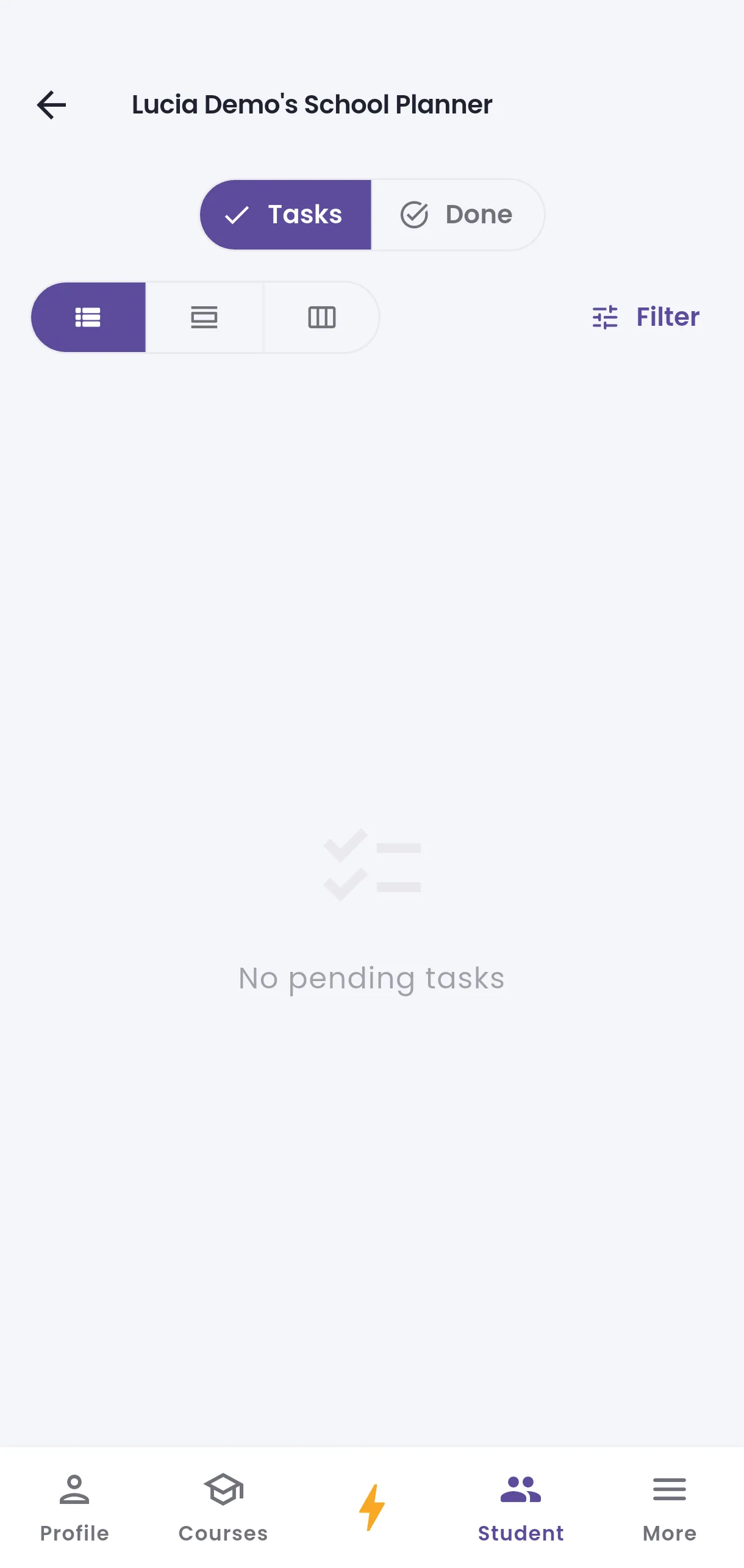
My Notes has two tabs:

  • Tasks — what is still pending.
  • Done — what you have ticked off, showing Completed {date}.

You can view them as a List, By day or By week. By day and By week group notes by their date — the day they are for, not the day you wrote them — and you swipe ← → to change day or week. Filter shows just one Type or Subject.

Each note is either Homework or an Event. Anything with a deadline shows Due {date}, or Overdue once it has passed. If you have notes that are overdue or due today or tomorrow, a strip above the list says so; tap it to open Due & overdue.

  • Screenshot: What are Tasks and Done in My Notes, and how do I see my notes by day?
  • Screenshot: What are Tasks and Done in My Notes, and how do I see my notes by day?

#How do I share a note with other parents?

  • Families
  • Mobile app

When creating or editing the note, switch on Share with other parents. Parents in the same subject can then browse your note, and it will be marked Shared. You can also use Share on a note you already saved. If you do not share it, the note stays private to you.

  • Screenshot: How do I share a note with other parents?
  • Screenshot: How do I share a note with other parents?

#How do I use a note another parent shared?

  • Families
  • Mobile app

Go to Notes from Others and find the one you need. Tapping Accept saves an Accepted copy into your own planner, where you can treat it like any note of yours — ticking it off, for example. The original stays with whoever wrote it.

  • Screenshot: How do I use a note another parent shared?
  • Screenshot: How do I use a note another parent shared?

#How do I mark a task as complete?

  • Families
  • Mobile app

Open the note and tap Mark complete. It moves from Pending to Completed and appears under the Done tab, showing Completed {date}. If you have not finished any yet, you will see No completed tasks yet.

  • Screenshot: How do I mark a task as complete?
  • Screenshot: How do I mark a task as complete?

#Why does a note say Auto-closed?

  • Families
  • Mobile app

Notes close themselves after a period, so the planner does not fill up with old items. You will see Closed automatically {date}. Nothing was deleted and nothing is lost — it simply no longer counts as pending.

If a note has a Deadline in the future, it is not closed until that date passes — which is why some notes stay around longer than others.

  • Screenshot: Why does a note say Auto-closed?
  • Screenshot: Why does a note say Auto-closed?

#How do I find a particular note?

  • Families
  • Mobile app

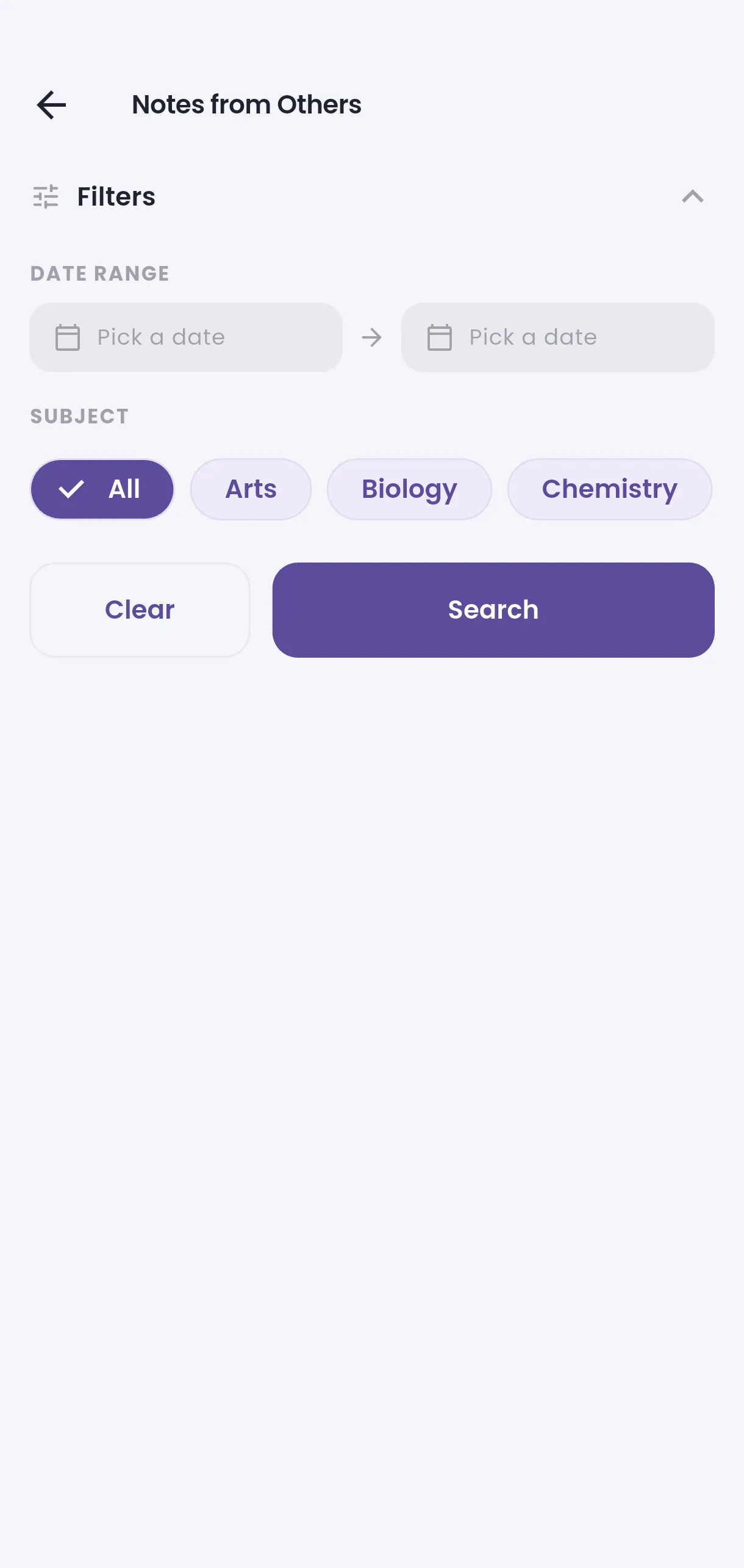
For notes other parents shared, open Notes from Others: under Filters pick a Date range and, if you like, a Subject, then tap Search. The Results can be shown By subject, By day or By week; by day and by week also include your own notes for those dates. If you get No results with these filters., tap Clear and try again.

For your own notes, open My Notes and use Filter (by Type and Subject), or switch to By day or By week to go to a date.

  • Screenshot: How do I find a particular note?
  • Screenshot: How do I find a particular note?

#How do I scan the agenda page?

  • Families
  • Mobile app

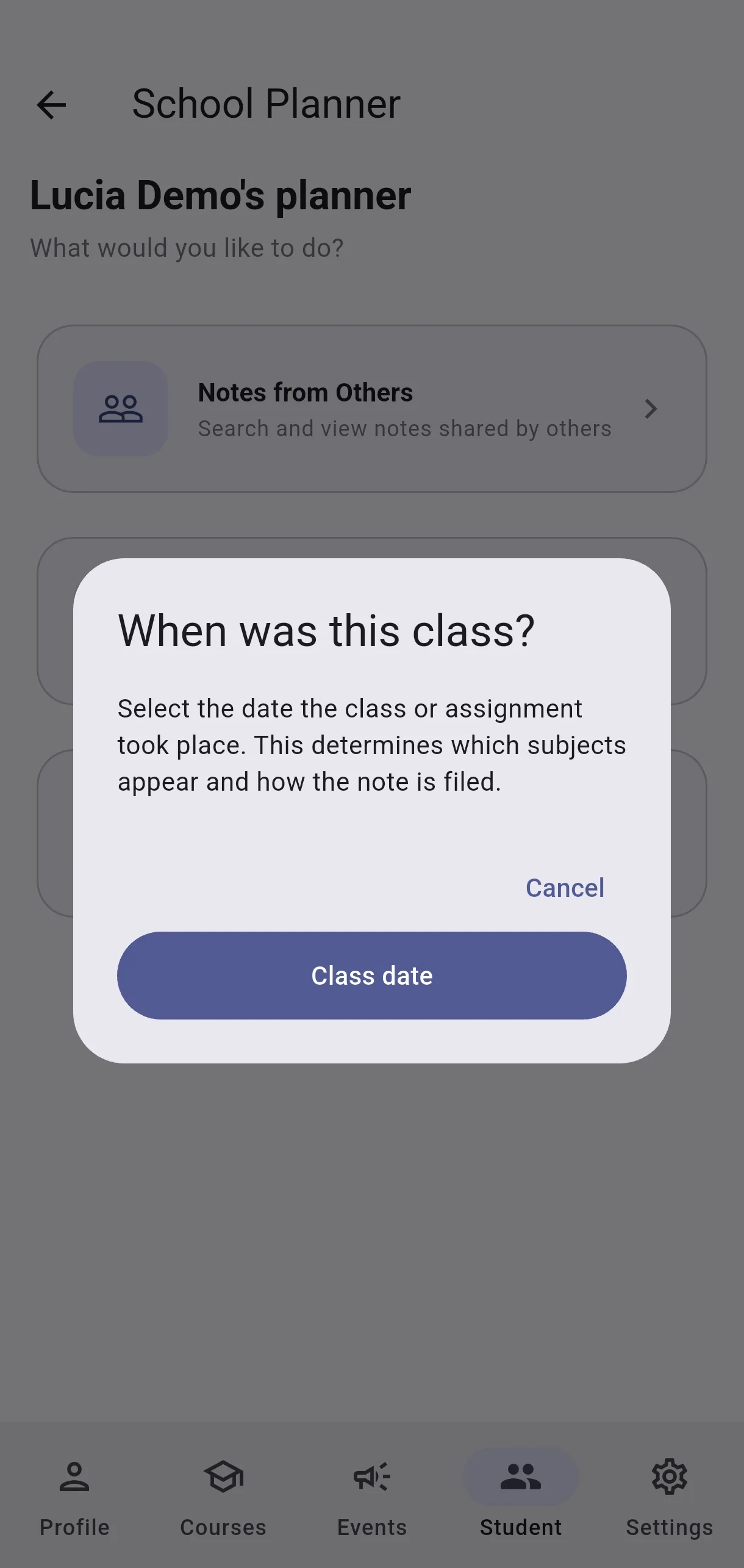
In your child's School Planner, tap Create note and choose Scan the agenda page. Answer When was this class? and take the photo.

  • Hold the phone straight above the page, with the whole page in the frame. A tilted photo can lose a whole day.
  • One or two days on the page is fine.
  • If the photo comes out badly you will see This photo may be hard to read: tap Retake or Send anyway.

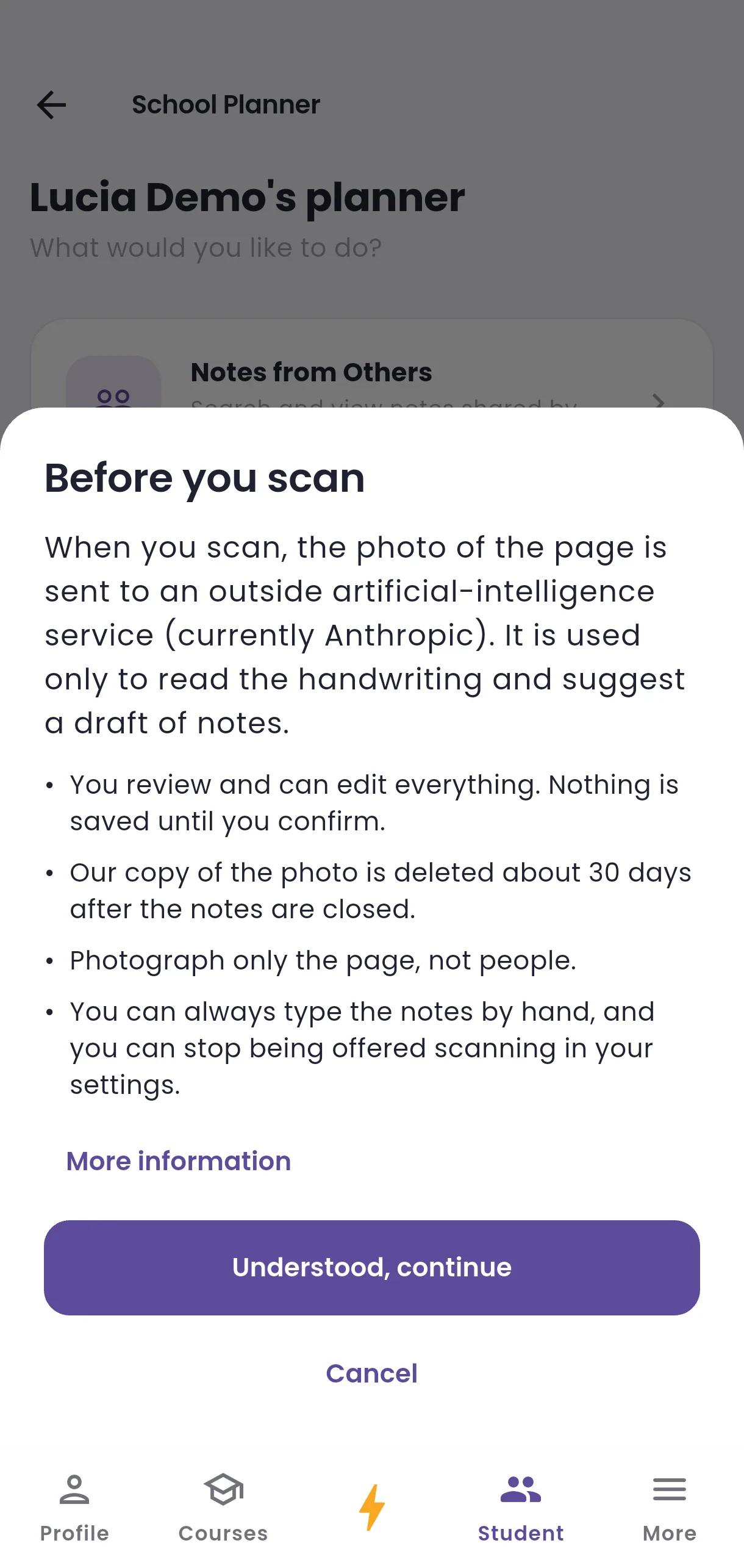
The first time, Before you scan appears: the photo is sent to an outside artificial intelligence service only to read the handwriting and suggest a draft of notes. You review and can edit everything, and nothing is saved until you confirm. Photograph only the page, no people.

While it says Reading the page… it can take up to a minute. Then Review the draft opens. If you would rather not scan, you can write the notes yourself, or hide it under Settings → Scanning → Don't offer scanning.

  • Screenshot: How do I scan the agenda page?
  • Screenshot: How do I scan the agenda page?

#How do I review a scanned page?

  • Families
  • Mobile app

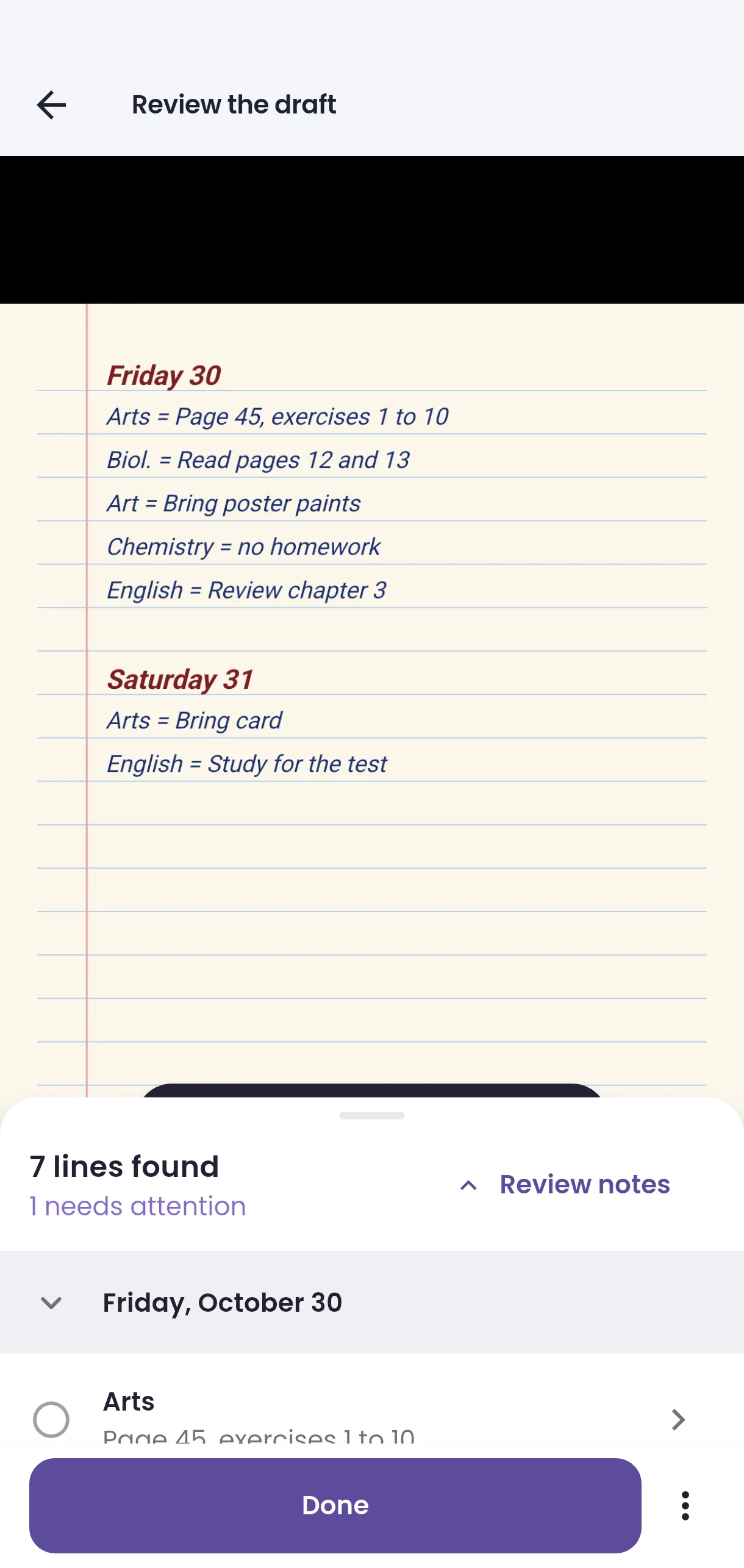
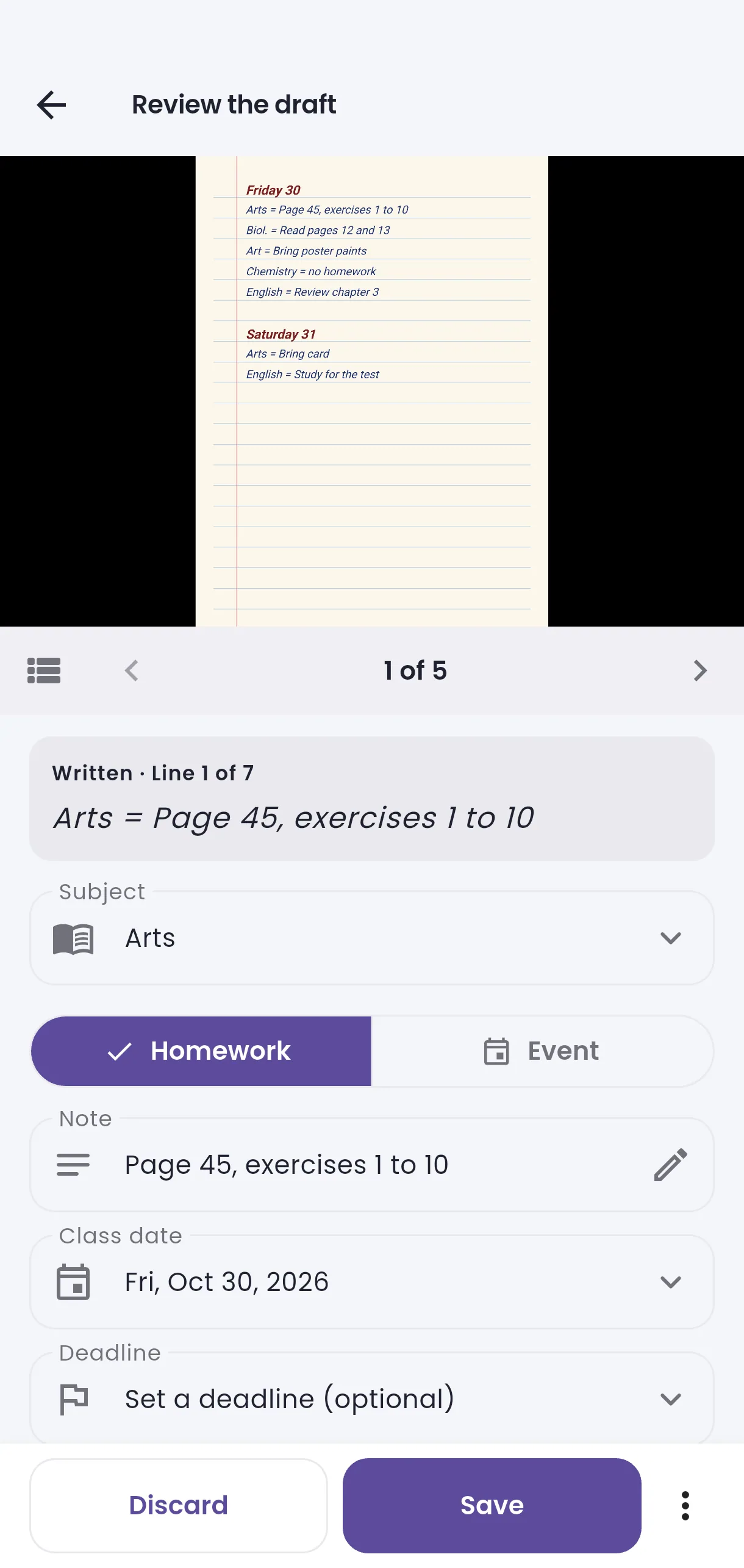
On Review the draft you see the photo at the top; slide up or tap Review notes to see the list of lines by day. Tap a line to open it and swipe ← → to move between lines.

On each line, compare what was Written with the suggested note: you can change the text, subject, type and dates. Labels tell you what to check, for example Pick the subject or Hard to read, please check. Subject from your earlier choice means the app remembered the subject you picked before for that same writing.

Then decide each line:

  • Save — the note goes into your notes. You can keep editing it (Save changes) or Delete note.
  • Discard — it is not saved; you can still open and save it later.
  • If the line says there is no homework, or is empty, there is nothing to save: tap Next line. If it was misread, use It's not right — save it anyway.
  • If you already have a note for that subject that day, choose Keep both, Update my note or Don't add.

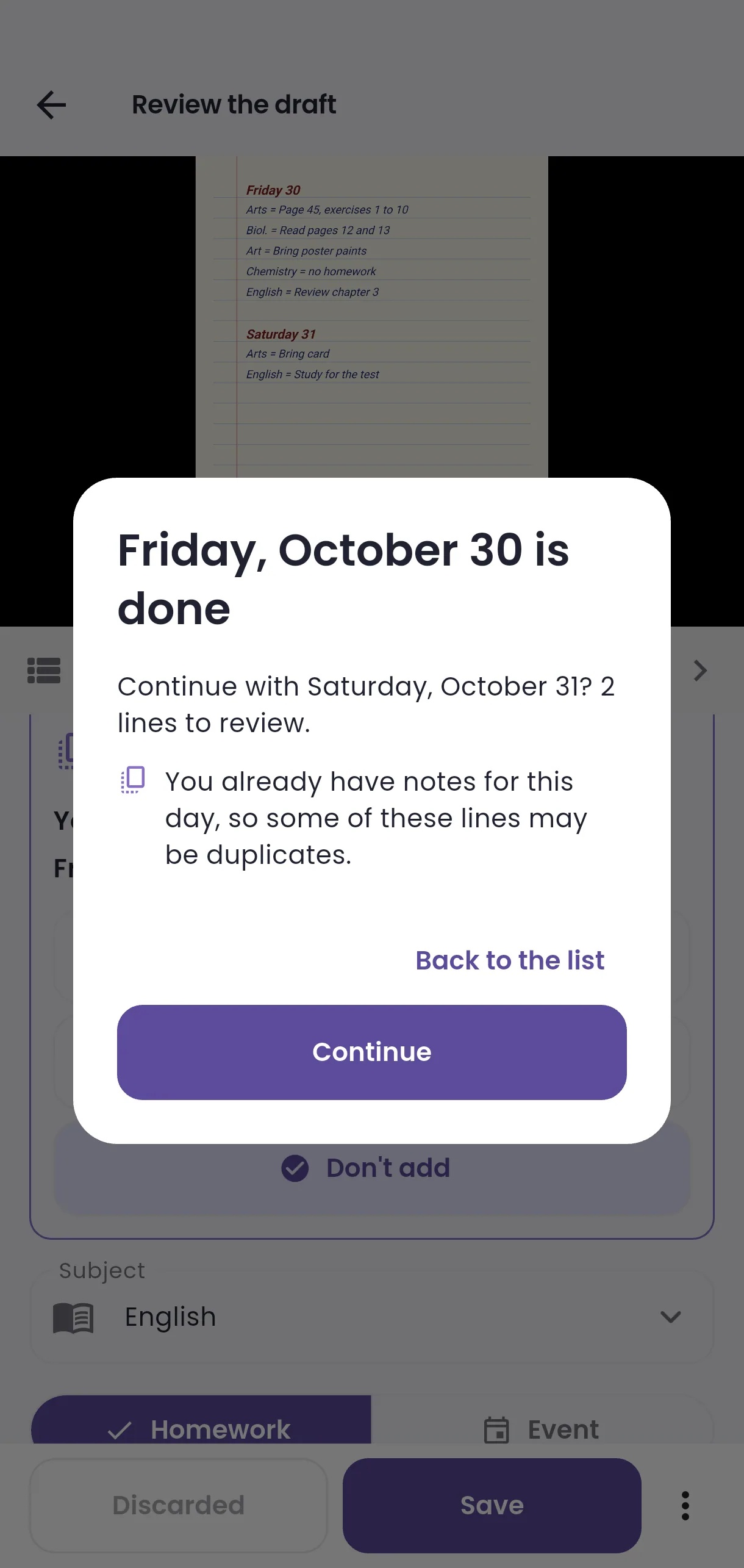
When you finish a day, the app offers to Continue with the next one; if you already have notes for that day, it warns that some lines may be duplicates. At the end, All lines reviewed → Finish, and you can pick which notes to share with other parents or tap Not now. If you save no notes, the photo is deleted.
  • Screenshot: How do I review a scanned page?
  • Screenshot: How do I review a scanned page?

#How do I set the deadline from the timetable, and an alarm?

  • Families
  • Mobile app

When creating the note, tap Deadline. If the subject has a timetable, you can choose Pick from the calendar or one of the Next {subject} classes: each shows the weekday, the date and how many days after the note it is, and the first one says Next class.

So you don't forget it, tap Add alarm below the deadline, or in the Alarms section of a saved note. You can pick from 1 day before to 5 days before it is due — only the ones still ahead — at the time set under Settings → School planner → Default alarm time, or a Custom date and time. Without a deadline, only the custom option is offered.

Other areas