1. HWA
  2. Help centre
  3. Educational entities
All areas

Educational entities

#How do I create an educational centre?

  • Schools
  • Web

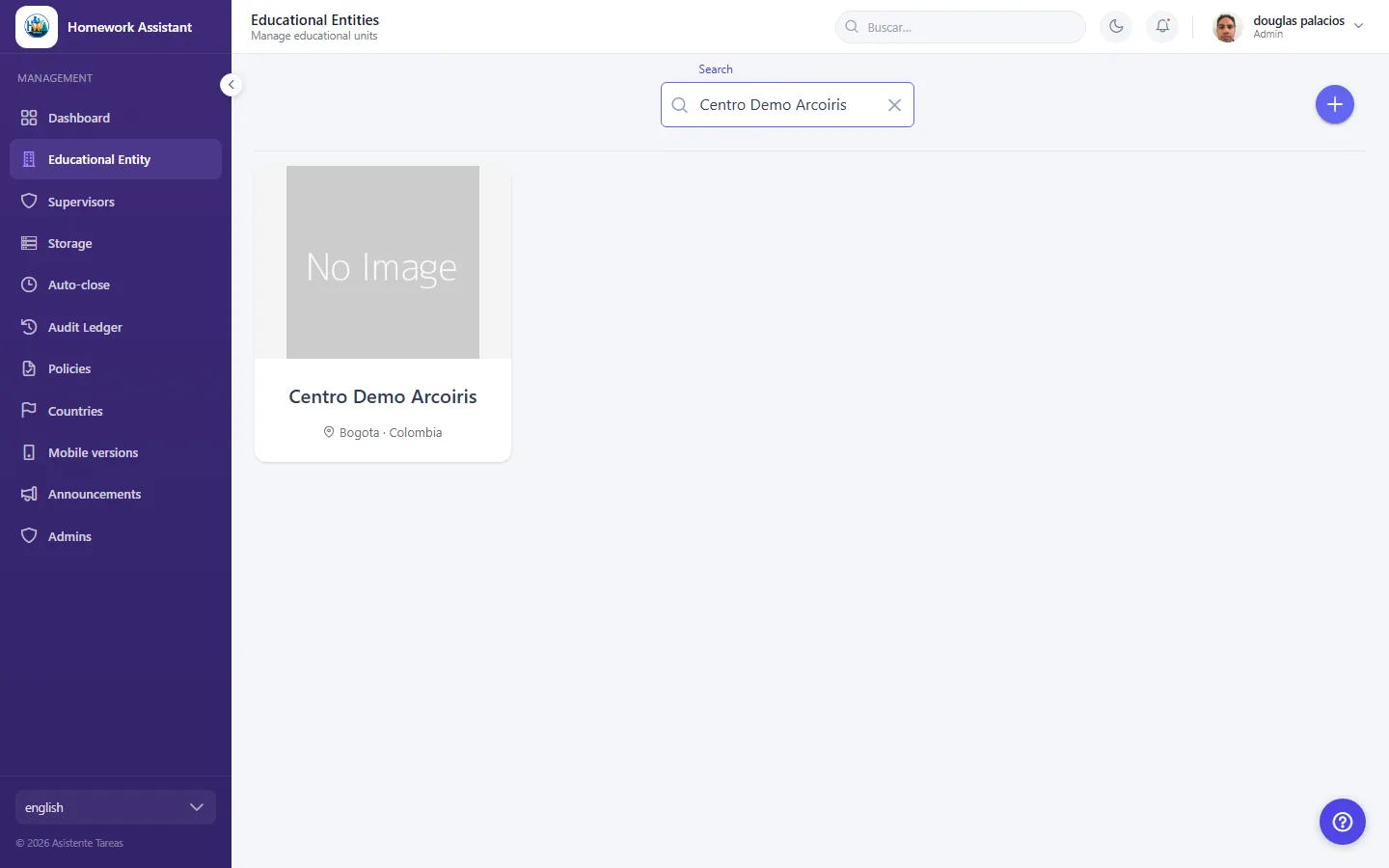
Click Create Educational Entity and fill in Name, City, Calendar Type and Country. Click Submit.

All are required, and the name cannot exceed 200 characters. If the country errors, see the next two questions — there are prerequisites.

  • Screenshot: How do I create an educational centre?

#It says the country is disabled.

  • Schools
  • Web

Country {code} is disabled and cannot be used yet means that country is not switched on in the system.

Go to the Countries admin screen and enable it. You can then create the centre. This is an admin action.

  • Screenshot: It says the country is disabled.

#It says the country is missing policy coverage.

  • Schools
  • Web

Country {code} is missing policy coverage for: {types} means the legal documents that country requires — terms, privacy and similar — have not been published yet.

Publish them on the Policies admin screen for the types the message names, then create the centre. This is not a fault: the system deliberately prevents operating in a country without the corresponding legal coverage.

✅ Confirmed by capture, 2026-08-27. The gate is real and absolute: requireUsableCountry returns 409 unless the country has every required current, active policy document. Verified against live data — Colombia has all four types, Venezuela has none.

One detail worth keeping in the answer: the ineligible country is still offered in the dropdown, so the error only appears on submit. Raised as product followup 15; if that is fixed, trim the sentence about the list.

  • Screenshot: It says the country is missing policy coverage.
  • Screenshot: It says the country is missing policy coverage.

#What sections does a centre have?

  • Schools
  • Web

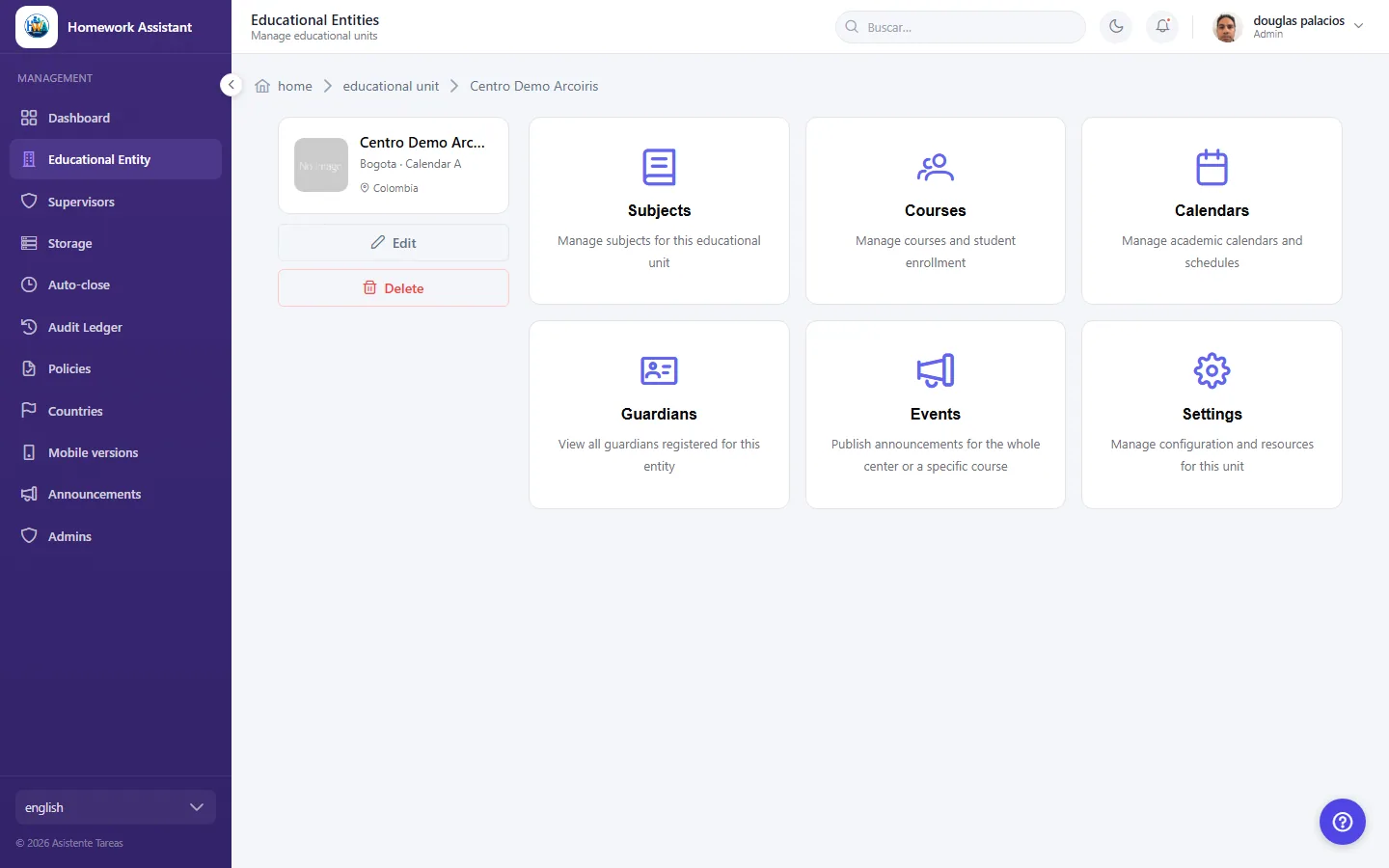
Opening a centre gives you:

  • Subjects — manage the unit's subjects.
  • Courses — manage courses and student enrolment.
  • Calendars — manage academic calendars and schedules.
  • Guardians — view everyone registered for this entity.
  • Events — publish announcements for the whole centre or one course.
  • Reports — review and manage the centre's abuse reports.
  • Settings — configuration and resources for the unit.
  • Screenshot: What sections does a centre have?

#What is in a centre's Settings?

  • Schools
  • Web

Four tabs:

  • General — the centre's details and options such as uniforms.
  • Storage — how much space is in use.
  • Files — uploaded files, by type.
  • Auto-close — how long before homework and notes close themselves.

Saving changes shows Changes saved successfully.

  • Screenshot: What is in a centre's Settings?

#How do I see how much space a centre uses?

  • Schools
  • Web

Under Settings → Storage you will see the Total size in use. The Files tab breaks down what has been uploaded by type: Images, Audio, Video and Documents.

If nothing has been uploaded yet you will see No files uploaded yet.

#It says Storage data not available for your role.

  • Schools
  • Web

That information is restricted and your role does not have access. It is not an error or a loading failure: the screen exists, but storage detail is not shown for your profile.

If you need those figures, ask an administrator.

#I am setting up a new centre. What order should I do things in?

  • Schools
  • Web

Each step depends on the last, so this order avoids dead ends:

  1. Country enabled, with policies published — without this the centre cannot be created.
  2. Create the centre — name, city, calendar type and country.
  3. Subjects — create these first, since everything else uses them.
  4. Courses — the centre's grades.
  5. Academic year — under Calendars, with its start and end dates.
  6. Assign subjects to the year's courses, each with its teacher.
  7. Schedules — the days and times for each subject.
  8. Guardians — invite them; their course must already exist in that year.
  9. Guardians then add their children and enrol them.

The most common stumble is inviting guardians before step 6. No error appears: the course simply is not in the list in the invitation dialog until it has been set up for that year.

  • Screenshot: I am setting up a new centre. What order should I do things in?
  • Screenshot: I am setting up a new centre. What order should I do things in?

#What is the difference between a verified institution and an independent group?

  • Schools
  • Web

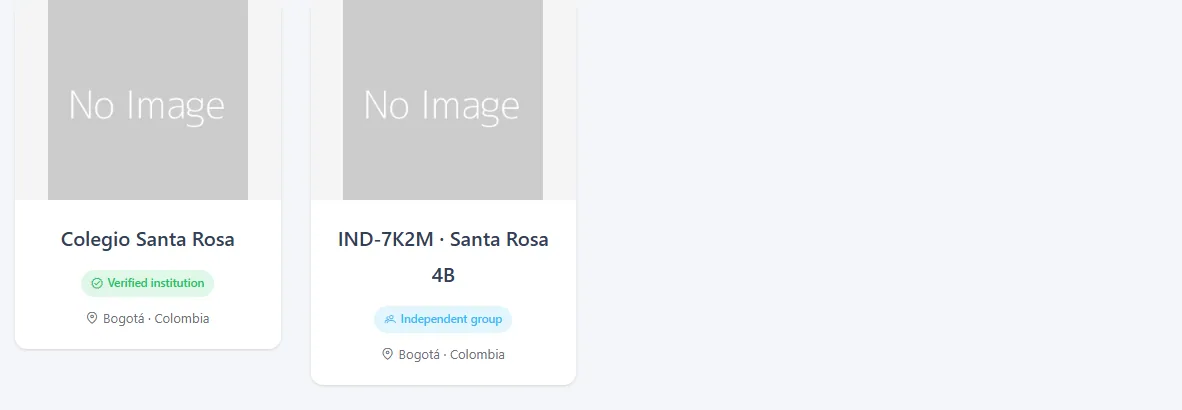
A verified institution is a real school that HWA confirmed in person with its legal representative. Its name is reserved: no other entity in the same country can use it.

An independent group is organized by a parent or tutor on their own. It is entirely legitimate, but it does not officially represent a school, which is why its name carries a tag (see the next question).

You can see which one an entity is on its card and on its detail page — the badge sits next to the name. Unclassified means the entity predates entity types and an admin has not yet decided what it is.

  • Screenshot: What is the difference between a verified institution and an independent group?

#Why does my group's name start with IND- and a code?

  • Schools
  • Web

Because it is an independent group. The tag makes it clear at a glance that a family organizes the group rather than the school — it is the other half of the declaration whoever created it signed.

The system generates the tag and it does not change when you rename the group: editing the name edits only your part of it. Two groups may share a name; the code tells them apart.

If an admin turns the group into an institution, the tag disappears from the public name. The name you typed is untouched.

  • Screenshot: Why does my group's name start with IND- and a code?

#What do the messages under the Name field mean?

  • Schools
  • Web

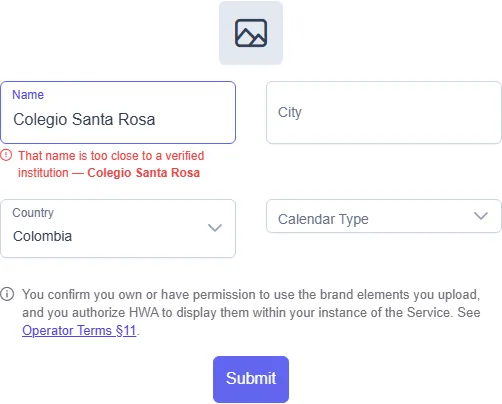
The name is checked as you type, once you have also chosen a Country — with no country there is nothing to check against, and the hint says so.

  • That name is available — you can use it.
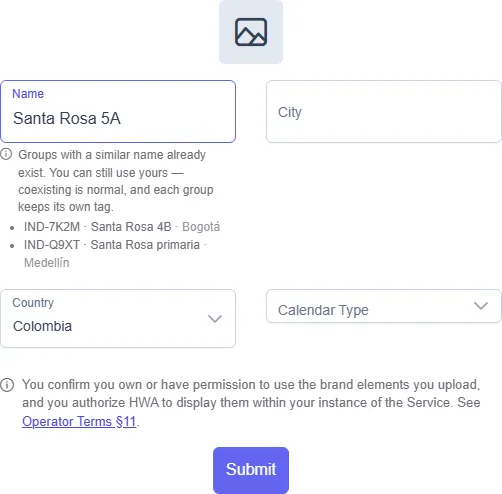
  • Groups with a similar name already exist — not a problem. Coexisting is normal: you can still use yours, and each group keeps its own tag. Only the group and its city are shown, never who runs it.
  • Too close to a verified institution / reserved — those do block, and the message names what it collides with.

The check is advisory: the rules run again when you save, because a name can be claimed between your last keystroke and the submit.

  • Screenshot: What do the messages under the Name field mean?
  • Screenshot: What do the messages under the Name field mean?

#How do I remove a centre's logo?

  • Schools
  • Web

Open Edit on the centre and click the red bin button on the logo. It asks for confirmation, because it cannot be undone: the file is deleted and the space it used is released.

If you have just picked an image and not saved yet, the same button simply discards your selection — nothing is deleted on the server.

#I have just signed in for the first time and I have no entity. Is something wrong?

  • Schools
  • Web

No. If you were approved as an independent organizer, your account starts empty on purpose: your group does not exist yet, and creating it is the first thing to do.

Go to Educational Entity and create it with your group's name, its city and country. The system marks it as an independent group and puts an IND- tag in front of the name; you do not choose that, and renaming the group later does not change it.

How many entities you may create is set by the admin when they approve you — usually one. Once you have used that allowance the create button stops being offered; if you need another, ask the admin who registered you.

If instead you were registered as an institution's representative, the admin creates the entity and assigns it to you — so if you see nothing, write to them.

  • Screenshot: I have just signed in for the first time and I have no entity. Is something wrong?

#I see two entities with the same name. Which is which?

  • Schools
  • Web

Two entities sharing a name is normal and intended: a school can exist as a verified institution while, separately, some families organize their own independent group around that same school. They are different organizations, with their own families and their own courses.

The tag is what tells them apart: an independent group carries IND- and a code in front of the name, while a verified institution carries its badge and the name as it stands. That tag shows up wherever you have to choose — assigning entities to a supervisor, granting access, targeting an announcement — and in the breadcrumb too, so you know which one you are in.

Look before you choose. Assigning the wrong entity gives somebody access to another organization's families, and taking it away afterwards does not undo having had it.

Reviewer notes

  1. Q8 is assembled across six batches, and capture has now verified part of it (2026-08-27):
    • Step 1 confirmed and absolute — requireUsableCountry returns 409 unless the country has every required current, active policy document.
    • The step 8 dependency is confirmed, but its symptom was wrong: the draft promised the message "This course is not set up for the selected year". That string (attendant.create.course-not-found) is referenced nowhere in the app — the course is simply absent from the dropdown, silently. Corrected above; raised as product followup 16.
    • Steps 3–7 remain inferred. Proving their order needs a centre built from scratch, which would add a second centre to every listing screenshot. Still the answer most worth checking against how you actually onboard a centre.
  2. Q3 frames the policy gate as deliberate ("not a fault"), because an admin hitting it mid-task will otherwise read it as a bug. Confirm that is the intent.
  3. Terminology is inconsistent in the product — Educational Entity, Educational Unit and center all appear, including within the same feature. Answers standardise on centre; aliases cover the rest. Not raised as a followup since it is cosmetic, but tell me if you would rather it were.
  4. Q7 is one of the few role-restriction answers. If more surface, they may deserve a shared pattern rather than one-off explanations.
  • Screenshot: I see two entities with the same name. Which is which?

Other areas